You wake up to a notification that your monthly iCloud or Google One payment has failed, or perhaps you are simply looking to cut back on monthly subscription costs. Your immediate worry is that years of family photos, important work emails, and device backups will instantly vanish into thin air the moment you stop paying.
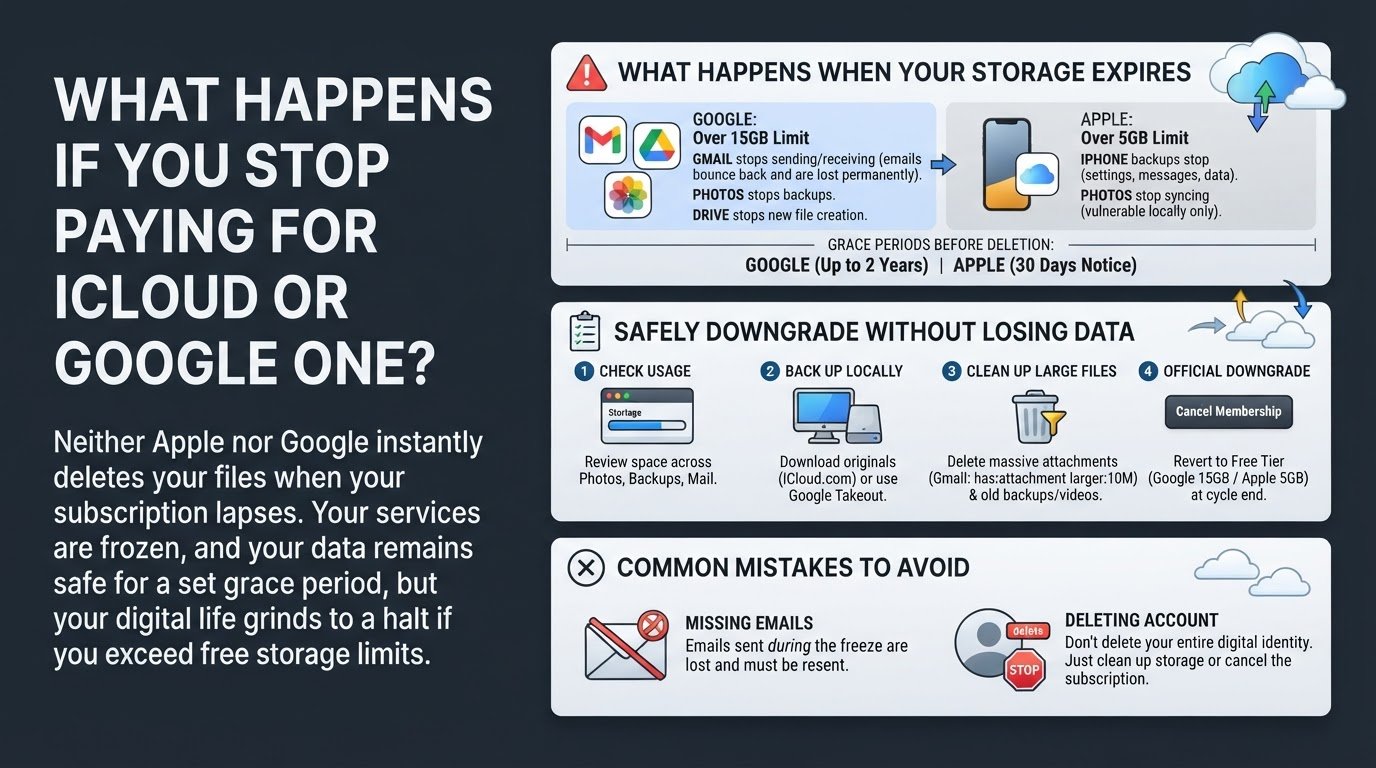
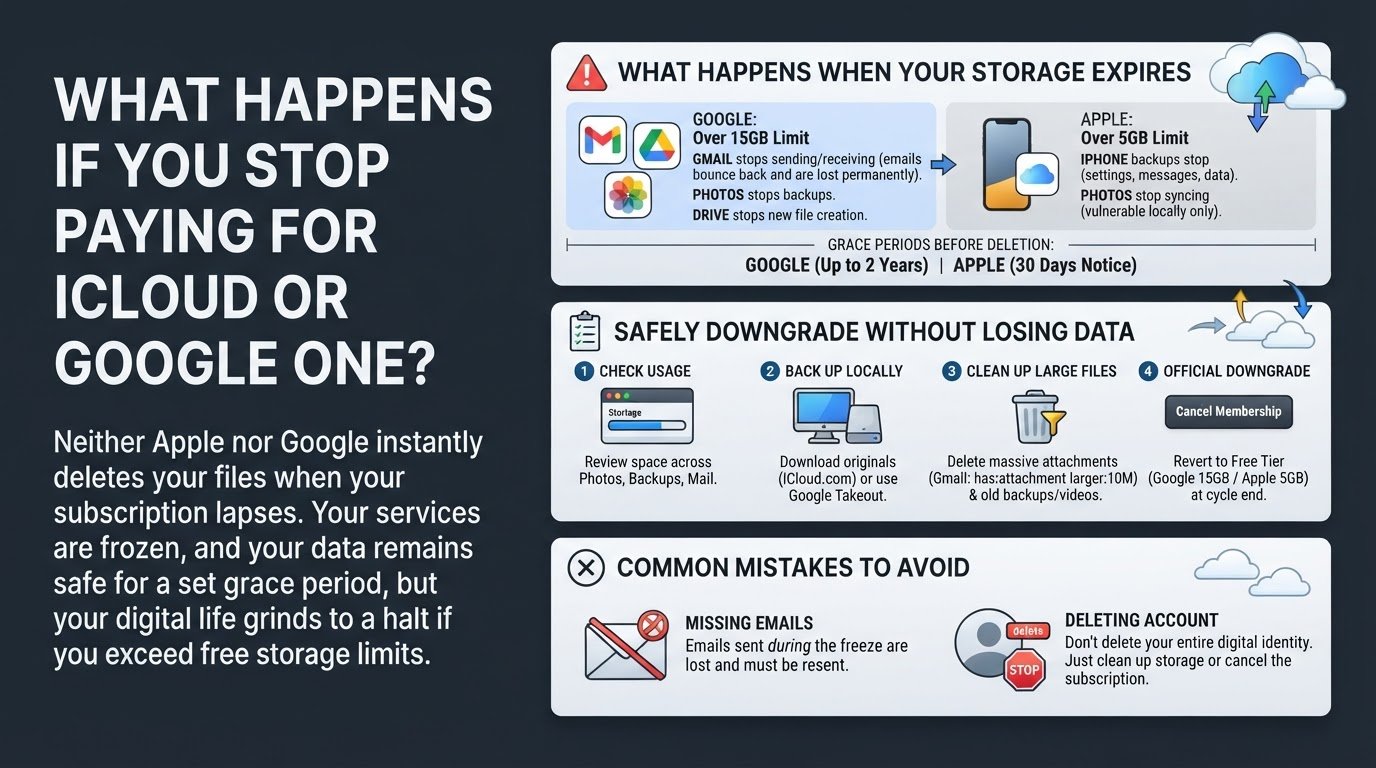
The reassuring reality is that neither Apple nor Google deletes your files the second your subscription lapses or your card is declined. Instead, they freeze your syncing services. Your existing data remains safe in the cloud for a set grace period, but your digital life will essentially grind to a halt. Gmail will stop receiving new emails, Google Photos and iCloud Photos will stop backing up, and you won't be able to upload or edit any files in Google Drive or iCloud Drive.
If you exceed the free tier limits, which are 15GB for Google and a much smaller 5GB for Apple, the consequences of this freeze are immediate and disruptive. Understanding how these grace periods work and taking proactive steps to back up your data will help you avoid permanent data loss.
What Happens When Your Storage Expires
When you stop paying, your account reverts to the free storage tier. If your stored data exceeds this free limit, your account is flagged as over quota.
For Google users, the most critical consequence involves Gmail. When your account is over quota, you cannot send or receive emails. Anyone who tries to email you will receive a bounce-back error notification stating that your mailbox is full. These emails are not saved in a queue: they are permanently returned to the sender and cannot be recovered once you clear space. Additionally, Google Photos will stop backing up new images from your phone, and you will not be able to create new files in Google Docs or upload files to Google Drive.
For Apple users, your iPhone will stop backing up its settings, messages, and app data to the cloud. New photos will not sync to iCloud Photos, meaning they are only stored locally on your device and are vulnerable if your phone is lost or damaged.
The grace periods before actual deletion occurs are relatively generous:
- Google: Under official policies, Google allows a two-year grace period of being over quota before they reserve the right to delete your content, as detailed on Google Support. You will receive multiple warnings before any action is taken.
- Apple: Apple's legal terms state that they can delete data exceeding the free 5GB limit after a warning period, which typically includes a 30-day notice, according to Apple Support.
How to Safely Downgrade Without Losing Your Data
To avoid losing access to your emails and to keep your photos safe, follow these steps to manage and back up your data before canceling your subscription.
1. Check Your Current Storage Usage
Before making any changes, you need to see exactly how much space you are using and what type of files are occupying that space.
- On iOS: Open your Settings app, tap your name at the very top, select iCloud, and then tap Manage Account Storage. This screen shows a color-coded bar breaking down your usage across photos, backups, and mail.
- On Google: Open your web browser and visit google.com/settings/storage, or open the Google One app on your device to see a clear breakdown of your storage across Google Drive, Gmail, and Google Photos.
2. Download and Back Up Your Data Locally
Do not cancel your subscription until you have a physical or local copy of your files safely stored on a computer or external hard drive.
- For Google: Use the official Google Takeout tool at takeout.google.com. This service allows you to select Google Photos and Google Drive to export all your files in a series of downloadable zip folders.
- For Apple: Log into iCloud.com on a desktop computer to manually select and download your photos and files. Alternatively, on your iPhone, go to Settings, tap your name, select iCloud, tap Photos, and ensure that Download and Keep Originals is checked. This ensures full-resolution copies are saved directly to your phone storage.
If you are planning to transition your files from one ecosystem to another during this process, you can learn how to safely transfer your entire photo library between Google Photos and iCloud to keep your memories organized.
3. Clean Up Large Files to Fit the Free Tier
If you want to stop paying but keep using your accounts, you must reduce your storage to fit back into the free limits: 15GB for Google and 5GB for Apple.
- Clean Gmail: In the Gmail search bar, type
has:attachment larger:10Mto find and delete emails with massive attachments. Remember to empty your Trash folder afterward. - Clean iCloud: Delete old device backups from iPads or iPhones you no longer own. Go to your Photos app, delete large videos, and then empty your Recently Deleted album.
Sometimes, even after deleting files, your storage display might not update immediately. If you run into this issue, you can read about how to fix iCloud storage that won't update after deleting photos to force a sync.
4. Officially Downgrade Your Plan
Once your data is backed up and your storage usage is below the free threshold, you can safely cancel your paid subscription.
- For Google One: Open the Google One app, go to Settings, and select Cancel Membership. Your storage limit will officially revert to 15GB at the end of your current billing cycle.
- For iCloud: On your iPhone, go to Settings, tap your name, select iCloud, tap Manage Account Storage, and choose Change Storage Plan. Tap Downgrade Options, enter your Apple ID password, and select the free 5GB plan.
Common Mistakes to Avoid
The most common mistake users make is assuming that emails sent to them while their account was frozen will suddenly deliver once they clear up space. These emails are gone: you must ask the senders to resend them once your storage is back under the limit.
Another frequent error is deleting an entire Google or Apple account out of panic. There is no need to delete your digital identity. Simply canceling the storage subscription or cleaning up your files is enough to keep your account active and healthy.