

You walk into the bathroom to scroll through your morning news feed, or you step into the kitchen to look up a recipe, and your phone screen freezes. The Wi-Fi signal icon on your phone drops to a single bar or disappears entirely.
Your router is not broken, and your internet service provider is not throttling your speed. The culprit is the physical structure of your home. Bathrooms and kitchens are built with materials like ceramic tiles, plaster, metal pipes, large mirrors, and heavy appliances. These materials act as physical shields, reflecting or absorbing wireless signals before they can reach your device.
While managing your home network, you might also wonder about security, such as whether you need to isolate work laptop on home wifi networks to protect your personal data. However, before tackling security settings, you must first establish a stable connection in these notorious dead zones. You do not need to buy an expensive new router to fix this. You can resolve the issue by adjusting your current hardware placement and software settings.
Why Kitchens and Bathrooms Kill Wi-Fi Signals
To fix the problem, you must understand what happens to radio waves when they hit these rooms. Wi-Fi signals travel as radio waves, which easily pass through standard drywall and wood. However, they struggle with denser materials.
Bathrooms are lined with ceramic tiles, which are incredibly dense and reflect radio waves. Large bathroom mirrors use a metallic backing to create the reflection, and this metal layer acts as a mirror for Wi-Fi signals as well, bouncing them away. Additionally, water is highly effective at absorbing radio frequencies. The water sitting in your pipes, toilet tanks, and shower heads acts as a sponge for your wireless signal.
Kitchens present a similar barrier. Large metal appliances like refrigerators, ovens, and dishwashers block wireless signals completely. If you are using modern smart kitchen systems, such as the Samsung Bespoke AI 2026 appliances, they require their own stable connections, which can add to the wireless traffic in the room. Furthermore, microwave ovens operate on the exact same 2.4 GHz frequency as standard Wi-Fi, causing heavy interference whenever they are running.
How to Fix Wi-Fi Dead Zones Without Buying a New Router
You can bypass these physical barriers and fix wifi dead zones by following these five practical troubleshooting steps.
1. Elevate and Centralize Your Router
Many users place their router on the floor, in a corner, or hidden inside a TV cabinet to keep wires out of sight. This is the worst setup for signal propagation. Radio waves travel outward and downward, meaning a router placed on the floor wastes half of its signal strength.
Move your router to a central location in your home. Place it on an open shelf or mount it on a wall, at least three to five feet off the ground. Ensure it is not sitting directly behind a television, inside a wooden cabinet, or next to a thick concrete wall. Elevating the router gives the signal a clearer line of sight to reach distant rooms.
2. Force Your Device Onto the 2.4 GHz Band
Modern routers broadcast two main signals: 2.4 GHz and 5 GHz. The 5 GHz band is much faster, but its shorter waves struggle to pass through solid objects like tiles and concrete. The 2.4 GHz band is slower, but its longer waves are highly effective at penetrating dense walls and traveling longer distances.
If your router uses a single name for both bands, it may be forcing your phone to stay on the weak 5 GHz connection when you enter the bathroom. Log into your router admin panel by typing your router IP address into a web browser. Locate the wireless settings and split your network into two separate names, such as HomeNetwork_5G and HomeNetwork_2G. When you are in the bathroom or kitchen, manually connect your phone to the 2.4 GHz network to boost wifi through walls.
3. Relocate the Router Away from Kitchen Appliances
If your router is sitting near the kitchen entrance, move it at least several feet away from major appliances. Microwaves, refrigerators, and cordless phones emit electromagnetic radiation that directly interferes with your network.
Keeping the router at a safe distance prevents the signal from being degraded at the source. If you must have the router near the kitchen, ensure it is positioned on the opposite side of the wall from the refrigerator or microwave.
4. Change Your Router's Wireless Channel
If you live in an apartment building, your neighbors' routers are likely broadcasting on the same wireless channels as yours, causing heavy interference. This interference makes it even harder for your signal to push through kitchen and bathroom walls.
Log into your router's admin panel and navigate to the wireless channel settings. For the 2.4 GHz band, manually switch the channel to 1, 6, or 11. These are the only three non-overlapping channels on the spectrum. Selecting one of these channels will help bypass local interference and stabilize your connection.
5. Deploy a Powerline Adapter
If your home has exceptionally thick concrete walls or heavy metal piping that completely blocks wireless signals, a standard router adjustment may not be enough. Instead of buying a new router, use a powerline adapter kit.
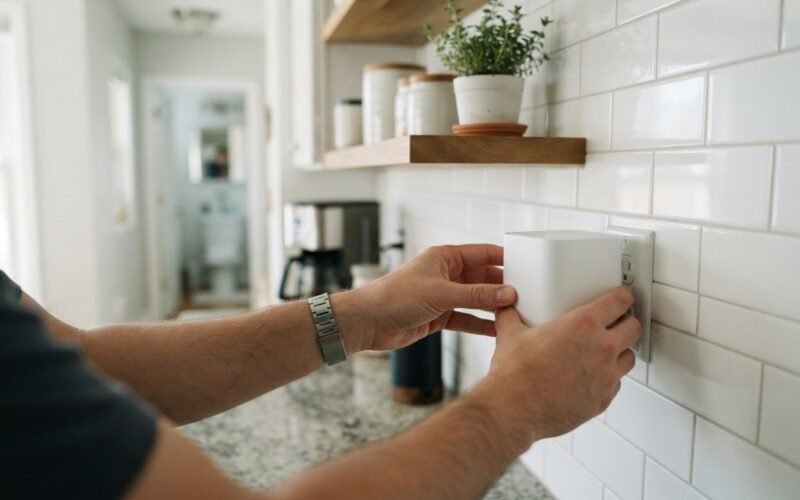
A powerline adapter consists of two small plugs. You plug one into an electrical outlet near your router and connect it with an Ethernet cable. You plug the second adapter into an outlet inside or just outside the bathroom or kitchen. The internet signal travels through your home's existing electrical wiring, bypassing the physical walls entirely. You can then connect your phone to the second adapter's built-in Wi-Fi access point.
Common Mistakes to Avoid
When trying to fix a slow wifi in kitchen or bathroom setup, avoid these two common mistakes.
First, do not hide your router inside a closed wooden or glass cabinet. While it keeps the room looking tidy, it dampens the signal right at the source, making it nearly impossible for the waves to reach distant rooms.
Second, avoid buying cheap Wi-Fi repeaters. These devices simply pick up a weak, existing signal and rebroadcast it. This process cuts your network bandwidth in half and increases latency, failing to solve the physical obstruction problem. Stick to relocating your router or using powerline technology instead.
