You are getting ready to trade in your old smartphone, but a nagging worry stops you. If you perform a standard factory reset and ship the device off to a stranger, can they use cheap recovery software downloaded online to dig up your deleted family photos, private videos, or banking details?
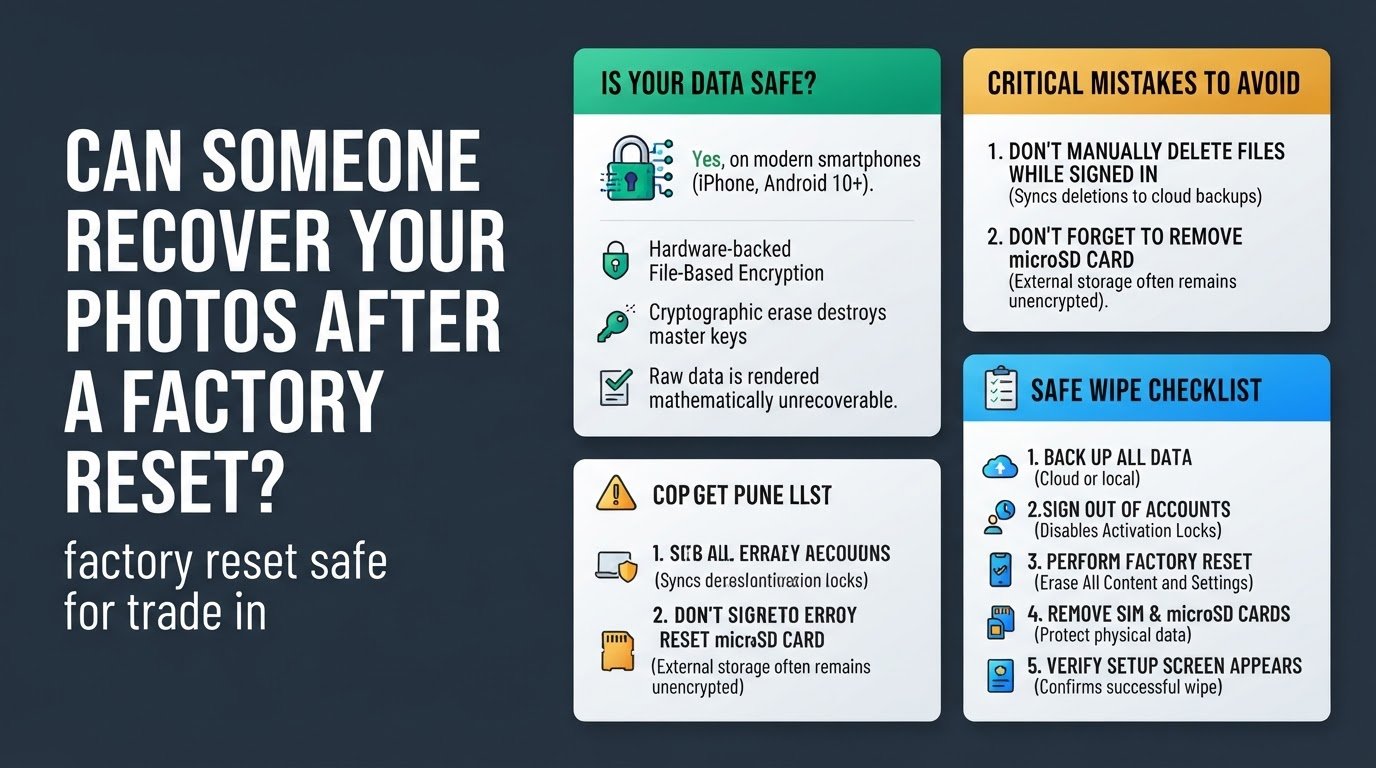
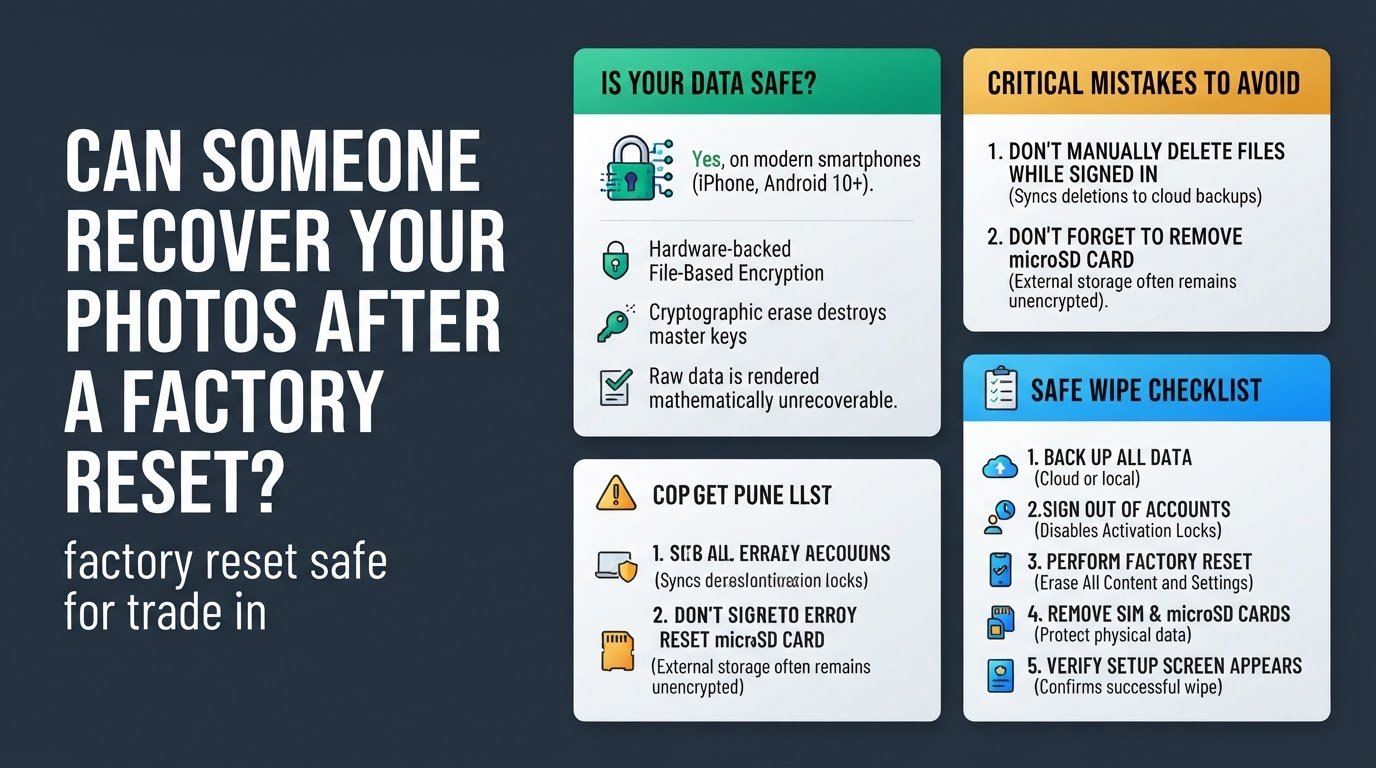
The short answer is no, they cannot. If you are using a modern smartphone, specifically any iPhone or an Android device running Android 10 or newer, your personal data is completely safe after a factory reset. You do not need to worry about specialized recovery software reconstructing your files.
This safety is due to a technology called hardware-backed File-Based Encryption. In the past, older phones simply deleted the index pointers to your files, leaving the actual raw data on the flash storage chips until it was overwritten. Modern phones encrypt every single file automatically. When you trigger a factory reset, the phone performs a cryptographic erase. This process instantly destroys the master encryption keys stored inside the phone's secure hardware chip. Without those keys, the remaining raw data on the storage chips is rendered mathematically unrecoverable, scrambled garbage.
Common Mistakes to Avoid Before Resetting
Before you tap the reset button, there are two critical errors that many users make.
First, do not manually delete photos, contacts, or documents while you are still signed into your iCloud or Google account. If you do this, the system assumes you want to delete these files everywhere. It syncs those deletions to the cloud, permanently erasing them from your backups. If you need to manage your storage before resetting, you can learn How to Delete Photos from Your Phone But Keep Them in Google Photos.
Second, never forget to remove your microSD card. While the internal storage is encrypted and wiped, external storage cards are often left unencrypted, leaving your personal files physically inside the traded-in phone.
How to Safely Wipe Your Phone Before Selling
To ensure your device is completely clean and ready for its next owner, follow these steps.
1. Back up all your personal data
Because a cryptographic erase is completely permanent and irreversible, you must ensure your data is saved elsewhere first.
- For iPhone users: Go to Settings, tap your name, select iCloud, and choose iCloud Backup. Tap Back Up Now.
- For Android users: Go to Settings, select Google, choose Backup, and tap Back Up Now.
Verify that your photos and videos have fully uploaded to your cloud storage account before moving to the next step. If you run multiple accounts, you can read about how to Can You Use iCloud and Google Photos Together? to ensure nothing is missed. You can also read more about whether Are Your Photos Safe After a Phone Factory Reset? to understand the underlying storage technology.
2. Sign out of your accounts to disable activation locks
Simply resetting your phone is not enough if you want the next owner to be able to use it. Both Apple and Google use security locks to prevent stolen phones from being reused.
- On iOS: Go to Settings, tap your name at the top, scroll to the bottom, and tap Sign Out. This turns off the Find My network and disables the Activation Lock.
- On Android: Go to Settings, select Passwords & Accounts, tap on your Google account, and select Remove Account. If you have a Samsung device, remove your Samsung account as well.
Removing these accounts disables Factory Reset Protection, which is required by major trade-in programs according to Swappa trade-in guidelines.
3. Perform the factory reset
Once your accounts are removed, you can safely trigger the system wipe.
- On iOS: Go to Settings, select General, scroll down to Transfer or Reset iPhone, and select Erase All Content and Settings.
- On Android: Go to Settings, select System, tap Reset options, and choose Erase all data (factory reset).
Confirm the prompts. The phone will reboot and begin the cryptographic erase, destroying the master keys in the secure enclave and leaving the storage chips fully scrambled.
4. Remove physical SIM and microSD cards
A factory reset only targets the internal storage of the device according to Google Store Help. It does not alter or erase external media.
Use a SIM ejector tool to pop open the card tray. Remove your physical SIM card to protect your phone number and carrier data. If your Android phone has expandable storage, remove the microSD card. Leaving a microSD card inside is one of the most common ways personal photos are accidentally leaked during a trade-in.
5. Verify the reset was successful
After the reset process finishes, the phone will reboot. It should display the initial setup screen, showing a "Hello" or "Welcome" prompt in multiple languages.
Do not log back into your Wi-Fi network, and do not enter your Google or Apple credentials. If you see this setup screen, it confirms the phone is fully wiped, safe for trade-in, and ready for the next user to set up as their own.