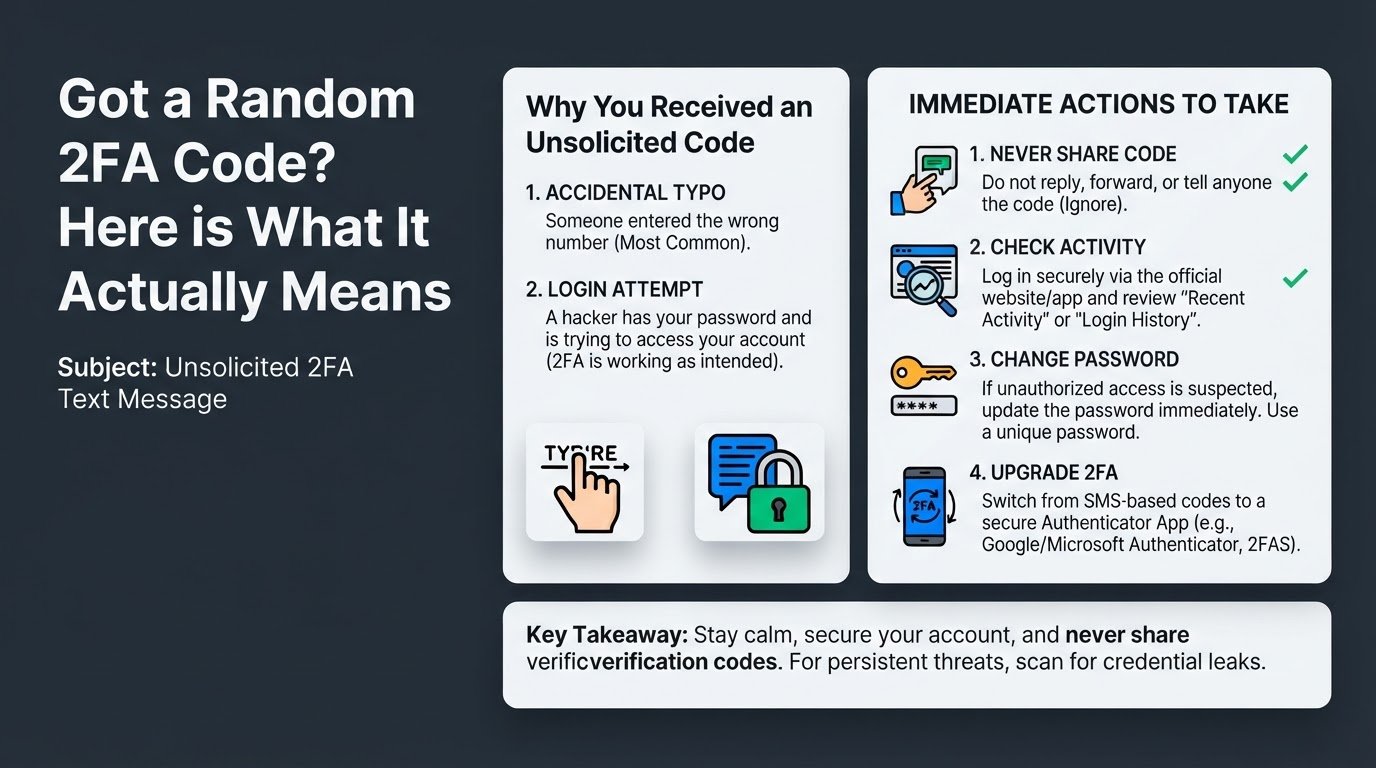
You are sitting on your couch, scrolling through your phone, when your screen lights up with a text message. It is a one-time password (OTP) or a verification code from Google, Microsoft, or your bank. The problem is that you did not try to log into any of your accounts. This sudden, unsolicited 2fa text message can cause immediate panic, leaving you wondering if a hacker is currently inside your digital life.
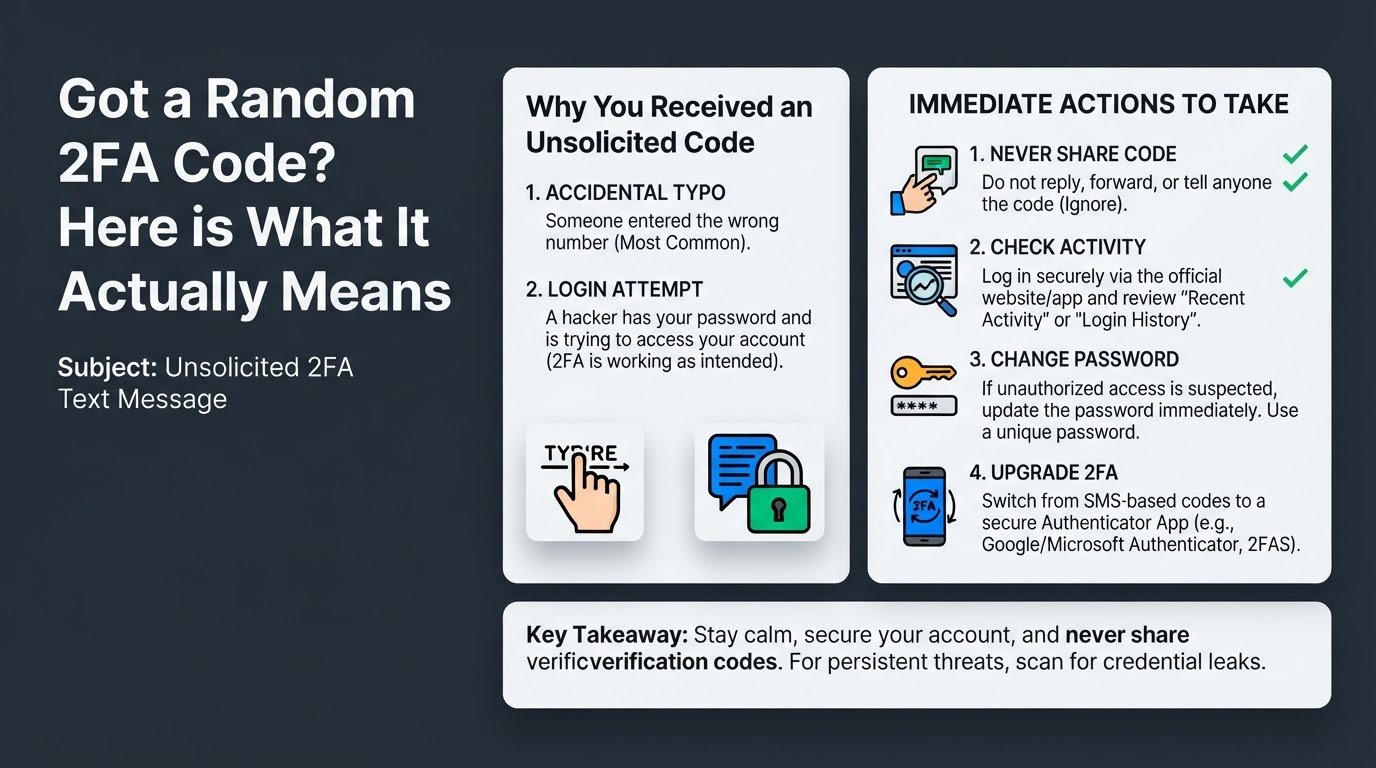
Receiving a random verification code text does not automatically mean your account has been hacked or that your password is stolen. Very often, it is the result of another user making a simple typo while entering their own phone number or email address during a login attempt. Because their number is similar to yours, the system sends the code to your device instead of theirs.
However, it can also mean that someone is trying to log into your account 2fa, meaning they might already have your password. In this scenario, your two-factor authentication (2FA) is doing exactly what it was designed to do: it is acting as a digital deadbolt, blocking the intruder from gaining access because they do not have your physical phone. If you are confused about how to handle this event, you can read our detailed guide on Got a Random 2FA Code? Here is What You Must Do to secure your digital identity.
To protect your personal data and secure your accounts, follow these clear, actionable steps.
1. Never Share or Forward the Code
The most important rule when you receive an unexpected verification code is to do absolutely nothing with it. Never reply to the text, and never share the code with anyone who asks for it.
A common scam involves an attacker sending you a code, then calling or texting you while pretending to be a customer support agent, a bank representative, or even a friend who sent the code to your number by mistake. They will ask you to read the code back to them to resolve an issue. If you give them the code, they can bypass your security and take over your account. Legitimate companies, as noted in the Microsoft Support guidelines, will never contact you to ask for a verification code.
2. Check Your Account's Recent Activity
If you suspect that the received otp code did not request is due to someone trying to access your account, you must verify this by checking your account history.
Do not click any links inside the text message itself, as these can point to fake phishing websites designed to steal your credentials. Instead, open a web browser on your phone or computer, type the official address of the service directly into the address bar, and log in.
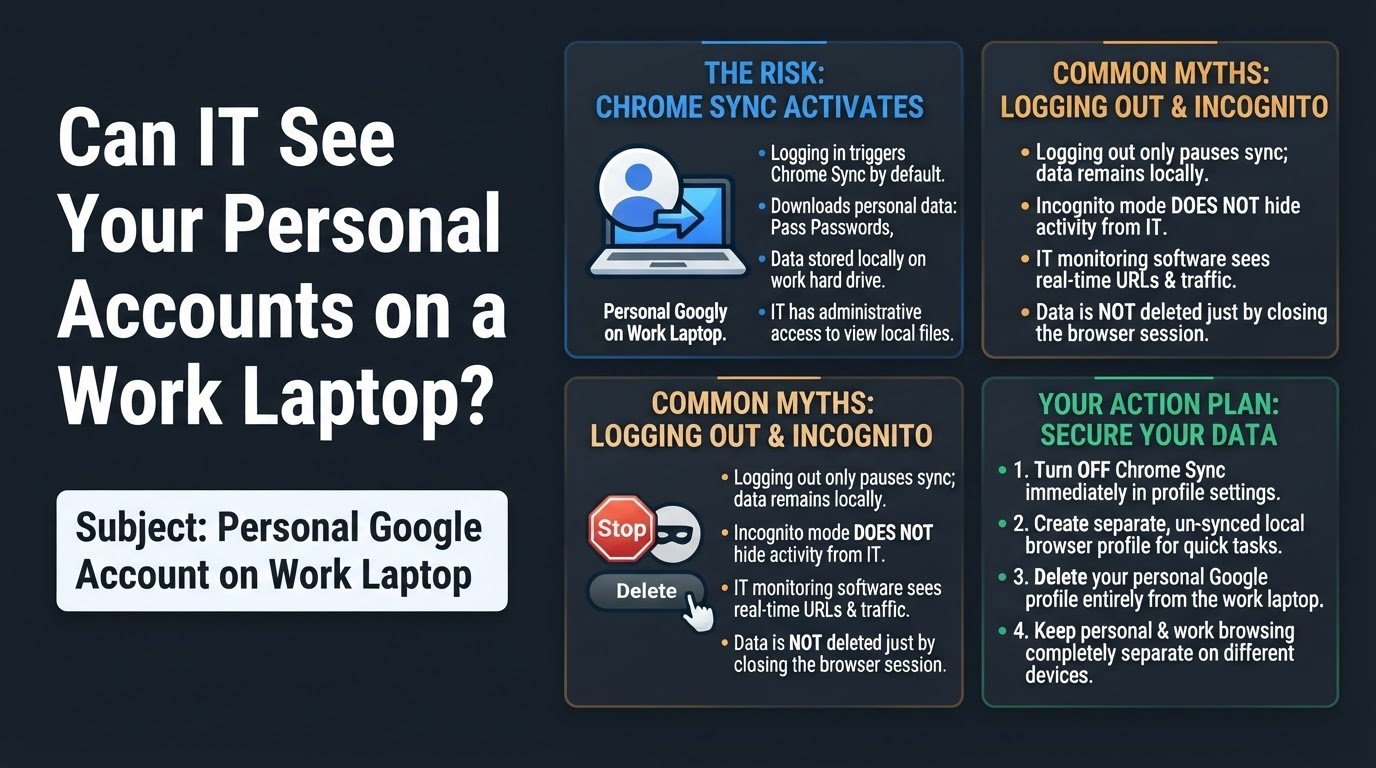
Once logged in, navigate to the security or privacy settings. Look for a section labeled Recent Activity, Active Sessions, or Logged-in Devices. This dashboard shows you every successful and attempted login, including the location, device type, and time. If you see failed login attempts from unrecognized locations, you know that your password might be compromised but the intruder was blocked by the 2FA prompt. If you want to know how security risks multiply when using different devices, you can read about the risks of logging into a personal Google account on a work laptop.
3. Change Your Password Immediately
If your account activity page shows unauthorized login attempts, or if you reuse the password for this account on other websites, you must change it immediately.
When creating a new password, avoid simple variations of your old password. Use a trusted password manager to generate a long, complex, and completely unique password. Reusing passwords across multiple websites is one of the easiest ways for hackers to gain access to your accounts through credential stuffing, which is an automated attack where bots test leaked passwords across hundreds of different platforms. If you are concerned about how your login details might have ended up in the hands of bad actors, learn what to do if your email leaked in a data breach.
4. Upgrade Your 2FA Method
While receiving an SMS-based verification code is better than having no protection at all, text messages are the least secure form of two-factor authentication. Attackers can bypass SMS verification through SIM swapping, a technique where they convince your mobile carrier to route your phone number to a SIM card in their possession.
To prevent this, switch your 2FA method from SMS to an authenticator app, such as Google Authenticator, Microsoft Authenticator, or 2FAS. These apps generate temporary codes locally on your physical device without relying on the cellular network. According to security analyses on TidBITS, moving away from SMS-based codes drastically reduces your vulnerability to remote interception.
5. Check for Credential Leaks
To find out how an attacker might have obtained your password in the first place, check if your credentials have been exposed in a corporate data breach. You can use free, reputable services like Have I Been Pwned, or use the built-in security checkup tool in your browser or password manager. These tools cross-reference your email address against databases of known public leaks. If your email and password combination appears in a leak, update your credentials on every single platform where you used that password.