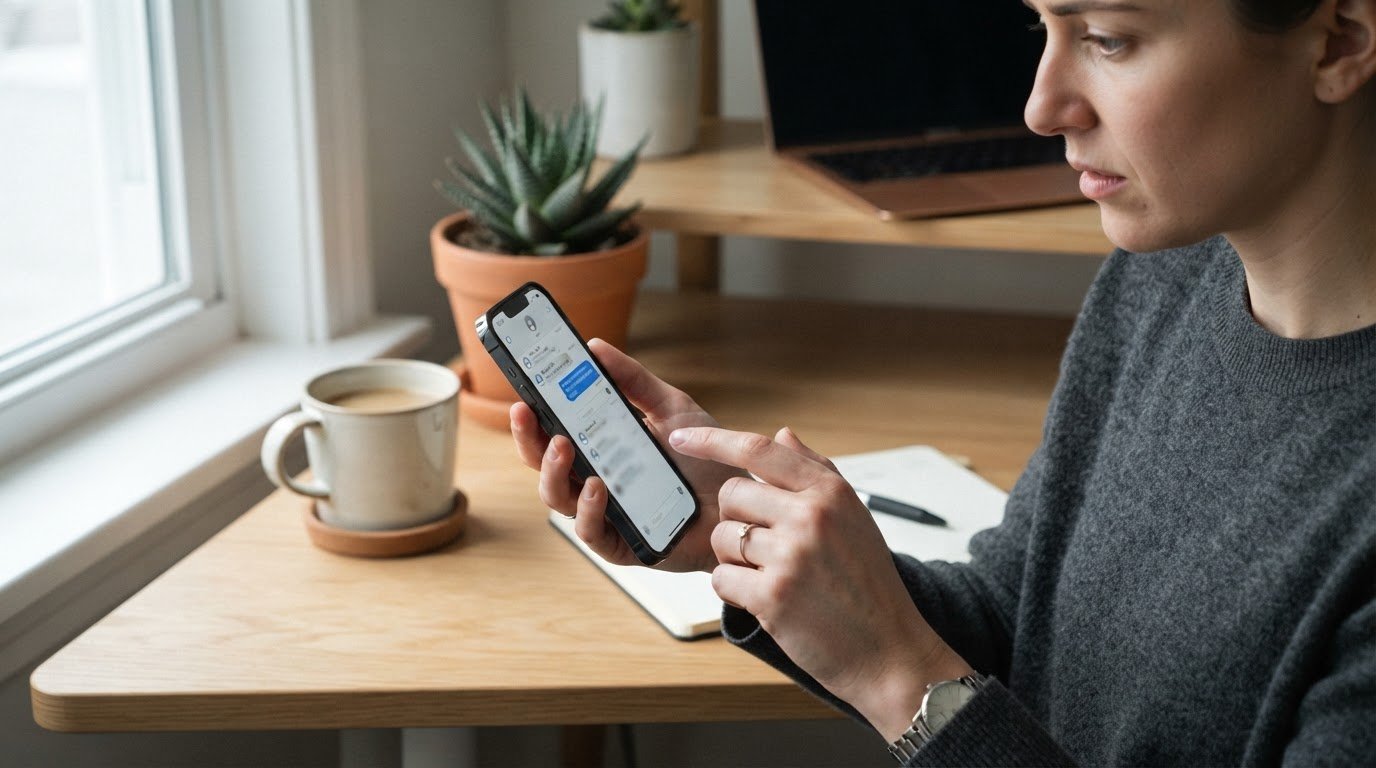
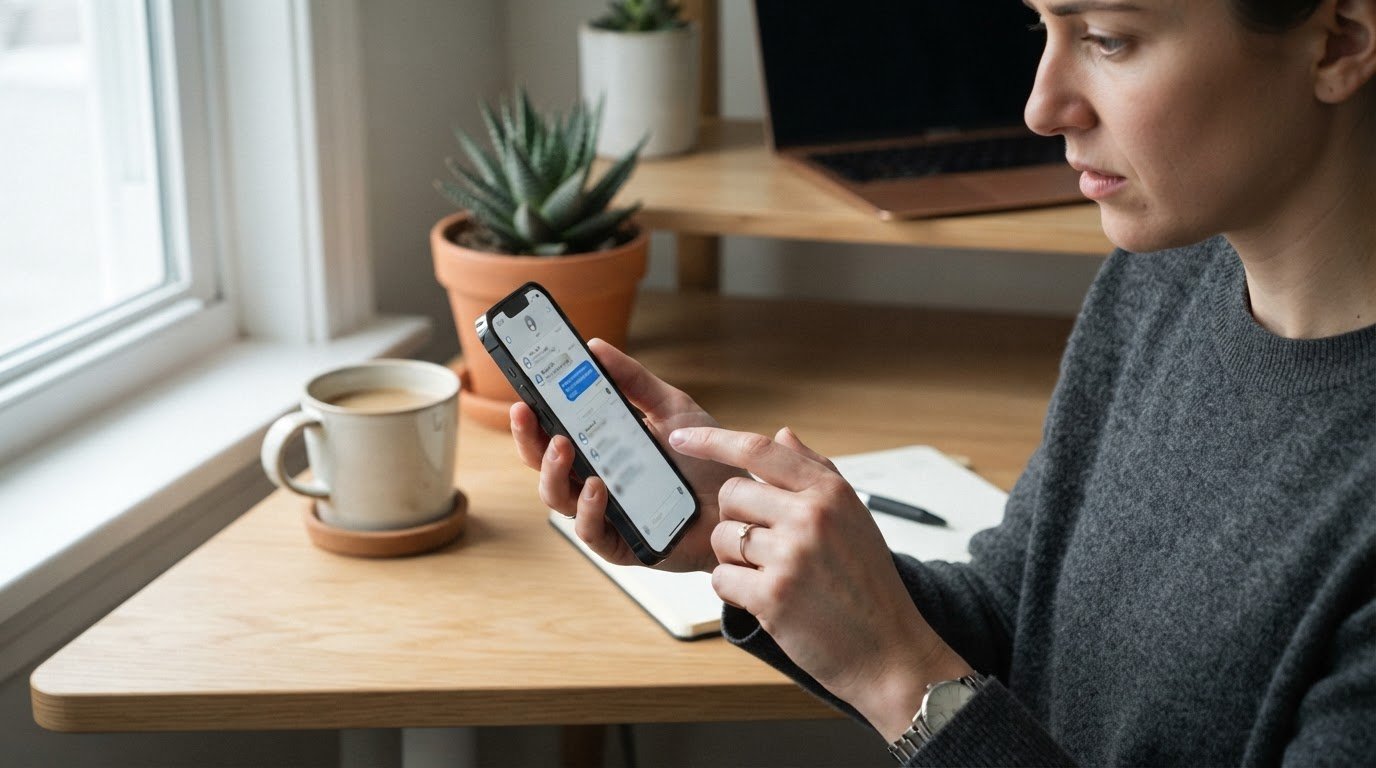
You are sitting at your desk, working on a project, or perhaps commuting on the metro, when your phone suddenly buzzes. You look down to see a text message containing a one-time password (OTP) or a two-factor authentication (2FA) code for your Google, Microsoft, Amazon, or bank account. The immediate problem is that you did not try to log in. You are left asking: is my account hacked if I get a random otp?
Receiving an unsolicited 2fa code text does not mean your account has been fully compromised, but it is a critical warning sign. It indicates that your security system is currently working exactly as designed to block unauthorized access. However, it also means someone, or some automated system, has triggered the request.
There are two primary reasons why you received verification code didn't request. The first is a simple human error: another user made a typo while entering their own phone number or email address during a login or registration attempt. The second, more dangerous scenario is that a malicious actor already knows your correct username and password, likely from a past data breach, and is currently trying to bypass the final security barrier to access your account.
Why Did I Get an Unsolicited 2FA Code?
To understand how to handle this event, you must understand how the authentication process works. Two-factor authentication requires two distinct pieces of evidence to verify your identity: something you know (your password) and something you have (your phone or authenticator app).
When you receive a random code, it means the first step of the login process was successfully completed. According to security analysis from NetTech Consultants, if the code is for an account you actually own, a bad actor has likely acquired your password through a credential leak or phishing campaign. They entered your correct credentials, which prompted the platform to send the security code to your registered mobile number.
In other cases, the trigger is entirely accidental. A user with a similar phone number or email address might have mistyped their own details, causing the system to send the code to you instead. Because you cannot immediately tell the difference between a typo and a targeted attack, you must treat every unsolicited code as a potential security threat.
Step-by-Step Guide to Securing Your Account
If you receive a verification code that you did not request, follow these immediate steps to secure your digital identity.
1. Do Not Share the Code or Reply to the Message
The most critical rule of two-factor authentication is to keep the code entirely private. Fraudsters often use social engineering tactics to trick you into giving up the code. They might call or text you posing as your bank, your mobile network provider, or tech support, claiming they sent the code by mistake or need it to stop a fraudulent transaction.
As highlighted by MC Services, legitimate organizations will never contact you to ask for a verification code. If anyone asks you to read or forward a code, ignore the request and block the sender.
2. Do Not Click Any Links in the Text
Many phishing campaigns send fake OTP alerts designed to induce panic. These messages often contain a warning like "Unusual login detected. If this was not you, click here to secure your account."
Clicking that link will take you to a fake login portal designed to harvest your username, password, and the actual 2FA code. According to Microsoft Support, you should never click links in unexpected security texts. Always access your accounts by typing the official web address directly into your browser.
3. Change Your Password Immediately
If the unsolicited code is for an account you actively use, assume your password has been exposed. Open a clean browser window, navigate to the official website of the service, and log in. Go to your security settings and change your password immediately.
Create a strong, unique password that you do not use on any other platform. If the unsolicited code was for your Google account, securing it is vital, especially if you use Google services for personal files. While you might worry about automated systems, such as whether Gemini reads your Google Docs, the immediate threat to your files comes from credential theft.
4. Check Your Account's Recent Activity and Active Sessions
Most major platforms, including Google, Microsoft, and Facebook, provide a dashboard showing your recent login history. Review this list for unrecognized devices, unusual login times, or locations that do not match your physical position.
If you spot any suspicious activity, use the "Log out of all other sessions" or "Remove device" option. This action terminates any active connections a hacker might have established, forcing them to attempt a re-login with your newly changed password. Just as you might wonder about your privacy on work devices, such as whether your employer can see your ChatGPT prompts, you must also take proactive steps to secure your personal accounts from external threats.
5. Transition to App-Based Authenticators
SMS-based 2FA is better than having no protection at all, but it is vulnerable to interception methods like SIM-swapping, where a hacker convinces your carrier to port your phone number to their SIM card.
To prevent this, migrate your accounts to app-based authenticators like Google Authenticator, Microsoft Authenticator, or Bitwarden. These apps generate codes locally on your device without relying on the cellular network, making it impossible for hackers to intercept the codes remotely.
Common Mistakes to Avoid
When dealing with a surprise OTP, avoid these common errors:
- Interacting with the sender: Replying "STOP" or "NO" to a suspicious text message confirms to the sender that your phone number is active, which can lead to an increase in spam and targeting.
- Assuming it is a glitch: Dismissing the text as a system error can leave your account vulnerable. Always check your account security settings to verify if there were actual login attempts.
- Using the same password elsewhere: If a hacker has your password for one site, they will try the same combination on other popular platforms. Ensure you use a password manager to generate unique passwords for every service.
Taking these precautions ensures that even if a malicious actor acquires your password, your account remains locked behind a secure, unbroken second line of defense.