
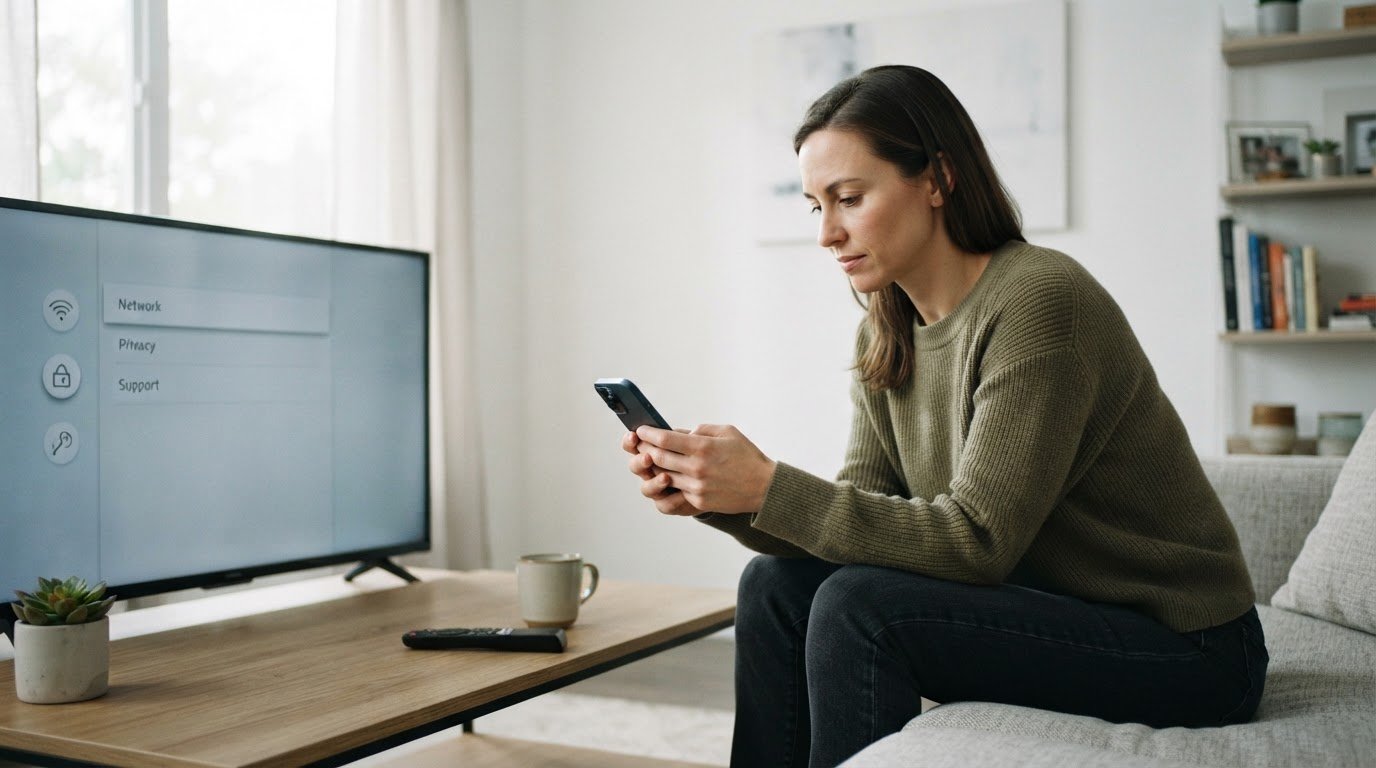
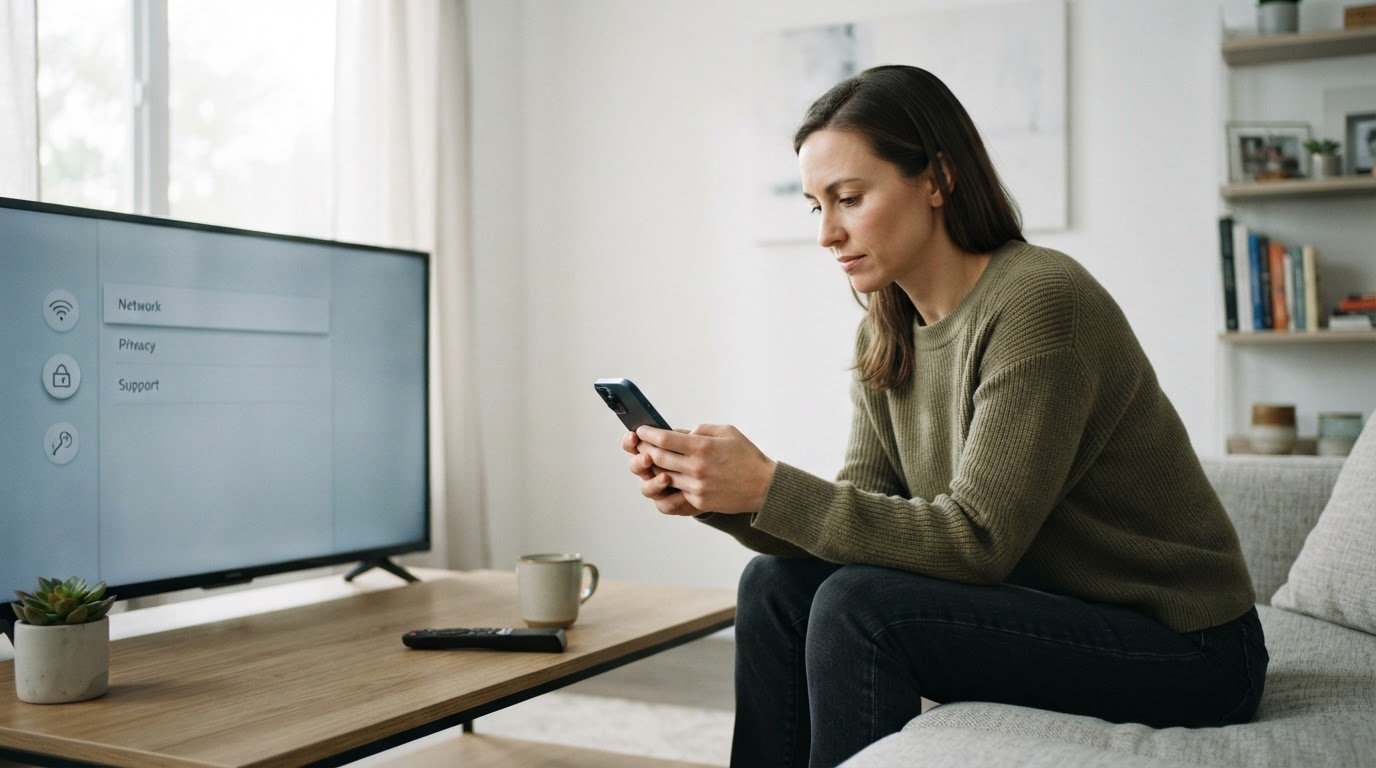
You mention a desire to buy a new sofa, and an hour later, your smart TV screen displays an ad for a local furniture store. It is easy to feel that your television is actively listening to your conversations. The fear of smart TV spying is not just paranoia: it is rooted in how modern home entertainment devices operate.
Your smart TV is not recording your private conversations to blackmail you, but it is constantly gathering data to build a profile for targeted advertising. This tracking happens through Automatic Content Recognition (ACR), which fingerprints whatever is on your screen, and voice assistant microphones that wait for wake words. Recent security investigations have revealed that some smart TVs aggressively scan your home network to map other connected devices. Some models even capture microphone audio during standby modes, storing the files locally and uploading them once the TV reconnects to the internet.
To protect your privacy and stop this data collection, you can take control of your device with a few straightforward setting adjustments.
1. Disable Automatic Content Recognition (ACR)
Automatic Content Recognition is a technology that takes tiny visual and audio samples of whatever is playing on your screen: whether it is a cable broadcast, a streaming app, or a video game: and matches it against a global database to identify exactly what you are watching. This allows advertisers to target you with highly specific ads. According to Kraft Kennedy, disabling this feature is the single most effective way to stop your TV from tracking your viewing habits.
To disable ACR on major TV brands, follow these steps:
- LG TVs: Press the settings button on your remote. Go to Settings, select General, click on System, open Advanced Settings, and turn off the option labeled Live Plus. This is the primary setting tied to LG tv audio surveillance and content tracking, as detailed in reports on LG smart TV features.
- Samsung TVs: Open the main menu and go to Settings, select All Settings, choose General & Privacy, open Terms & Privacy, and turn off Viewing Information Services. This stops the TV from tracking your on-screen content, a step recommended by Malwarebytes privacy guides.
- Roku TVs: Go to the home screen, select Settings, open Privacy, click on Smart TV Experience, and uncheck the box for Use Info from TV Inputs.
- Amazon Fire TV: Go to Settings, select Preferences, open Privacy Settings, and turn off Automatic Content Recognition.
2. Disable Voice Activation and Mute the Microphone
Voice assistants like Alexa, Google Assistant, or brand-specific tools are always waiting for a wake word. While they are supposed to only record after hearing the prompt, security research shows that false triggers happen frequently. Some TVs can even record audio in low-power standby modes, saving the audio files to upload later.
To stop this, navigate to your TV's voice settings and turn off wake-word detection entirely. Additionally, look for a physical microphone switch. Many modern TVs have a tiny physical toggle switch on the bottom bezel of the screen frame or on the back of the TV. Flipping this switch physically cuts power to the microphone, ensuring it cannot capture sound. You should also check your remote control: some remotes have a dedicated microphone button or switch that can be disabled.
3. Disconnect the TV from Wi-Fi and Use a Streaming Stick
If you want a foolproof way to stop your TV from scanning your home network, disconnect it from the internet entirely. Go to your TV's network settings and select the option to forget your Wi-Fi network, or unplug the physical Ethernet cable.
Smart TVs often scan your local Wi-Fi to see what other devices (like your phone, tablet, or smart fridge) are active. This is similar to how other devices interact on a home network, though you can learn more about network isolation in our guide on Can Your Work Laptop See What Your Family Browses on Wi-Fi?.
Once the TV is offline, use a dedicated external streaming device. Devices like an Apple TV or a Roku streaming stick generally offer much stronger privacy controls and do not perform aggressive local network scans. If you are looking for a hardware upgrade, you might want to read about the latest hardware updates like the Amazon Fire TV Stick 4K Leaks with Angular Redesign.
Common Mistakes to Avoid
When trying to secure a smart TV, users often fall into two common traps:
- Relying solely on "Limit Ad Tracking": Many users believe that toggling this setting stops data collection. In reality, it only stops companies from showing you personalized ads: they still collect, store, and transmit your viewing habits and network data. You must turn off ACR and voice services separately.
- Assuming standby mode means the TV is offline: Turning off your TV with the remote does not cut its internet connection. Security investigations highlighted by PCWorld show that some models continue to run background processes, scanning your network and caching voice data to upload later.
To ensure your TV is truly private, make it a habit to check your privacy settings after every major system update, as manufacturers often reset these options to their default, data-collecting states during software updates.
