You unbox your brand-new smartphone, slide the display settings to the maximum 144Hz refresh rate, and launch your favorite battle royale game. Within thirty minutes, the back of the device feels like a hot plate, the battery percentage is plummeting, and the game begins to stutter. This is the frustrating reality for many mobile gamers who are picking up high-performance devices.
The root cause of this battery drain and overheating is a mismatch between marketing promises and technical reality. Many users believe that forcing a 144Hz system refresh rate automatically makes all games run at 144 frames per second. In reality, most mobile games are strictly hard-capped by their developers at 60fps or 90fps. When you force a 144Hz system rate on a 60fps game, your graphics processing unit wastes massive amounts of power rendering duplicate, useless frames. Additionally, while the advanced liquid cooling systems in modern phones are excellent at moving heat away from the processor to prevent immediate slowdowns, they do not reduce the actual power draw of the chipset. High frame rates spike power consumption, which drains your battery regardless of how cool the phone feels.
Keeping up with the latest India tech news reveals that mobile hardware is evolving faster than game software. As local developers and Indian startups optimize their titles for high-end devices, users must take control of their hardware settings. To get the best performance without destroying your battery health, you must manually optimize how your phone handles high refresh rates.
Here is how to configure your device for optimal gaming performance and battery longevity.
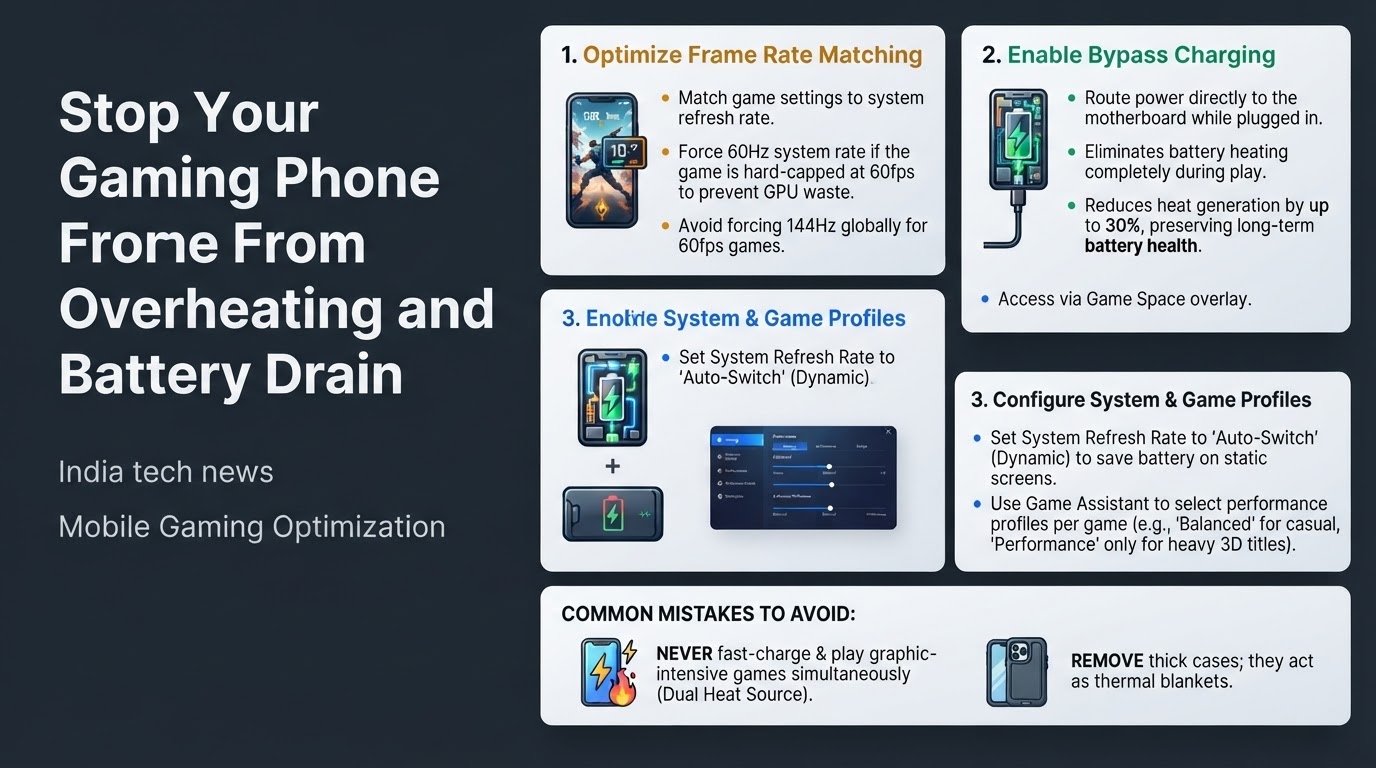
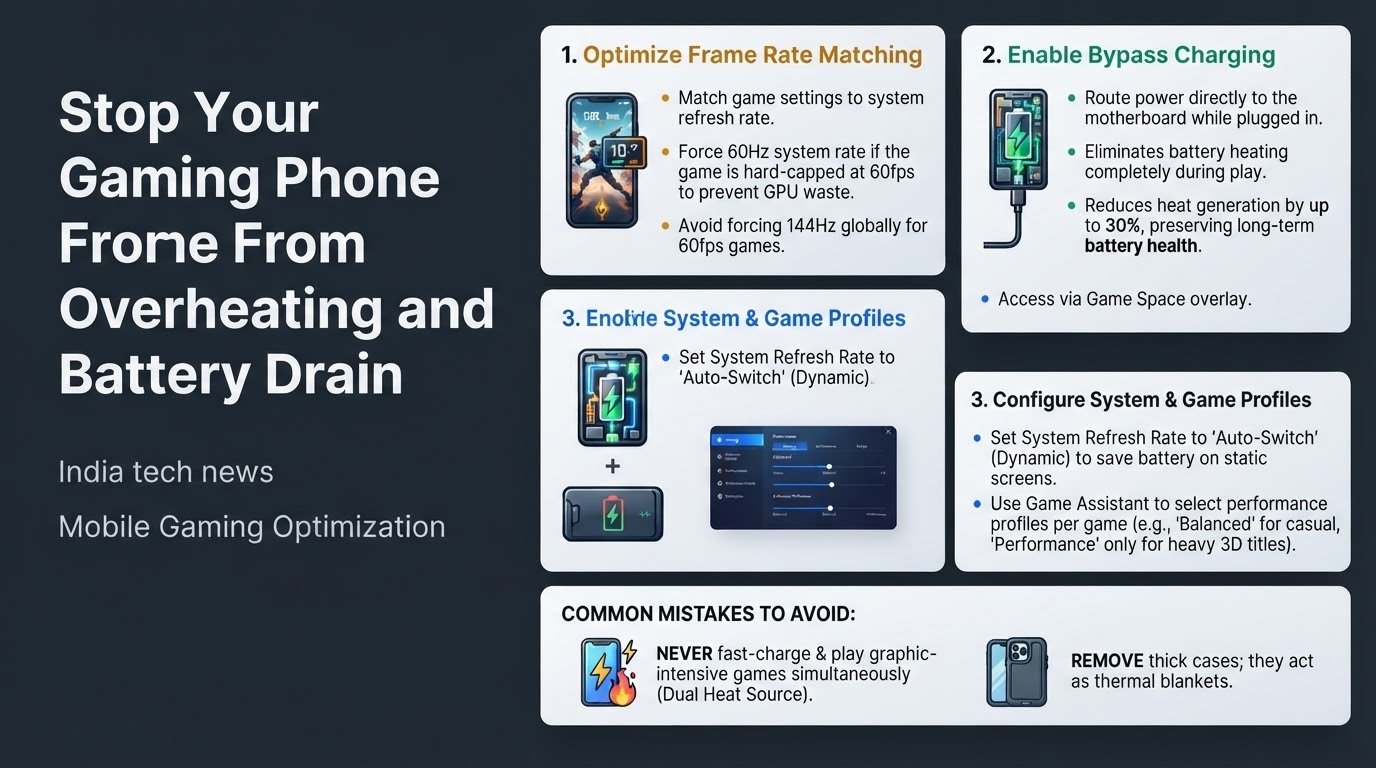
1. Match Game Settings to System Refresh Rates
Do not rely on your phone to automatically negotiate frame rates with your games. If a game only supports 60fps, forcing your phone to run at 144Hz globally in your system settings will only waste battery.
- Open the settings menu of the specific game you want to play.
- Navigate to the graphics or display section.
- Locate the frame rate setting and select the option that matches your device's actual output capability, such as Ultra or Extreme for 90fps or 120fps.
- If the game does not support high frame rates, lower your phone's system refresh rate to 60Hz while playing that specific title to prevent the graphics processor from working in overdrive.
2. Enable Bypass Charging
If you play games at home or near a wall outlet, you can eliminate battery heating entirely by bypassing the battery. According to product specifications detailed by Business Today, modern gaming phones support direct power routing.
- Plug your official fast charger into the wall and connect it to your phone.
- Swipe from the side of the screen to open your built-in game assistant or game space overlay.
- Locate the Bypass Charging toggle and turn it on.
- This setting routes electrical power directly to the motherboard instead of routing it through the battery, which reduces heat generation by up to 30 percent and preserves your long-term battery health.
3. Configure Dynamic Refresh Rate
Leaving your phone locked at 144Hz all day drains your battery even when you are just reading text or looking at static photos. You should let the operating system manage the refresh rate dynamically.
- Open your main Settings app.
- Go to Display and Brightness.
- Tap on Screen Refresh Rate.
- Select Auto-switch or Dynamic. This allows the display to drop down to 60Hz or lower when you are navigating menus, saving valuable battery life, and only ramping up to 144Hz during active, compatible gameplay.
4. Calibrate Game Assistant Performance Profiles
Not every game requires your processor to run at maximum capacity. Casual puzzle games do not need the same system resources as heavy 3D open-world titles.
- Launch your game and swipe from the edge of the screen to open the gaming overlay.
- Review the active performance profile.
- Select Balanced or Power Saving mode for casual, low-intensity titles.
- Reserve the Performance or Beast mode settings exclusively for heavy 3D titles that actively support high frame rates.
Avoid These Common Gaming Mistakes
Many users unknowingly degrade their hardware by combining high-performance gaming with poor charging habits. Never play graphic-intensive games at maximum settings while fast-charging your phone. This dual-source heating: fast-charging heat combined with processor heat: triggers extreme thermal throttling, forcing your game to lag, and permanently degrades your battery lifespan.
Additionally, always remove thick protective cases before starting a long gaming session. These cases act as thermal blankets, blocking the phone's heat dissipation pathways and forcing the internal cooling systems to work twice as hard. By making these quick adjustments, you can enjoy smooth gameplay without sacrificing your device's lifespan.