You open your phone's gallery, see a "Storage Full" warning, and start deleting old photos to clear space. You assume they are safe because you pay for iCloud or Google Photos. But a few minutes later, you open your cloud app and realize those memories are gone there too. This is one of the most common and frustrating ways people lose their personal photos.
The direct answer is yes: deleting a photo from your phone's native gallery will automatically delete it from iCloud or Google Photos. This happens because these services do not act as traditional, one-way digital vaults. Instead, they are designed as two-way synchronization mirrors. Understanding the fundamental difference between a cloud backup vs sync is essential to avoid accidental data loss.
When you delete a photo from your phone, the sync engine registers this change and immediately deletes the corresponding file from the cloud to keep all connected devices identical. If you want to free up physical storage on your device without losing your pictures in the cloud, you must use specific built-in settings rather than hitting the delete button in your default gallery app.
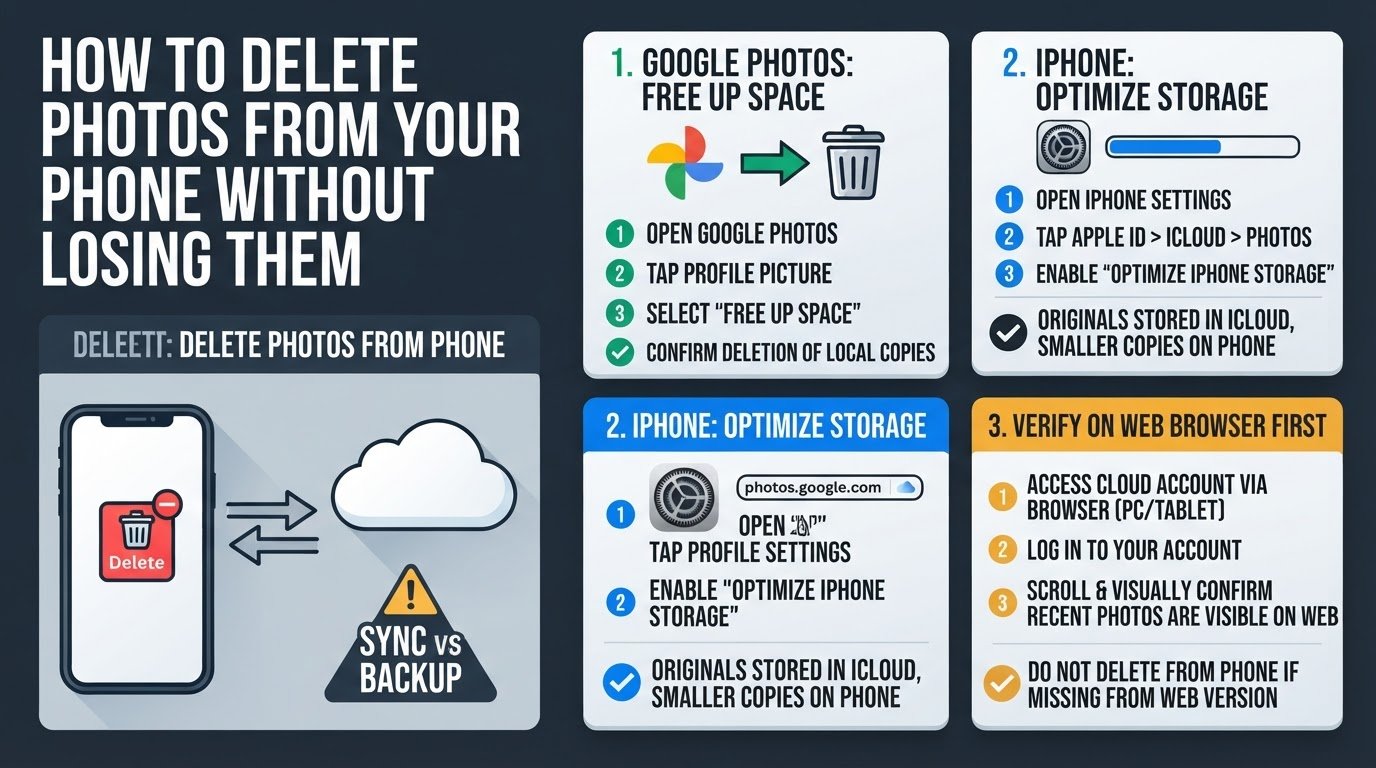
1. Use the "Free Up Space" Tool in Google Photos
If you use Google Photos, manually deleting photos from your phone's default gallery app or the main Google Photos grid will delete them from the cloud. To prevent this, Google provides a dedicated tool that safely removes local copies only after confirming they are fully backed up.
- Open the Google Photos app on your device.
- Tap your profile picture or initial in the top right corner.
- Select the option that says "Free up space" or "Free up storage".
- The app will calculate how much space you can save by removing files that already exist on Google's servers. Tap the confirmation button to delete the local copies.
This process removes the physical files from your phone's internal storage while leaving the cloud copies fully viewable inside the Google Photos app according to Google Support. For a detailed walkthrough on managing this setup, you can read about how to delete photos from your phone but keep them in Google Photos.
2. Enable "Optimize iPhone Storage" for iCloud
Apple's iOS does not allow you to manually delete local photos from your iPhone while keeping them intact in iCloud. Because iCloud is a strict mirroring service, any manual deletion on your phone immediately syncs to iCloud and removes the image from all your Apple devices. You can read more about this behavior in our guide on does deleting photos from iPhone delete them from iCloud.
To save space safely on an iPhone, you must let iOS manage the local storage automatically:
- Open the Settings app on your iPhone.
- Tap your name at the top of the screen, then select iCloud.
- Tap on Photos.
- Select "Optimize iPhone Storage" instead of "Download and Keep Originals".
Once enabled, your iPhone will automatically replace full-resolution local photos with much smaller, device-sized versions whenever your phone runs low on space. The original, full-resolution photos remain safely stored in iCloud according to Apple Support. When you tap on an optimized photo in your gallery, your phone downloads the full version from iCloud in real time.
3. Turn Off Backup and Sync Before Manual Deletion
If you absolutely must manually delete local files while keeping them in the cloud, you can temporarily disable the sync connection. However, this method requires extreme caution and is generally not recommended for long-term storage management.
- For Google Photos: Open the app, tap your profile picture, select Google Photos settings, tap Backup, and toggle "Backup" off.
- For iCloud: Go to iPhone Settings, tap your name, select iCloud, tap Photos, and toggle off "Sync this iPhone" according to Apple Support.
- Once sync is completely disabled, you can delete the photos from your local device gallery.
The major risk with this workaround is that turning off sync stops all future automatic backups. Furthermore, if you turn sync back on in the future, the system may register the local deletions as the most recent change and proceed to delete those same photos from your cloud storage anyway according to Google community discussions. Use this method only as a temporary measure, and never rely on it as a permanent storage solution.
4. Verify Photos on a Web Browser Before Clearing
Before you perform any local cleanup or storage optimization, you should verify that your photos have actually reached the cloud. Checking the status inside the mobile app can sometimes be misleading if a sync queue is paused or stuck.
- Open a web browser on a computer or tablet.
- Log into photos.google.com for Google Photos, or icloud.com for Apple devices.
- Manually scroll through the web library to confirm that your recent photos and videos are visible.
- If your photos are visible on the web version, they are safely stored on the cloud servers according to Apple's data management guidelines. If they do not appear on the website, do not delete them from your phone, as they will be lost permanently.
Regularly checking your cloud account via a web browser is a reliable way to ensure your media is safe before you make any major changes to your smartphone's local storage.