You open your Google Photos app, select a batch of blurry pictures or old videos to free up your 15GB of free cloud storage, and hit delete. A few minutes later, you open your phone's native gallery app and make a horrifying discovery: those exact photos have vanished from your physical device as well.
This is the google photos sync trap, and it catches millions of smartphone users off guard.
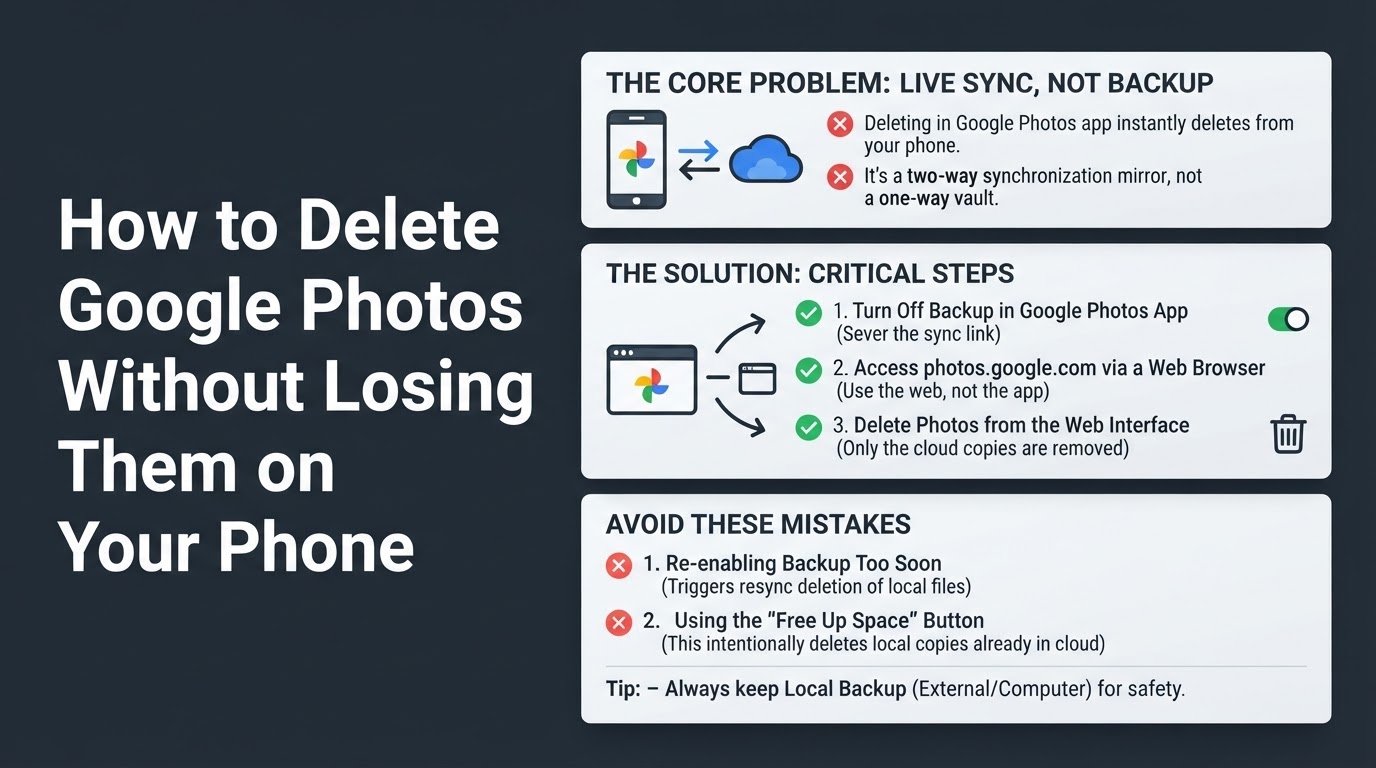
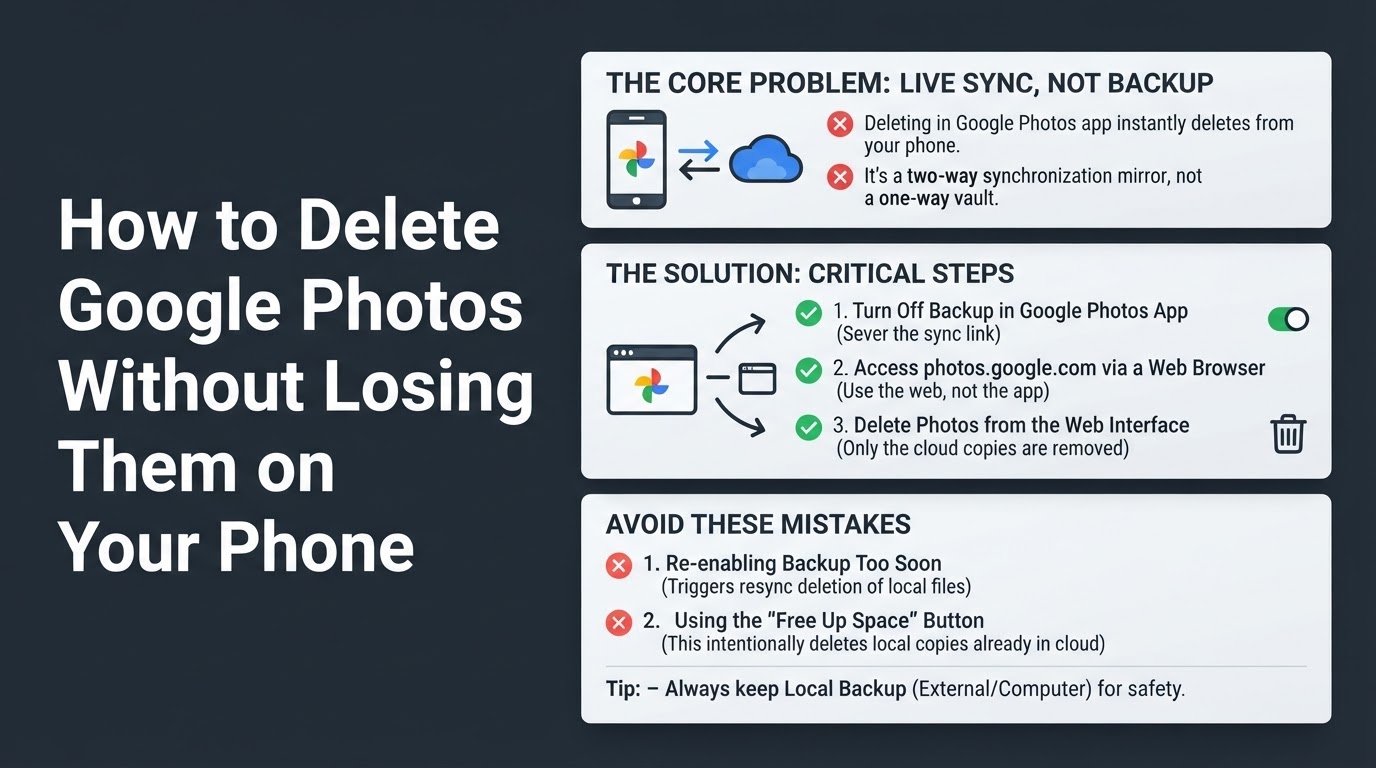
The direct verdict is simple: Google Photos does not act as a one-way, permanent cloud vault. Instead, it operates as a two-way synchronization mirror. When backup is enabled, any deletion command you make inside the Google Photos app or on the web is synchronized instantly, meaning the app actively deletes the local file from your phone's hardware to match the cloud state. To delete from google photos keep on phone, you must temporarily sever this sync link by turning off the backup feature, and then perform your deletions using a web browser instead of the mobile app.
Understanding the difference between a true backup and a live sync is crucial for managing your digital footprint. To understand this distinction in detail, read our guide on Cloud Backup vs Sync: Why Deleting Files Can Backfire.
How to Delete Cloud Photos While Keeping the Local Copies
To safely delete cloud photos keep local, follow these precise steps. Skipping a step or using the wrong app can result in permanent data loss.
Step 1: Turn Off Backup in the Google Photos App
The first and most critical step is to sever the active synchronization link between your phone and the cloud, as detailed in Google Support guides.
- Open the Google Photos app on your iPhone or Android device.
- Tap your profile picture or initial in the top right corner.
- Select Photos settings (or Google Photos settings).
- Tap Backup.
- Toggle the Backup switch to the OFF position.
Once this is turned off, your phone will stop sending new photos to the cloud, and more importantly, it will stop listening to immediate deletion commands from your Google account.
Step 2: Access Google Photos via a Web Browser
Do not use the Google Photos app on your phone to delete the photos. Even with backup turned off, the app can sometimes sync changes once reopened. Instead, use a web browser as recommended by Proton privacy experts.
- Open a web browser on your computer, tablet, or mobile device (such as Chrome, Safari, or Firefox).
- Navigate to photos.google.com and log in with your Google credentials.
Step 3: Delete the Photos from the Web Interface
Now you can safely clean up your cloud storage.
- On the web interface, select the photos and videos you want to remove from your cloud storage.
- Click the Trash icon at the top right of the screen.
- Confirm the deletion.
Because backup is disabled on your mobile device, this deletion will only affect the cloud copy. The original files will remain untouched in your phone's local internal storage.
Step 4: Keep Backup Disabled or Use a Different Gallery App
To prevent future automatic uploads and potential resync deletions, you must keep the Backup setting turned off in Google Photos. For daily photo viewing, use your phone's native gallery app (such as Apple Photos or Samsung Gallery) instead of the Google Photos app.
If you are an iPhone user looking to completely untangle your device from Google's ecosystem, you can follow our step-by-step tutorial on How to Stop Using Google Photos on iPhone Safely.
Step 5: Recover Accidental Deletions from the Trash
If you made a mistake and noticed that a local photo was deleted during this process, do not panic. Google provides a safety net.
- Open the Google Photos app on your phone.
- Tap Collections (or Library on older app versions) at the bottom.
- Tap Trash (or Bin).
- Touch and hold the photo or video you want to restore.
- Tap Restore at the bottom.
According to Google Support parameters, items in the trash can be restored within 60 days of deletion before they are permanently purged from the system.
Common Mistakes to Avoid
When trying to figure out how to stop google photos deleting from phone, users frequently fall into two major traps that can wipe out their local files.
1. Re-enabling Backup Too Soon
If you turn Backup back on in the Google Photos app after deleting files from the web, the app may recognize that those files are missing from the cloud. In some system configurations, this triggers a resync that deletes those same files from your phone's local storage to match the new, cleaned-up cloud state. If you must use Google Photos backup in the future, copy your local photos to a secure folder or external drive first.
2. Using the "Free Up Space" Button
The "Free up space" button inside the Google Photos settings does the exact opposite of what you want in this scenario. This feature scans your phone for photos that are already backed up to the cloud and deletes the local copies from your phone's hardware to free up physical storage. If you want to keep local copies and clear cloud space, do not use this button. If you are actually looking to do the reverse, you can read our guide on How to Delete Photos from Your Phone But Keep Them in Google Photos.
To ensure your local files remain safe, periodically check your phone's default file manager app to verify that your images are physically stored in the DCIM or Camera folder on your device's internal memory.