You are sitting at your desk, your personal phone battery is at 12 percent, and the nearest wall outlet is across the room. Naturally, you grab your charging cable and plug your phone directly into your work laptop's USB port. A second later, panic sets in. You wonder if your company's IT department is suddenly downloading your private photos, reading your text messages, or monitoring what you are browsing on your phone.
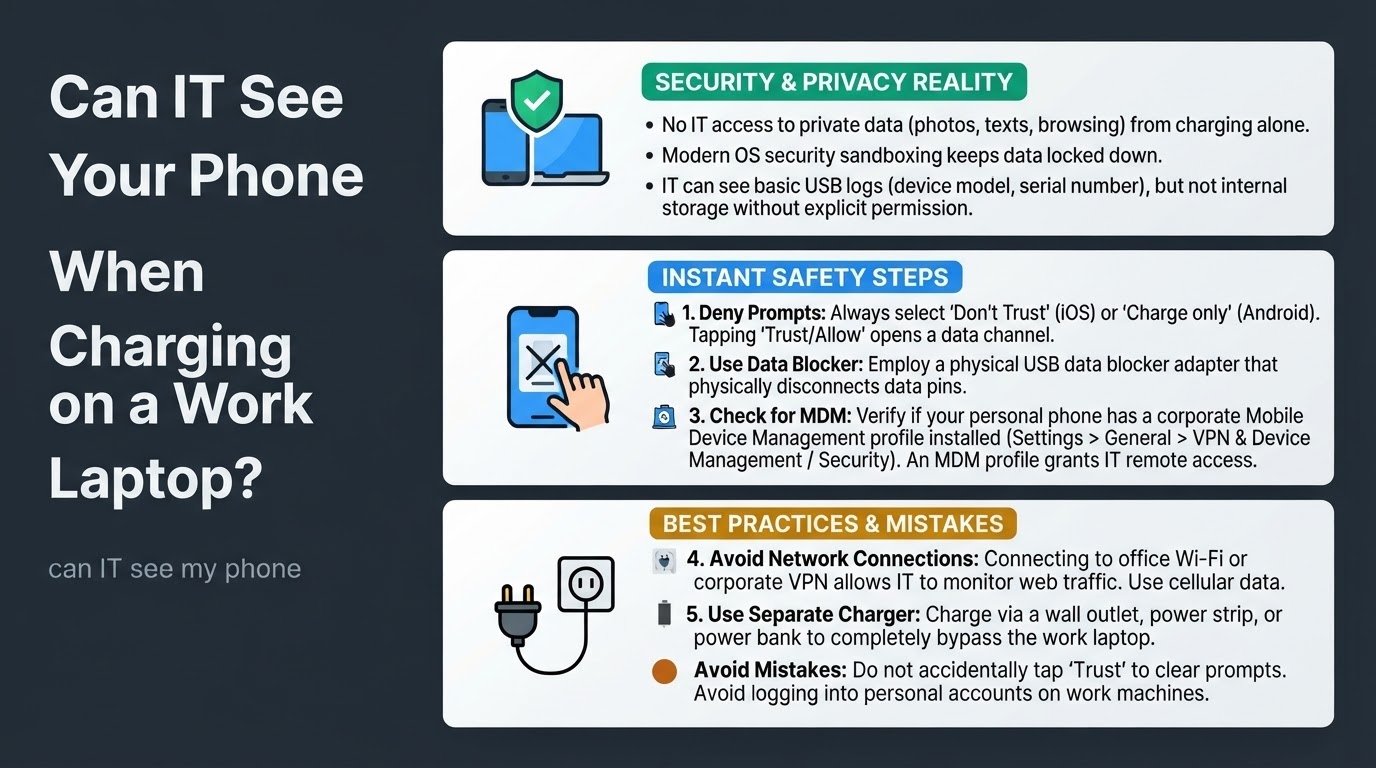
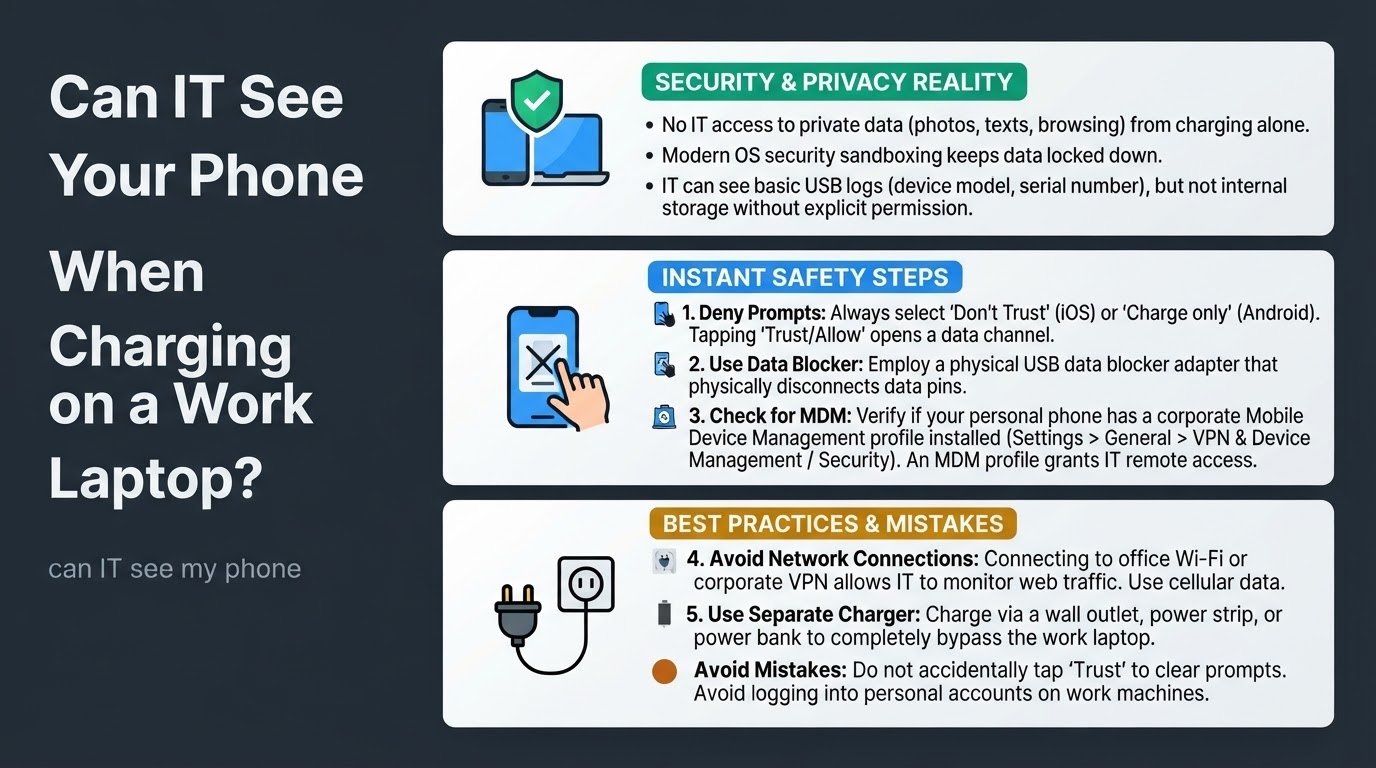
The short answer is reassuring: your employer's IT department cannot see your photos, read your texts, or monitor your app usage just because you plugged your phone into a work laptop to charge. Modern mobile operating systems like iOS and Android use strict security sandboxing to keep your private data locked down. IT can see that a device was plugged in, because USB logs automatically record the device manufacturer, model, and serial number, but they cannot access the phone's internal storage unless you explicitly grant permission on your phone screen or have corporate monitoring software installed directly on your personal device.
While your phone is safe from instant snooping, there are critical mistakes that can compromise your privacy. For example, logging into personal accounts on a work machine carries major risks, which you can read about in our guide on Can Your Boss See Your Personal Accounts on a Work Laptop?.
To keep your personal data completely secure while charging, follow these practical steps.
1. Deny Trust and File Transfer Prompts
When you plug your phone into any computer, a pop-up prompt will appear on your phone screen. On an iPhone, it asks if you want to "Trust This Computer." On an Android device, a notification will ask if you want to allow file transfer or keep the connection as "No data transfer" or "Charge only."
Always select "Don't Trust" on iOS or keep the setting on "Charge only" on Android. Tapping "Trust" or "Allow" opens up a data channel between the devices. According to tech support discussions on community forums like Reddit, accidentally tapping trust can trigger the work laptop to attempt to automatically sync your photos or create a backup of your device, making your private files accessible to corporate monitoring software. Keeping the connection restricted to charging ensures that the data pins remain inactive.
2. Use a USB Data Blocker
If you must charge your phone using a work computer, you can completely eliminate the risk of data transfer by using a physical USB data blocker. This small adapter, sometimes called a USB condom, fits between your charging cable and the laptop's USB port.
A USB data blocker physically removes or disconnects the data transfer pins inside the USB connection while leaving the power pins fully intact. Because there is no physical connection for data to travel through, it is physically impossible for the laptop to read any information from your phone or even detect its serial number.
3. Check for Corporate MDM Profiles
Your personal phone remains private as long as it is truly personal. However, if you have ever installed corporate email, Slack, or other work apps on your personal device, you might have agreed to security policies that installed a Mobile Device Management (MDM) profile.
According to legal and privacy experts at Justice at Work, if your personal phone has an MDM profile installed, your employer may have remote access to monitor certain aspects of your device or even wipe its contents.
To check for this:
- On iOS: Open Settings, tap General, and then tap VPN and Device Management. Look for any corporate profiles.
- On Android: Open Settings, tap Security, and look for Device admin apps or Work Profile settings.
If you see an active corporate profile, your IT department has a direct window into your device, regardless of how you charge it.
4. Avoid Corporate Wi-Fi and VPNs
While charging your phone through a USB port does not expose your web browsing history, connecting your personal phone to the office Wi-Fi network or a corporate VPN certainly does. If your phone is connected to the company's network, IT administrators can monitor your web traffic, see the websites you visit, and track your DNS requests.
Keep your personal phone on its cellular data plan or your home Wi-Fi network. If you are working from home and worried about network security, you can learn more about how corporate networks interact with your home devices in our article on Can Your Work Laptop Spy on Your Home Wi-Fi?.
5. Charge Via a Wall Outlet or Power Bank
The absolute safest way to charge your personal phone is to bypass the work laptop entirely. Plug your charging cable directly into a standard AC wall outlet, a power strip, or a portable power bank. This completely removes your phone from the corporate ecosystem, ensuring that no USB logs are generated and no accidental data syncs can occur.
Common Mistakes to Avoid
Many employees compromise their privacy by making simple mistakes while trying to manage their devices:
- Tapping "Trust" or "Allow" just to clear the pop-up notification from the screen quickly. This opens a data channel that remains open until you unplug the cable.
- Logging into your personal accounts on the work laptop itself. If you use your personal Google account on a work computer, you might trigger Chrome Sync, which downloads your personal passwords, bookmarks, and browsing history directly to the work machine. You can read more about this in our breakdown of Can IT See Your Personal Accounts on a Work Laptop?.
To maintain a clear boundary between your personal life and your employment, make it a habit to use a dedicated wall charger for your phone and keep your personal browsing restricted to your own cellular data connection.