You open your smartphone settings, tap on the battery menu, and feel a sudden spike of anxiety. Your phone is only a few months old, but the maximum battery capacity has already dropped from 100% to 95%. You might wonder if you bought a defective device, or if your daily charging habits are slowly ruining the hardware.
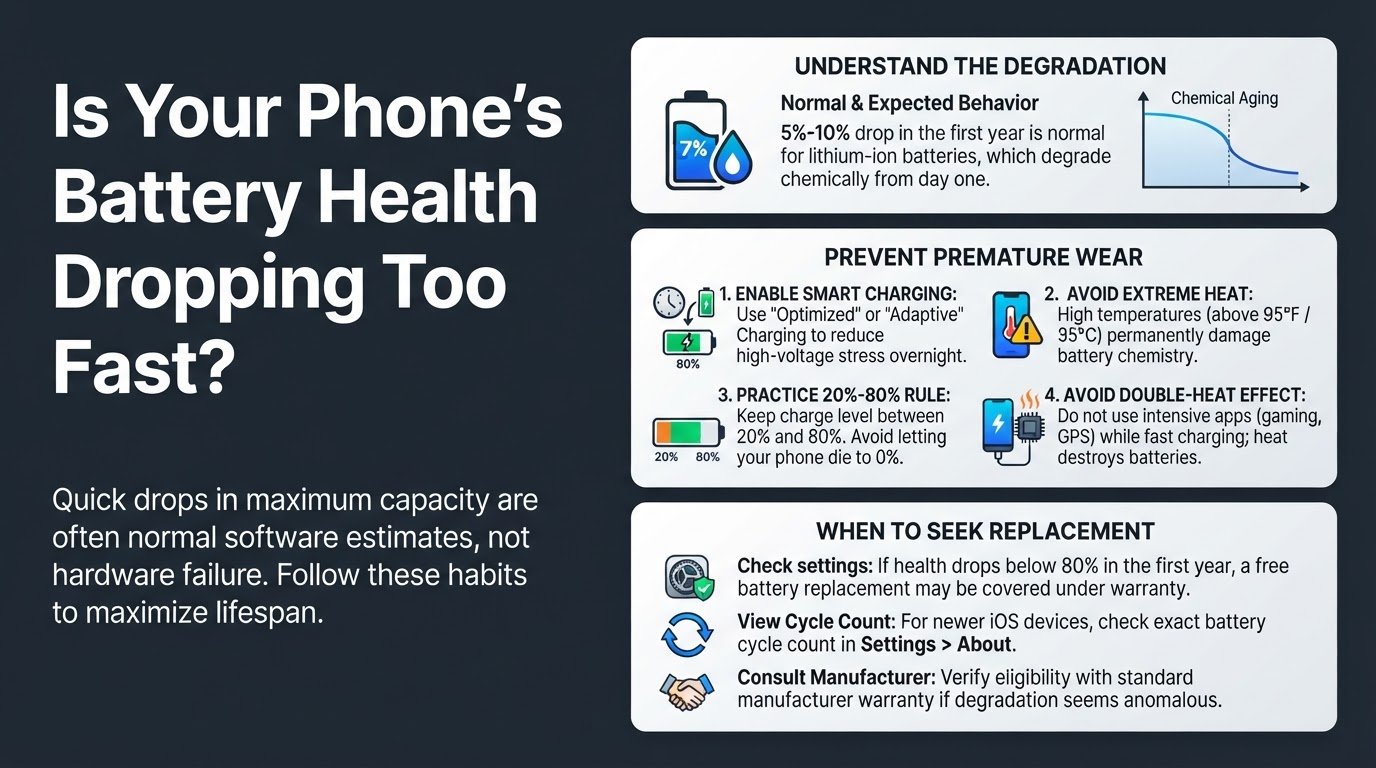
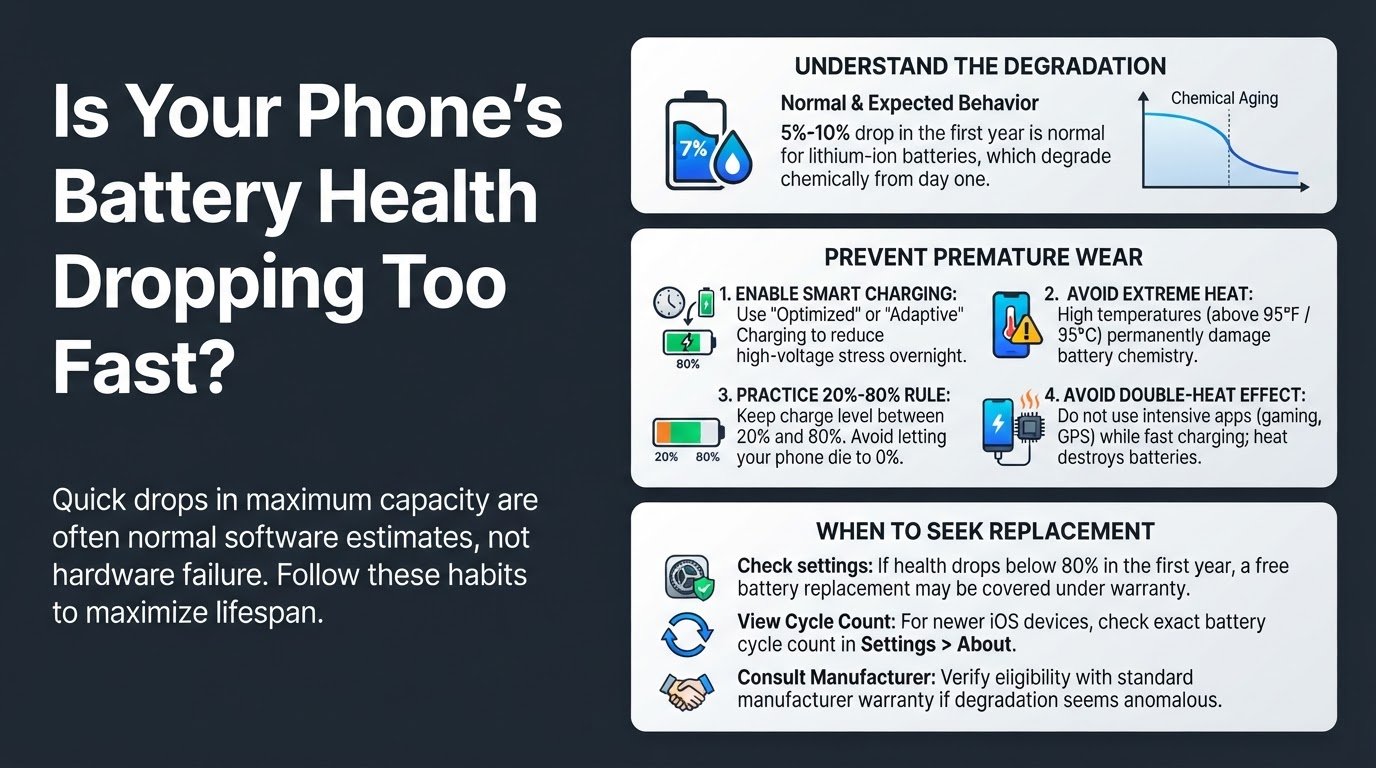
The direct verdict is simple: your phone is not broken, and you are not doing anything wrong. A 5% to 10% drop in maximum battery capacity during the first year of use is completely normal and expected. Lithium-ion batteries are consumable parts that degrade chemically from the moment they leave the factory floor, regardless of how carefully you use them.
Understanding the Battery Health Panic
The "Battery Health" percentage on your screen is not a real-time, perfect measurement. Instead, it is an estimate calculated by software algorithms. Because chemical degradation does not happen in a perfectly straight line, your battery health might stay at 100% for several months and then suddenly drop to 95% in a matter of weeks. This sudden drop usually happens after a system update or a software recalibration, which forces the phone to recalculate the actual capacity of the chemical cells.
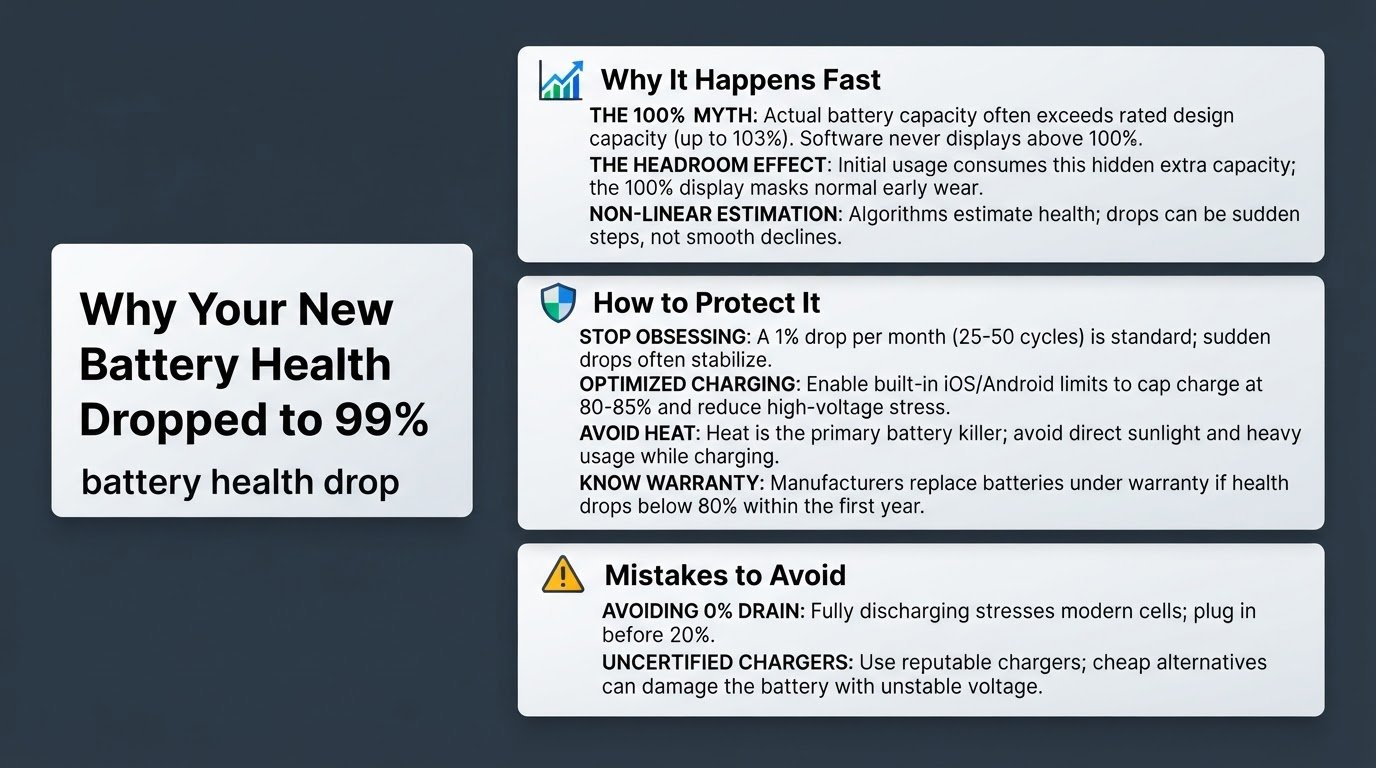
If you noticed an initial drop very quickly, you are not alone. You can read more about why this happens in our guide on Why Your New Phone's Battery Health Dropped to 99%.
To put your mind at ease, major manufacturers design their devices with this degradation in mind. For instance, according to Apple Support, iPhone batteries are engineered to retain up to 80% of their original capacity after 500 to 1000 complete charge cycles, depending on the specific model. A charge cycle means using 100% of your battery's power, which might take two or three days of light use. If your battery drops to 95% after a few months, it is on track to meet or exceed these industry standards.
While you cannot stop chemical aging entirely, you can prevent premature wear. Here are four practical habits to keep your battery healthy for as long as possible.
1. Enable Optimized or Adaptive Charging
When a lithium-ion battery sits at 100% charge while plugged into a charger, it experiences high-voltage stress. This stress accelerates the chemical aging of the internal components.
To combat this, modern operating systems use smart charging features that learn your daily routine. Instead of keeping your phone at 100% all night, the software pauses charging at 80% and only finishes the last 20% right before you wake up.
- On iPhone: Go to Settings, tap Battery, select Battery Health and Charging, and turn on Optimized Battery Charging.
- On Android: Go to Settings, tap Battery, and select Adaptive Charging or Limit to 80%, depending on your device brand. According to Google Support, enabling these charging optimizations helps preserve long-term battery lifespan by reducing the time your device spends fully charged.
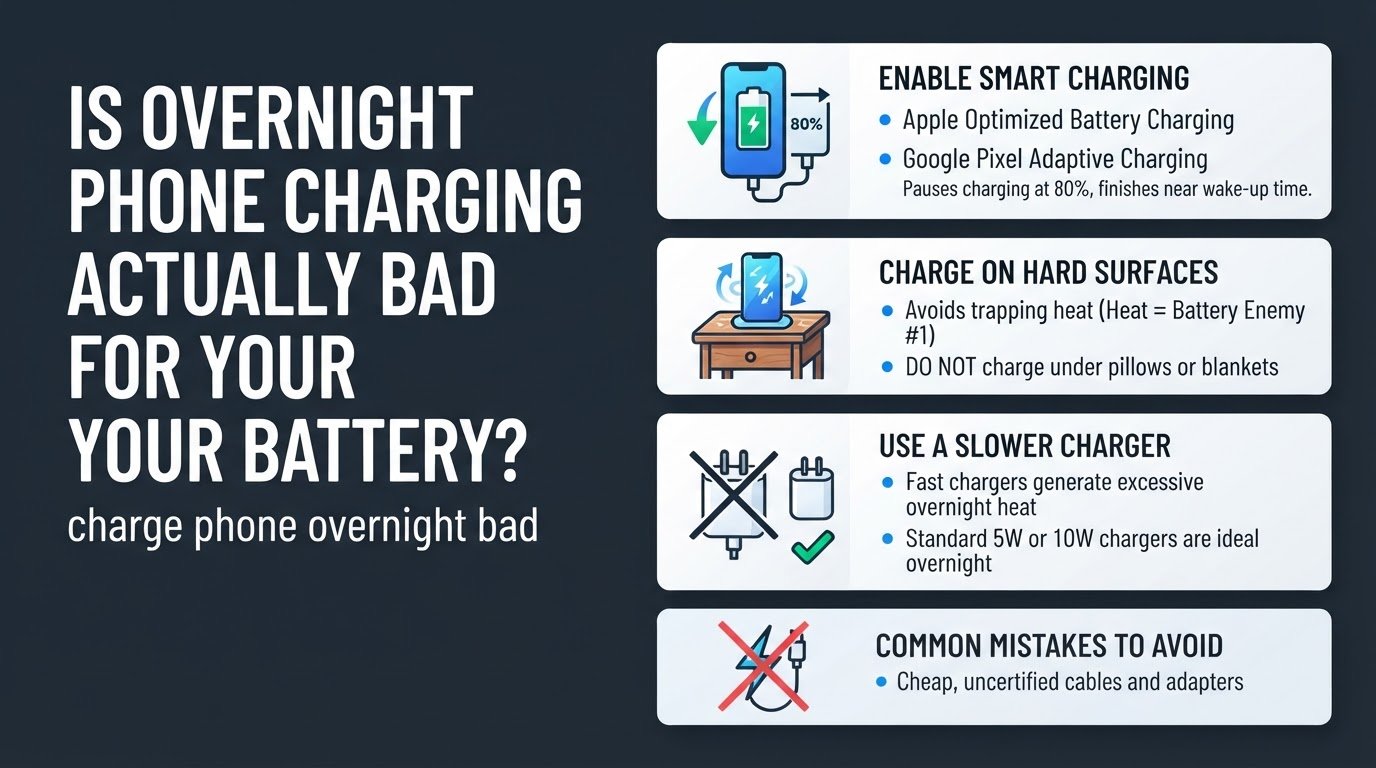
If you regularly leave your phone plugged in overnight, using these settings is critical. For a deeper look at how overnight charging affects your device, see our analysis on Is Overnight Phone Charging Actually Bad for Your Battery?
2. Protect Your Phone from Extreme Heat
Heat is the single greatest enemy of lithium-ion battery chemistry. High temperatures cause permanent, irreversible damage to the battery's ability to hold a charge.
You should avoid exposing your phone to temperatures above 95 degrees Fahrenheit, which is 35 degrees Celsius. In everyday terms, this means you should never leave your phone on a hot car dashboard, in direct sunlight at the beach, or under a pillow while it is charging. If your phone feels hot to the touch while charging, remove its protective case to allow heat to escape more efficiently.
3. Practice the 20% to 80% Rule
Batteries experience the most physical stress at the extreme ends of their capacity: 0% and 100%. Keeping your phone's charge level between 20% and 80% as much as possible minimizes this stress and extends the overall lifespan of the battery cells.
You do not need to obsess over these numbers, but making small changes helps. Try to plug your phone in when it hits 20% rather than letting it die completely. There is a common myth that you must let modern smartphone batteries drain to 0% to calibrate them. This is false. Regularly letting your phone die completely actually damages the chemistry of modern lithium-ion cells.
4. Check Your Cycle Count and Warranty
If your battery health is dropping much faster than expected, you should verify if the degradation qualifies for a hardware replacement.
If your battery health drops below 80% within your first year of ownership, and you are within the standard manufacturer warranty period, you are generally eligible for a free battery replacement. You can check your battery health status directly in your phone settings menu. On newer iOS devices, you can also view your exact battery cycle count in the About section of your settings to see if your usage aligns with the degradation. If you suspect an anomaly, you can search for community experiences on platforms like the Apple Discussion Forums to see if a recent software update is causing temporary calibration issues on your specific model.
Avoid the Double-Heat Effect
One of the most common mistakes users make is using their phone for intensive tasks while it is plugged into a fast charger. Playing high-end mobile games, using GPS navigation, or streaming high-definition video while fast-charging creates a double-heat effect. The fast charger generates heat as it pushes power into the device, and the processor generates heat as it handles the heavy workload. This combined heat rapidly degrades the battery cells. If you need to charge your phone quickly, let it sit idle until the charging cycle is complete.