You log into your router's admin page to check your internet connection, only to find a strange device named "ESP_3A9F2C" or "Espressif" listed as an active client. Panic sets in immediately. You might wonder if a neighbor has cracked your Wi-Fi password to stream movies, or if a remote hacker has compromised your home network.
You have almost certainly not been hacked. This unrecognized device on your home network is highly likely a smart home gadget you already own, such as a smart plug, a smart light bulb, a robot vacuum, or a smart water heater controller. Routers are notoriously bad at identifying connected hardware. Instead of displaying a clear consumer name like "Living Room Smart Plug," your router simply reads the raw manufacturer name of the internal Wi-Fi microchip powering the device.
To put your mind at ease and secure your network, you can easily track down this mystery connection. Understanding why these names appear and following a few simple verification steps will help you identify the hardware. If you are also concerned about other hardware on your network, such as corporate devices, you can read about whether a work laptop can see other devices on your home Wi-Fi.
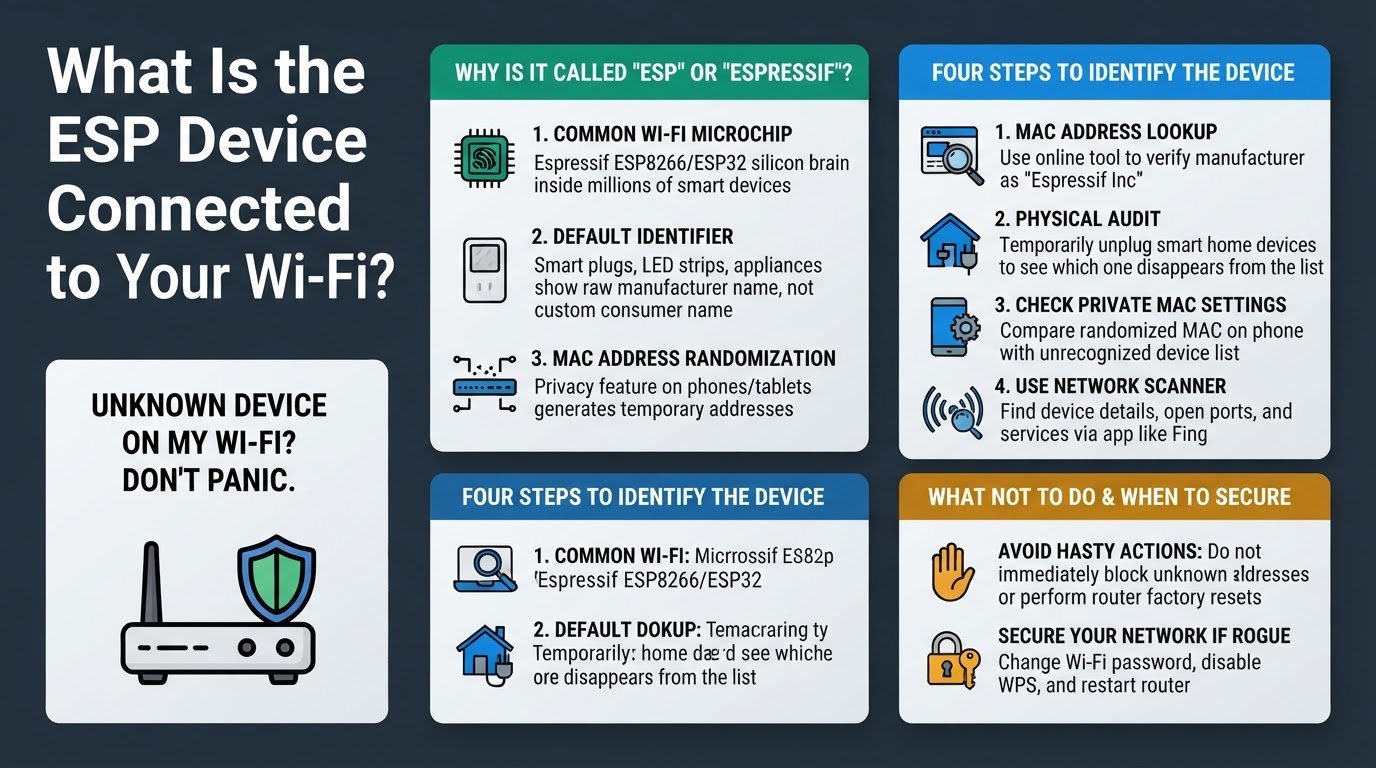
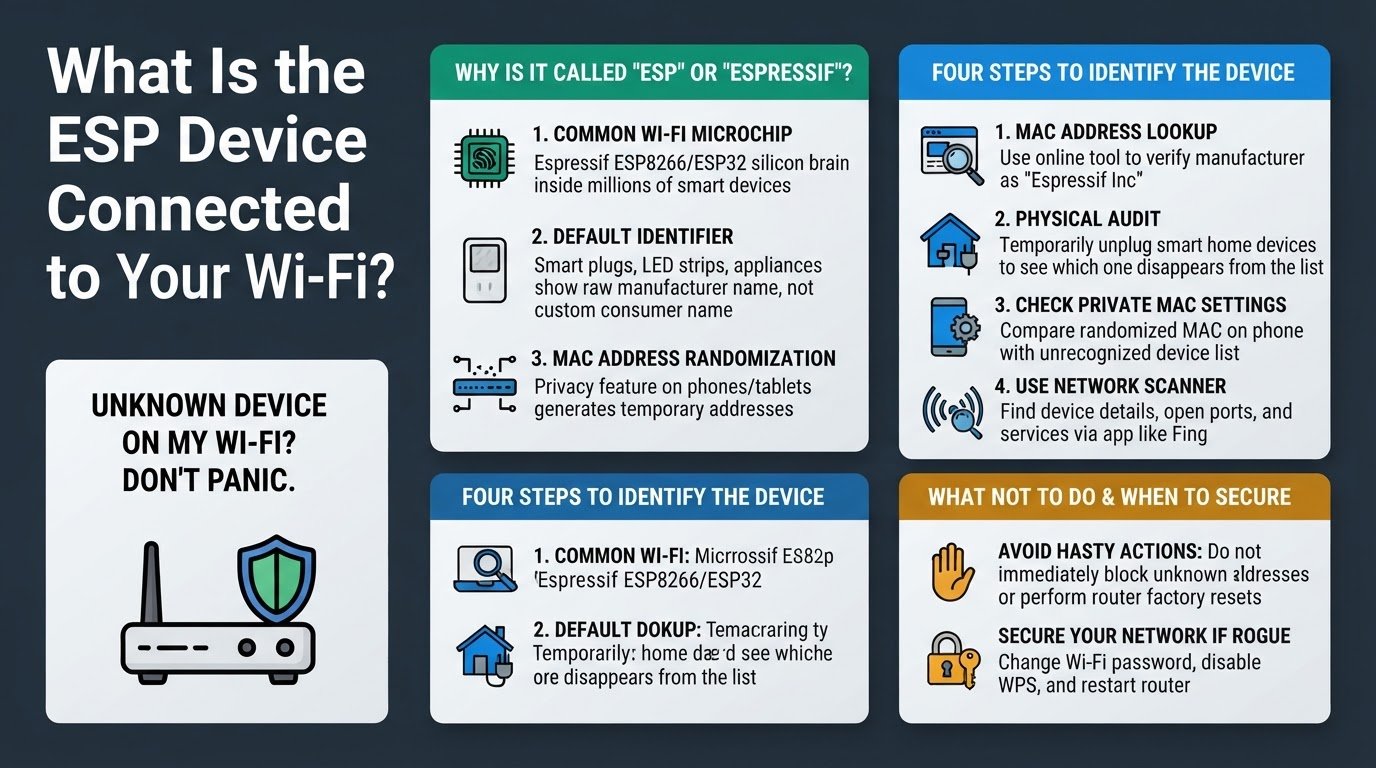
Why Is It Called "ESP" or "Espressif"?
The label "ESP" or "Espressif" refers to a series of low-cost, highly popular Wi-Fi microcontrollers, specifically the ESP8266 and ESP32 chips manufactured by Espressif Systems. These tiny microchips are the silicon brains inside millions of smart home products sold globally, especially budget-friendly smart plugs, LED strip lights, and smart appliances.
Because many smart home brands do not program a custom, user-friendly device name into the chip's firmware, your router only sees the default hardware identifier. When the device requests an IP address, it identifies itself by its chip family, resulting in names like "ESP_3A9F2C" appearing on your client list.
Another common reason for seeing an unknown device on your Wi-Fi is MAC address randomization. Modern smartphones, tablets, and smartwatches use a privacy feature that generates a random Media Access Control address (a unique 12-character physical address for network hardware) every time they connect to a network. This prevents tracking, but it also makes your trusted personal phone look like a completely new, generic device to your router.
Four Steps to Identify the Mystery Device
Before taking any drastic measures, use these practical troubleshooting steps to pinpoint exactly which physical device in your home matches the mysterious name on your router.
1. Perform a MAC Address Lookup
Every network connected device has a unique MAC address, which is formatted as six pairs of characters separated by colons, such as 12:34:56:78:9A:BC. The first six characters of this address represent the Organizationally Unique Identifier, which identifies the company that manufactured the network card.
- Log into your router's administrator dashboard.
- Navigate to the connected devices list or DHCP client table.
- Locate the unknown "ESP" device and copy its MAC address.
- Open a free online MAC lookup tool, such as macvendors.com.
- Paste the MAC address into the tool to view the manufacturer name.
If the tool returns "Espressif Inc" or a similar chip manufacturer, you can confidently narrow your search down to your smart home accessories.
2. Audit Your Smart Home Devices
The most reliable way to identify an "ESP" device is to perform a physical audit of your smart home hardware.
- Keep your router's connected devices page open on your phone or computer.
- Go around your home and temporarily unplug your smart plugs, smart bulbs, smart appliances, or robot vacuums one by one.
- Refresh your router's client list after unplugging each device.
- Note which "ESP" device disappears from the active list.
Once the device disappears, you have found your match. You can then log into your router's settings and manually rename that specific MAC address to something recognizable, like "Kitchen Smart Plug," to prevent future confusion. For more tips on managing your network client list, you can check our guide on how to identify unknown devices on your Wi-Fi.
3. Check for Private MAC Addresses
If the MAC lookup points to a major manufacturer like Apple, Google, or Samsung, but you still do not recognize the device name, check the privacy settings on your household mobile devices.
- On an iPhone or iPad, open the Settings app, tap Wi-Fi, and tap the "i" icon next to your home network. Check if "Private Wi-Fi Address" is turned on, and note the address listed there.
- On an Android device, open Settings, go to Network & Internet, tap Wi-Fi, select your home network, and look for "Privacy" or "Use randomized MAC."
- Compare the randomized MAC address shown on your phone directly with the unrecognized device list on your router.
4. Use a Network Scanner App
If you want to gather more technical details about the device without unplugging your appliances, you can use a local network scanning tool.
- Download a trusted network scanner app, such as Fing, on your smartphone.
- Connect your phone to your home Wi-Fi network and run a scan.
- Locate the unknown "ESP" device in the scan results.
- Look at the active ports or services running on the device.
Many smart home devices run local web servers or specific communication ports that the scanner app can read, which often reveals the brand name of the smart home ecosystem you used to set it up.
What Not to Do: Avoid These Common Mistakes
When dealing with unrecognized devices, hasty actions can cause unnecessary headaches.
- Do not immediately block or blacklist the MAC address: Blocking an unknown "ESP" device in your router's access control settings might accidentally disable essential household utilities, such as your smart thermostat, home security cameras, or digital water purifiers.
- Do not perform a factory reset of your router: Resetting your router wipes out all custom network configurations, including your Wi-Fi name and password. This forces you to go through the tedious process of manually reconnecting and reconfiguring every single smart device in your home.
When to Take Action and Secure Your Network
If you have completed a thorough physical audit, checked all mobile devices for randomized MAC addresses, and still have an active, unaccounted-for device on your network, it is time to secure your Wi-Fi.
- Log into your router's admin panel.
- Change your Wi-Fi password to a strong, unique phrase that you have not used elsewhere.
- Disable WPS (Wi-Fi Protected Setup) in your router's wireless settings, as this feature is vulnerable to brute-force attacks.
- Save the settings and restart your router.
This action will instantly disconnect every device from your network. You will need to enter the new password on your trusted phones, laptops, and smart home hardware. Any genuine rogue device will be permanently locked out, keeping your home network safe and secure.