

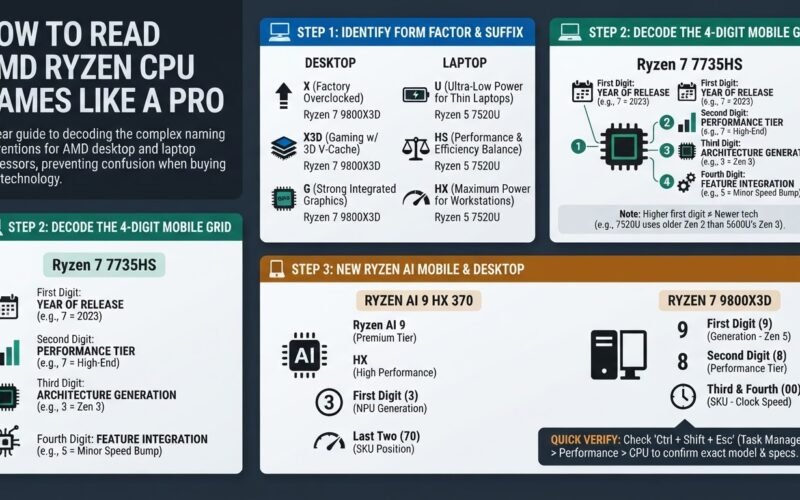
Shopping for a new laptop or building a custom PC often brings you face-to-face with a confusing wall of numbers: Ryzen 7 7735HS, Ryzen 5 7520U, or the newer Ryzen AI 9 HX 370. It looks like a random string of code designed to confuse you, making it incredibly easy to buy an outdated processor by mistake.
The bottom line is that AMD uses two completely different naming systems for its desktop and laptop chips, meaning a higher starting digit does not always mean a newer processor. On laptop chips, the third digit is the most critical number because it reveals the actual microarchitecture generation, which is the Zen version. The trailing letters tell you whether the chip is built for long battery life or raw gaming power.
Step 1: Identify the Form Factor and Suffix
The trailing letters at the end of a Ryzen processor name tell you exactly how much power the chip consumes and what type of device it belongs in. Checking this suffix first helps you immediately filter out chips that do not match your daily workflow.
For desktop processors, the suffixes are straightforward:
- X: Indicates a factory-overclocked chip that runs at higher speeds out of the box.
- X3D: Indicates gaming-optimized chips featuring 3D V-Cache, which is extra stacked memory built directly on the processor to boost gaming frame rates.
- G: Indicates desktop processors with strong integrated graphics, allowing you to build a functional PC without buying a separate graphics card.
For laptop processors, the suffixes determine your battery life and thermal limits:
- U: Indicates ultra-low power chips (15 to 28 Watts) designed for thin, light notebooks where battery life is the main priority.
- HS: Balances performance and power efficiency (35 Watts and up) for slim creator laptops and thin gaming systems.
- HX: Represents maximum power (55 Watts and up) for heavy workstation tasks and high-end gaming laptops. These chips require massive cooling systems and drain batteries quickly. If you are shopping for top-tier gaming systems, you will often find these paired with high-performance graphics cards, such as those featured in the latest Lenovo RTX 50 series laptops in India.
Step 2: Decode the 4-Digit Mobile Grid
For mobile processors in the Ryzen 7000 and 8000 series, AMD uses a four-digit grid. This is where many buyers get tricked into purchasing older technology disguised as a new release.
To read a chip name like the Ryzen 7 7735HS, you must decode each digit individually:
- First Digit (Year of Release): The number 7 means the chip was released in 2023. A number 8 means a 2024 release. This digit does not tell you how fast or modern the technology inside is.
- Second Digit (Market Segment): This indicates the performance tier. Numbers 7 and 8 represent the high-end segment (Ryzen 7), while 5 and 6 represent the mid-range segment (Ryzen 5).
- Third Digit (Architecture Generation): This is the most important number on the spec sheet. It tells you which generation of Zen architecture the chip uses. A 3 means Zen 3 or Zen 3+, while a 4 means Zen 4.
- Fourth Digit (Feature Integration): A 0 indicates a base model, while a 5 indicates a minor performance speed bump or a specific feature variation.
This numbering system creates major traps for buyers. For example, a Ryzen 5 7520U sounds newer than a Ryzen 5 5600U. However, according to Evetech’s guide on CPU naming, the third digit “2” in the 7520U reveals that it uses the older Zen 2 architecture, making it slower in many tasks than older chips built on Zen 3.
Step 3: Decode the Ryzen AI Mobile Scheme
AMD introduced a new naming convention for its latest mobile processors to align with modern artificial intelligence hardware trends. This lineup includes the Ryzen AI 300 and 400 series.
Despite the marketing name, the Ryzen AI 300 series is not a completely separate class of processor designed only for AI tasks. It is AMD’s rebranded mobile lineup utilizing their newest Zen 5 architecture, designed to compete with Intel’s Core Ultra naming.
To decode a name like the Ryzen AI 9 HX 370:
- Ryzen AI 9: This represents the premium performance tier, similar to the Ryzen 9 branding.
- HX: This indicates the high-performance class of the processor.
- First Digit (3): This represents the third generation of AMD’s Neural Processing Unit, which is the dedicated hardware block designed to handle artificial intelligence tasks locally on your device.
- Last Two Digits (70): This is the SKU position. A higher number indicates a faster clock speed and more graphics compute units.
Understanding these distinctions prevents you from overpaying for AI-branded laptops when your daily tasks only require standard processing power, as highlighted in discussions on Ryzen mobile naming conventions.
Step 4: Decode the Desktop Naming Scheme
Desktop processors follow a simpler, more traditional naming scheme. For example, in a desktop chip like the Ryzen 7 9800X3D:
- First Digit (9): This indicates the overall generation. The 9000 series desktop chips use the latest Zen 5 architecture.
- Second Digit (8): This represents the performance tier. Numbers 7 and 8 are reserved for high-end performance chips, while 5 and 6 are mid-range, and 9 is enthusiast-grade.
- Third and Fourth Digits (00): These numbers represent the SKU. Higher numbers within the same tier indicate higher clock speeds.
Because desktop naming does not mix different Zen architectures within the same series generation, you can generally trust that a higher first digit on a desktop processor guarantees newer technology, which is a major difference from the mobile lineup. You can find more details on this in detailed AMD CPU naming breakdowns.
Step 5: Verify Your Real-Time Specs in Windows
Before you finalize a laptop purchase or after setting up a new PC, you should verify that the operating system recognizes the exact processor you paid for.
- Press Ctrl + Shift + Esc on your keyboard to open the Windows Task Manager.
- Click on the Performance tab located on the left-hand menu.
- Click on CPU from the list of hardware components.
- Look at the top-right corner of the window to see the exact model name, base operating speed, and active core count. Cross-reference this exact model name with official manufacturer spec sheets to ensure your system matches your performance expectations.
