You just logged into your personal Google account on your work laptop to quickly check an email or access a personal document. Within seconds, you notice your personal bookmarks, saved passwords, and autofill suggestions appearing in the browser. Now you are wondering: can my company's IT department see my personal passwords, bookmarks, and search history?
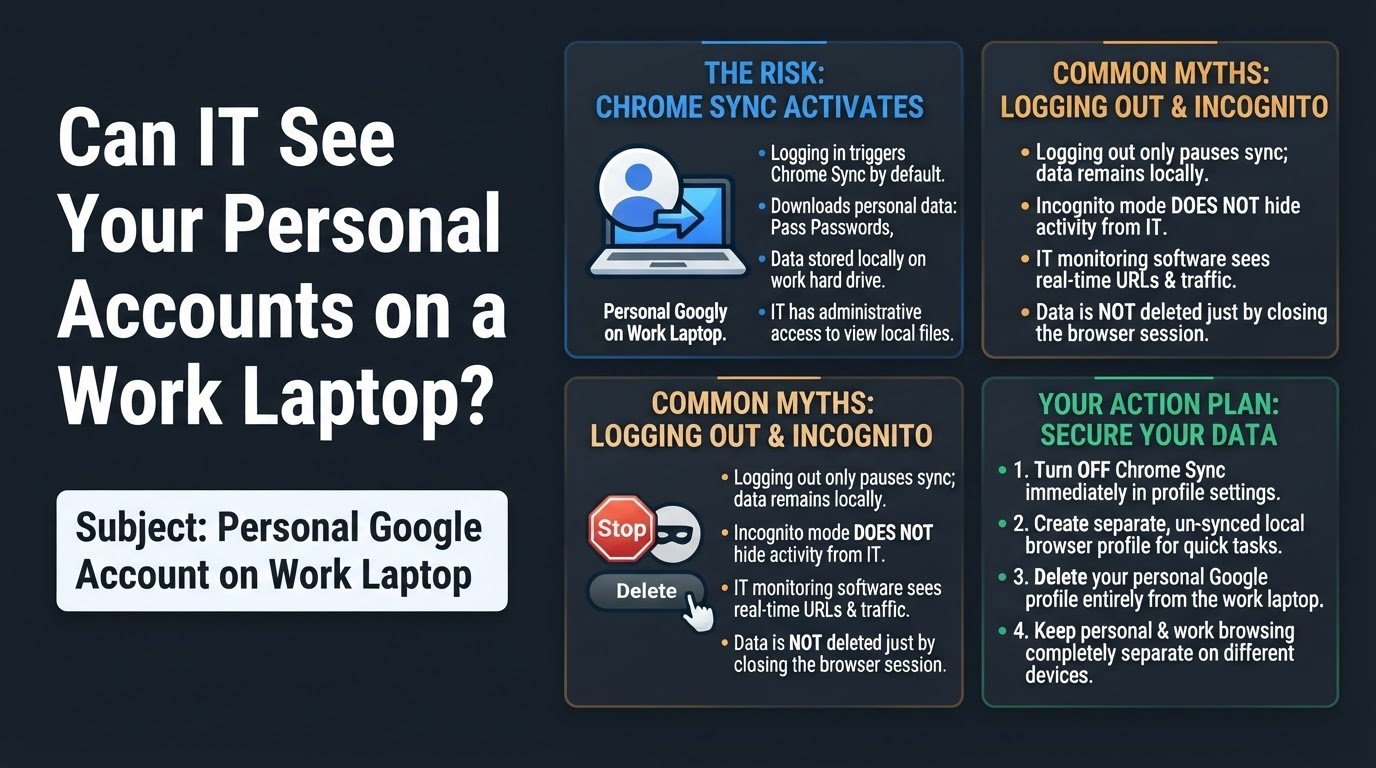
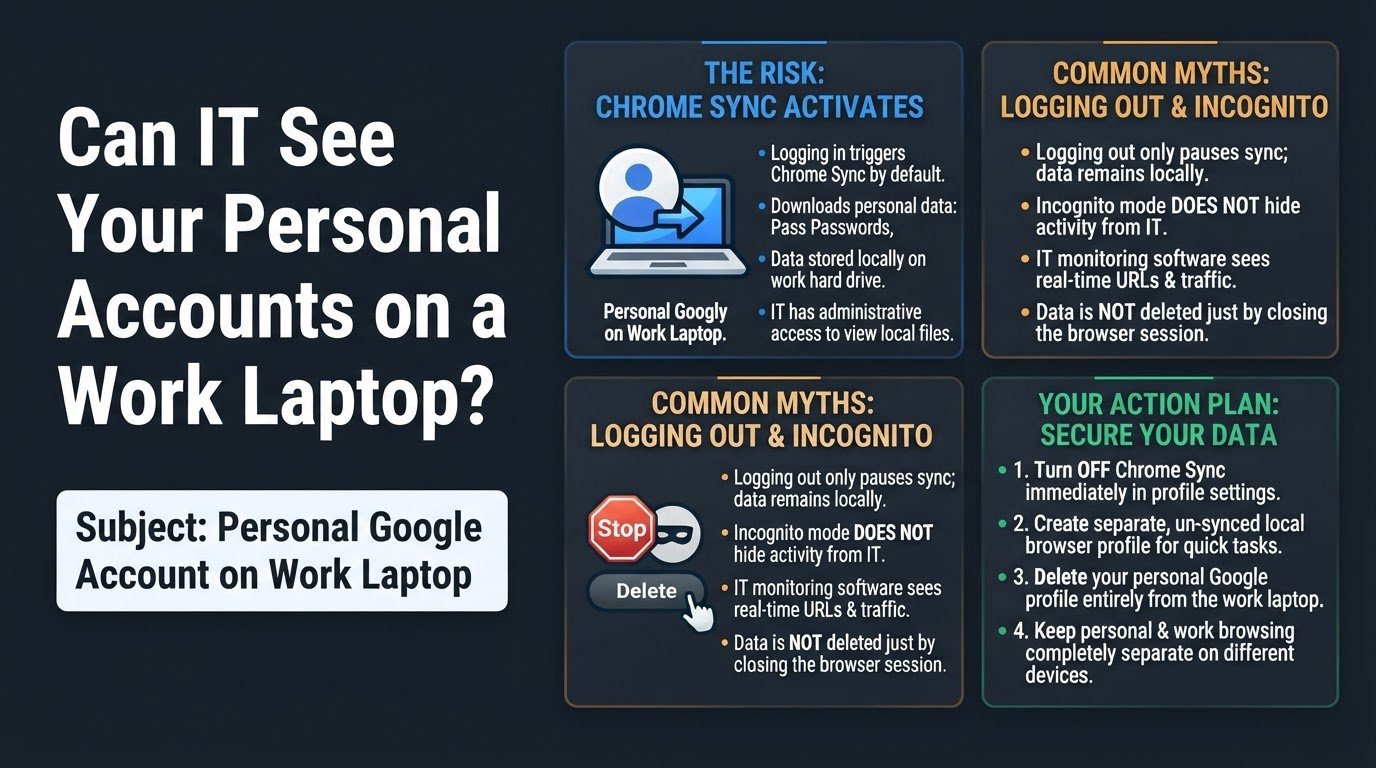
The short answer is yes. When you log into a personal Google account on a work laptop, Google Chrome triggers a feature called Chrome Sync by default. This does not just log you into a website: it actively downloads your entire personal browsing profile, including saved passwords, search history, and bookmarks, directly onto the local hard drive of the work computer. Because your company's IT department has administrative access to the laptop, they can technically access these local files, view your synced data, or monitor active traffic.
Many employees mistakenly believe that logging out of Gmail or closing the tab removes this information. In reality, once Chrome Sync is activated, your data remains stored locally on the machine. If you are concerned about your privacy, you must take immediate action to unsync, isolate, and delete this data from your company-owned device. Understanding how this works is critical, especially when considering how much your boss can see of your personal accounts on a work laptop.
The Technical Reality of Chrome Sync on Work Computers
When you sign into Chrome, the browser assumes you want a unified experience across all your devices. It immediately begins downloading your synced data to the local storage. Since your employer owns the laptop, they likely use Mobile Device Management (MDM) software, which is enterprise software that allows IT departments to manage, monitor, and secure company-owned devices. These tools allow IT administrators to view local files, take remote screenshots, track keystrokes, and monitor network traffic. Even if your passwords are encrypted in transit, they are stored on a machine that you do not fully control.
This issue highlights the fundamental difference between simply accessing a cloud service and actively syncing data to a local drive. If you want to understand this mechanism better, you can read about how syncing differs from cloud backups and why local file replication can compromise your privacy.
Common Mistakes: The Incognito and Logout Myths
Many users rely on quick fixes that do not actually protect their data. The two most common misunderstandings involve Chrome's Incognito mode and simply logging out of your Google account.
First, using Incognito mode does not hide your activity from your employer. Incognito mode only prevents Chrome from saving your browsing history, cookies, and form data locally on that specific browser session. It does not encrypt your traffic from network administrators, nor does it bypass endpoint monitoring software installed on the operating system level. Your IT department can still see every URL you visit in real-time.
Second, simply logging out of Gmail or your Google account does not delete the synced data. When you sign in and enable Chrome Sync, Chrome creates a local user profile folder on the computer's hard drive. Logging out merely pauses the active sync connection. Your saved passwords, personal bookmarks, and past browsing history remain stored in that local profile folder on the hard drive, fully accessible to anyone with administrative rights to the machine.
1. Turn off Chrome sync immediately
The first step is to stop Chrome from continuing to download your personal data to the work computer.
- Open Google Chrome on your work laptop.
- Click on your profile picture or icon in the top right corner of the browser window.
- Click on the button that says "Turn off" next to your Google Account status. According to Google Support, this action stops the active synchronization process and prevents any new personal data from being pulled down from your Google cloud profile.
2. Create a separate, un-synced local browser profile
If you must perform quick personal tasks on your work computer, do not use your main work profile or log into your personal Google account. Instead, set up a temporary, un-synced local profile.
- Click your profile icon in the top right corner of Chrome.
- Scroll down to the "Other profiles" section and click "Add."
- Select "Continue without an account." Google Support guides suggest using this option to keep your temporary browsing data in a separate local container that is never linked to your personal Google account.
- Use this profile strictly for quick, non-sensitive tasks, keeping in mind that local network monitoring tools on the laptop can still log the websites you visit.
3. Delete your personal Google profile from the work laptop
Simply turning off sync does not delete the personal bookmarks, history, and passwords that have already downloaded to the laptop's hard drive. To remove this data completely, you must delete the local profile.
- Click your profile icon in the top right corner of Chrome.
- Click the Settings gear icon next to "Other profiles" to open the profile customization window.
- Locate your personal profile card, click the three vertical dots in the top right corner of that card, and select "Delete." According to Chrome profile removal guides, this action permanently wipes all synced passwords, browsing history, and bookmarks from the local storage of the work computer.
4. Keep personal and work browsing completely separate on different devices
The most secure method to protect your privacy is to establish a strict boundary between your personal life and company hardware.
- Use your personal smartphone, tablet, or personal computer for all non-work activities, such as online banking, personal emails, and social media.
- Avoid logging into any personal accounts on company-owned hardware, even in Incognito mode. Incognito mode only prevents your local browser from saving history: it does not block enterprise monitoring software from capturing keystrokes, recording your screen, or logging network traffic.
- If you are concerned about network-level tracking while working from home, you can learn more about whether a work laptop can see what other devices browse on your home Wi-Fi.