You are getting ready to sell your old Windows laptop to a stranger online or hand it down to a classmate. You open the settings menu, click the factory reset button, watch the progress bar reach 100 percent, and assume your personal photos, bank statements, and tax documents are gone forever.
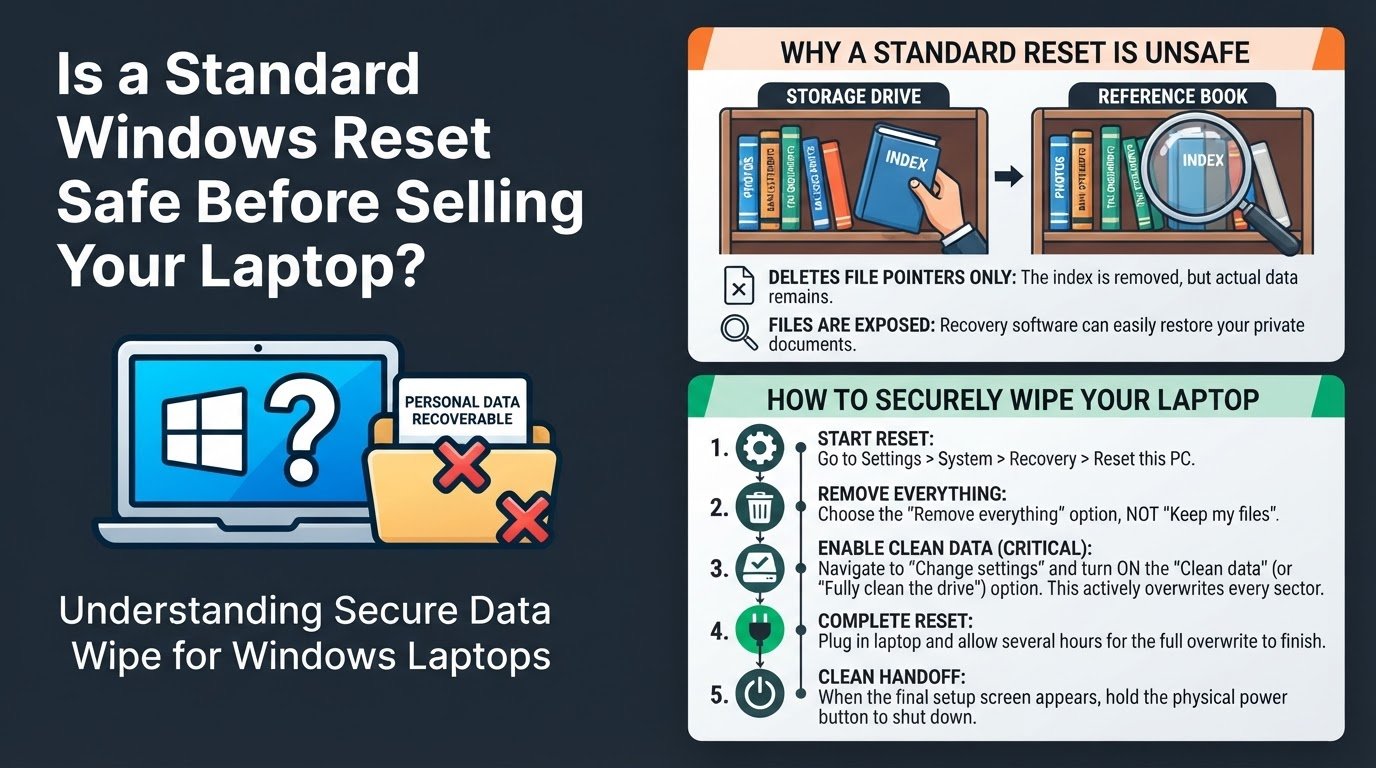
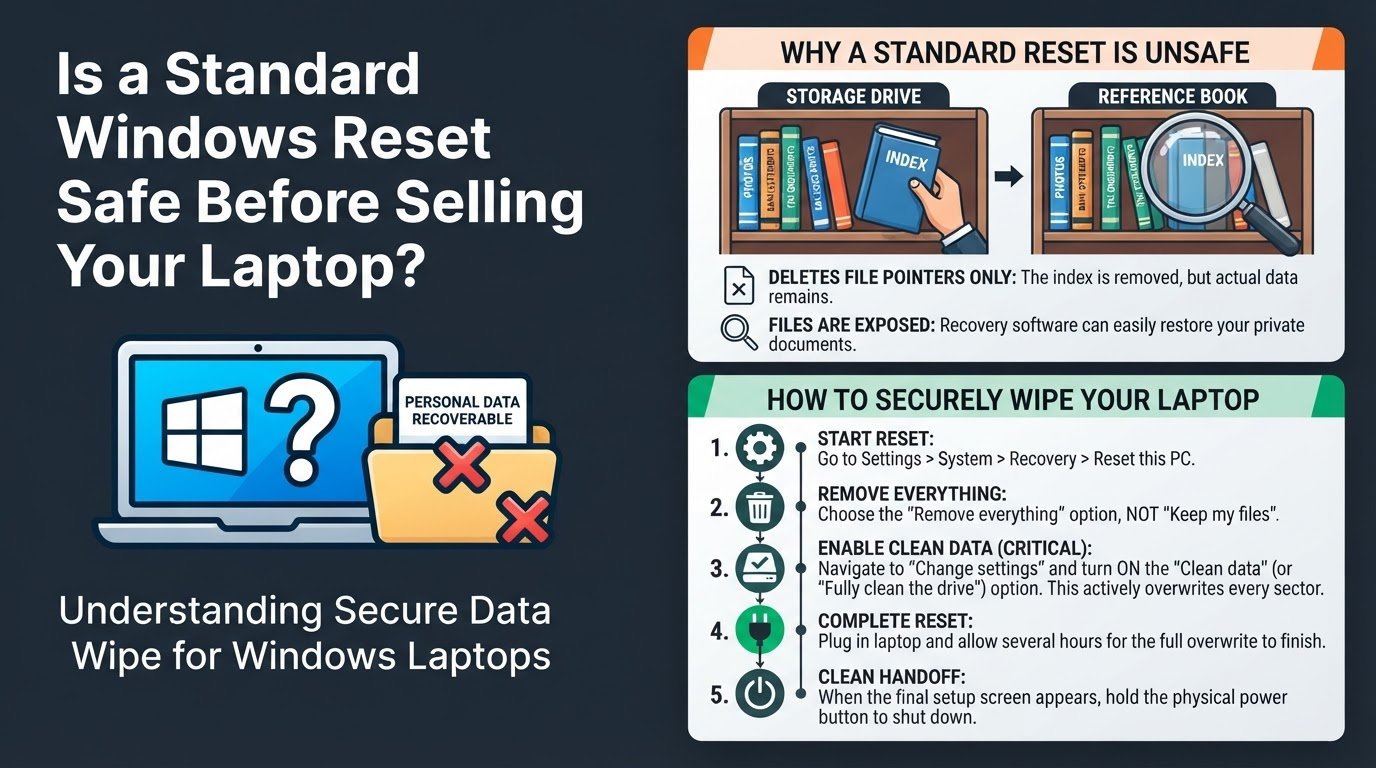
A standard, default Windows factory reset does not actually erase your data. It merely deletes the file pointers, leaving your private files fully intact on the storage drive. Anyone who buys your laptop can download free, off-the-shelf data recovery software, scan the drive, and restore your files in minutes. To make your laptop safe for resale, you must manually enable the clean data option during the reset process to overwrite the drive sectors.
Why a Standard Reset Leaves Your Files Exposed
To understand why your files remain vulnerable, it helps to look at how computer storage works. Think of your laptop's storage drive like a large reference book. A standard quick reset simply tears out the index page at the front of the book. The actual chapters, which represent your photos, browser passwords, and tax documents, remain completely untouched.
Because the index is gone, the computer marks that storage space as empty and ready to be written over. However, until you save new files that physically write over those specific spots on the drive, the old data sits there in silence. Anyone with basic recovery software can bypass the missing index and reconstruct the raw files.
This security gap is different from modern smartphones, which scramble your data automatically using hardware-backed encryption. If you are also trading in a phone, you can read about whether someone can recover your photos after a factory reset on mobile devices. For Windows laptops, you must take manual steps to overwrite the drive sectors with random data or zeros.
How to Securely Wipe Your Windows Laptop
To prevent a buyer from recovering your data, you must force Windows to perform a full, secure erase. This process overwrites the entire drive, making data recovery virtually impossible.
Follow these steps to securely wipe your machine:
1. Open the Recovery Menu
On Windows 11, click the Start menu, open Settings, navigate to System, select Recovery, and click the Reset PC button next to Reset this PC.
On Windows 10, open Settings, select Update & Security, click Recovery, and click Get started under the Reset this PC section, according to Microsoft Support.
2. Choose to Remove Everything
Windows will present you with two options: "Keep my files" or "Remove everything". Select Remove everything. Choosing to keep your files will preserve your user account and personal folders, which defeats the purpose of preparing the machine for a new owner.
3. Select Your Reinstallation Method
You will be asked how you want to reinstall Windows. You can choose Cloud download or Local reinstall. Cloud download pulls a fresh copy of the operating system directly from Microsoft, while local reinstall uses the system files already stored on your device. Either option works for this process.
4. Enable the Clean Data Setting
This is the most critical step of the entire process. On the Additional settings screen, do not simply click Next. Instead, click the Change settings link.
Find the toggle labeled Clean data (which is sometimes labeled "Fully clean the drive") and switch it to ON. This setting instructs Windows to actively write zeros and random patterns over every single sector of your storage drive as detailed by Backblaze. Click Confirm.
5. Start the Reset
Verify that the summary screen lists "Remove files and clean the drive" before proceeding. Click Reset. Because this process actively overwrites your entire drive, it will take several hours to complete. Ensure your laptop is plugged into a reliable power outlet throughout the entire process to prevent the system from shutting down mid-wipe.
Critical Mistakes to Avoid Before Selling
Many users rush through the reset process and leave backdoors open to their private information. Avoid these two common errors:
- Relying on the Quick Reset: It is tempting to skip the drive cleaning step because Windows warns you that cleaning the data can take several hours. Skipping this step leaves your files fully recoverable. Plan ahead and start the secure reset overnight so the laptop is ready the next morning.
- Neglecting Secondary Drives: If your laptop has a second internal hard drive or an SD card slot, the default Windows reset might only target the primary C: drive where the operating system is installed. You must manually format secondary drives or physically remove SD cards before handing the laptop over.
If you decide not to sell the laptop and want to dispose of it instead, remember that retail drop-off bins require their own precautions. Read about whether it is safe to drop your old laptop in a retail recycling bin before letting it leave your hands.
Additionally, if you are resetting a laptop that you used for remote work, ensure you have signed out of all corporate accounts first. Understanding how IT departments monitor devices can help protect your personal data, which you can learn more about in our guide on whether your boss can see personal accounts on a work laptop.
The Final Step for a Clean Handoff
Once the secure reset process finishes, the laptop will reboot and display the initial Windows setup screen, which is the screen that asks the user to select their region and language.
Do not type anything or proceed with the setup. Instead, hold down the physical power button on your laptop until the machine shuts down completely. This leaves the laptop in a clean state, allowing the new buyer to turn it on and experience the fresh setup process as if they just unboxed a brand-new computer.