You are navigating morning traffic, tap the steering wheel button to ask your car's new AI assistant for a quick traffic update, and instead of a helpful voice, you get a silent screen or a frustrating "No network response" error message. With the rollout of advanced generative AI voice assistants in modern vehicles, such as the Perplexity and SoundHound AI integration in the newly launched Hyundai Bayon, this scenario is becoming increasingly common for drivers.
When your car's AI assistant stops responding, your first instinct might be to blame a broken microphone, a faulty infotainment screen, or a software glitch that requires a trip to the service center. However, the technical reality is much simpler. Generative AI assistants in connected cars rely on a continuous, high-speed cellular uplink to cloud servers to process natural language queries and fetch real-time data. When your vehicle enters a low-signal zone, or when the onboard telematics module experiences a brief handshake timeout with the carrier network, the system fails to process commands. You do not have a hardware defect, and you do not need a mechanic. You can resolve this network desync yourself in a few quick steps.
As we track the latest India tech news, smart vehicle technology is moving fast. With vehicles like the India-spec Hyundai Bayon bringing intelligent mobility to daily commutes, drivers are interacting with complex cloud-based systems every day. This rapid integration of AI is part of a broader shift in how we manage data, which is also driving massive AI developments globally.
Here is how to troubleshoot and restore your car's AI voice assistant.
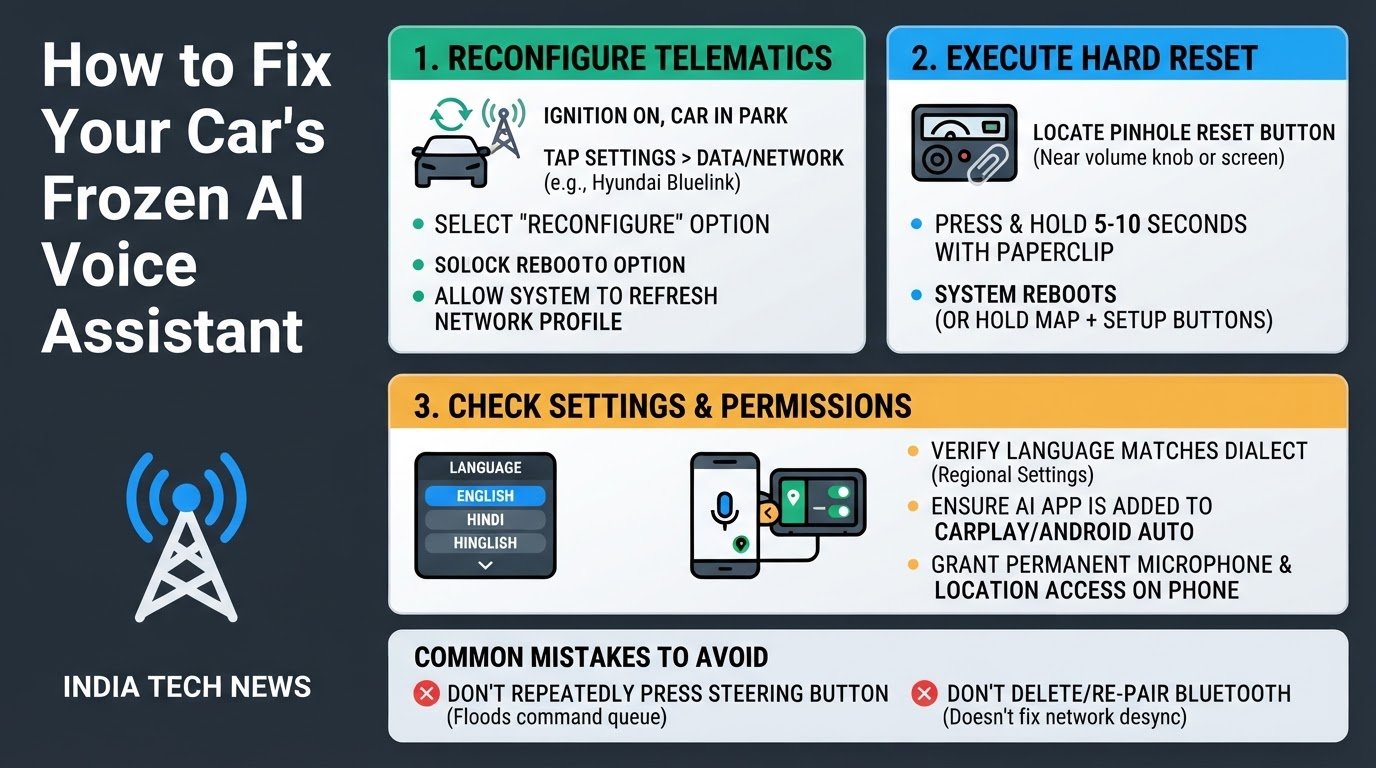
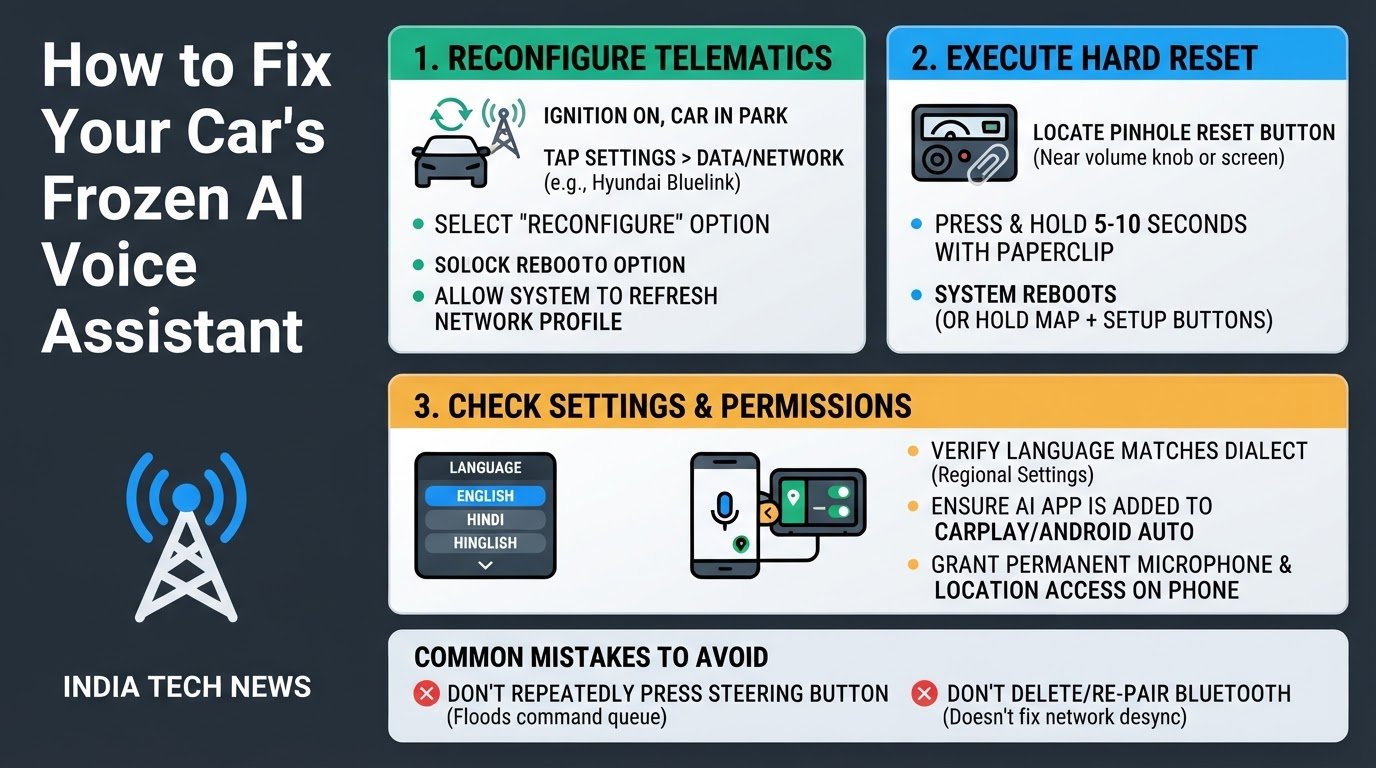
1. Perform a Telematics Reconfiguration
If your onboard system, such as Hyundai Bluelink, loses its connection to the cellular network, the AI assistant cannot reach its cloud servers. Reconfiguring the telematics forces the onboard modem to re-register with the carrier.
- Turn your vehicle ignition on and keep the car in Park.
- Navigate to the main touchscreen menu and select Settings.
- Tap on Data/Network or Bluelink, depending on your specific model.
- Select the Reconfigure option.
- Wait a few moments for the system to refresh its network profile and establish a new connection with the local cellular tower.
2. Execute a Hard Infotainment Reset
Sometimes the infotainment system's memory cache, which is the temporary storage area for system data, becomes cluttered. This causes the voice assistant to freeze. A hard reset clears this cache without deleting your saved radio stations or personal settings.
- Locate the small, circular pinhole reset button on your dashboard. This is typically found near the physical volume knob or the main screen buttons.
- Gently insert a paperclip or a SIM ejector tool into the pinhole.
- Press and hold the button for 5 to 10 seconds until the screen goes completely dark and begins to reboot, as detailed in the Hyundai Support guidelines.
- If your vehicle dashboard does not have a physical pinhole, press and hold the physical Map and Setup buttons simultaneously for 10 seconds to force the reboot.
3. Verify Language and Voice Command Settings
Generative AI engines like SoundHound AI require precise acoustic models to understand spoken commands. If your infotainment system's regional language settings do not match your spoken dialect, the cloud server may reject the input.
- Open the touchscreen Settings menu.
- Select Language.
- Confirm that the active language matches your preferred spoken dialect, such as English, Hindi, or Hinglish.
- Ensuring this match allows the voice engine to load the correct acoustic profile, according to SoundHound Support instructions.
4. Check CarPlay and Android Auto AI App Permissions
If you are projecting your phone to use AI assistants like Perplexity or ChatGPT rather than using the car's native telematics, the issue often stems from mobile permission blocks.
- Disconnect your phone from the car and open your phone's Settings menu.
- Navigate to General, select CarPlay, and choose your specific vehicle from the list.
- Ensure that your preferred AI application is added to the active dashboard layout, as outlined in CarPlay Hacks troubleshooting.
- Open the AI app directly on your phone screen while parked to verify that you have granted the app permanent permissions to access your microphone and location data, which is essential for processing local queries according to ZDNET.
Common Troubleshooting Mistakes to Avoid
When your voice assistant lags, avoid these two common mistakes that can worsen the issue:
- Do not repeatedly press the steering wheel's voice activation button. Pushing the button multiple times while the system is waiting for a network response floods the command queue, which can cause the entire infotainment system to freeze.
- Avoid deleting and re-pairing your phone's Bluetooth connection. While this is a common fix for audio streaming issues, it does not affect the car's built-in cellular telematics or cloud-based AI server connections.