You are streaming a video, joining an important work call, or loading a webpage when someone in the kitchen turns on the microwave to heat up food. Instantly, your internet connection drops to a crawl or disconnects entirely. This frustrating phenomenon is incredibly common in modern households, leaving many users wondering if their home appliances are broken or if their internet service provider is failing them.
The direct reason for this issue is a simple conflict of radio frequencies. Both standard household microwave ovens and older Wi-Fi routers operating on the 2.4GHz band use the exact same radio frequency of 2.4GHz to function. When the microwave runs, minor and completely harmless radio frequency leakage from the oven completely drowns out the weak, low-power milliwatt signals of your 2.4GHz Wi-Fi network.
This does not mean your microwave is broken or emitting dangerous radiation. While microwaves are built with heavy metal shielding to contain their massive 1,000-watt energy, even a tiny fraction of a percent of leakage is strong enough to overpower a router. For comparison, a standard Wi-Fi router transmits signals at only about 0.1 watts. When a 1,000-watt appliance leaks even a tiny sliver of its power, it easily acts as a localized jammer for your home network.
Before attempting to fix the issue, avoid common mistakes that can make your network performance worse. Many users buy cheap Wi-Fi repeaters and place them near the kitchen, which only amplifies the interfered 2.4GHz signal. Others attempt to wrap their router in aluminum foil to shield it, which completely blocks and kills the Wi-Fi signal. If you are struggling with coverage in these areas, you should look into how to fix Wi-Fi dead zones in your kitchen using proper placement rather than temporary hacks.
To resolve this interference once and for all, follow these four practical steps.
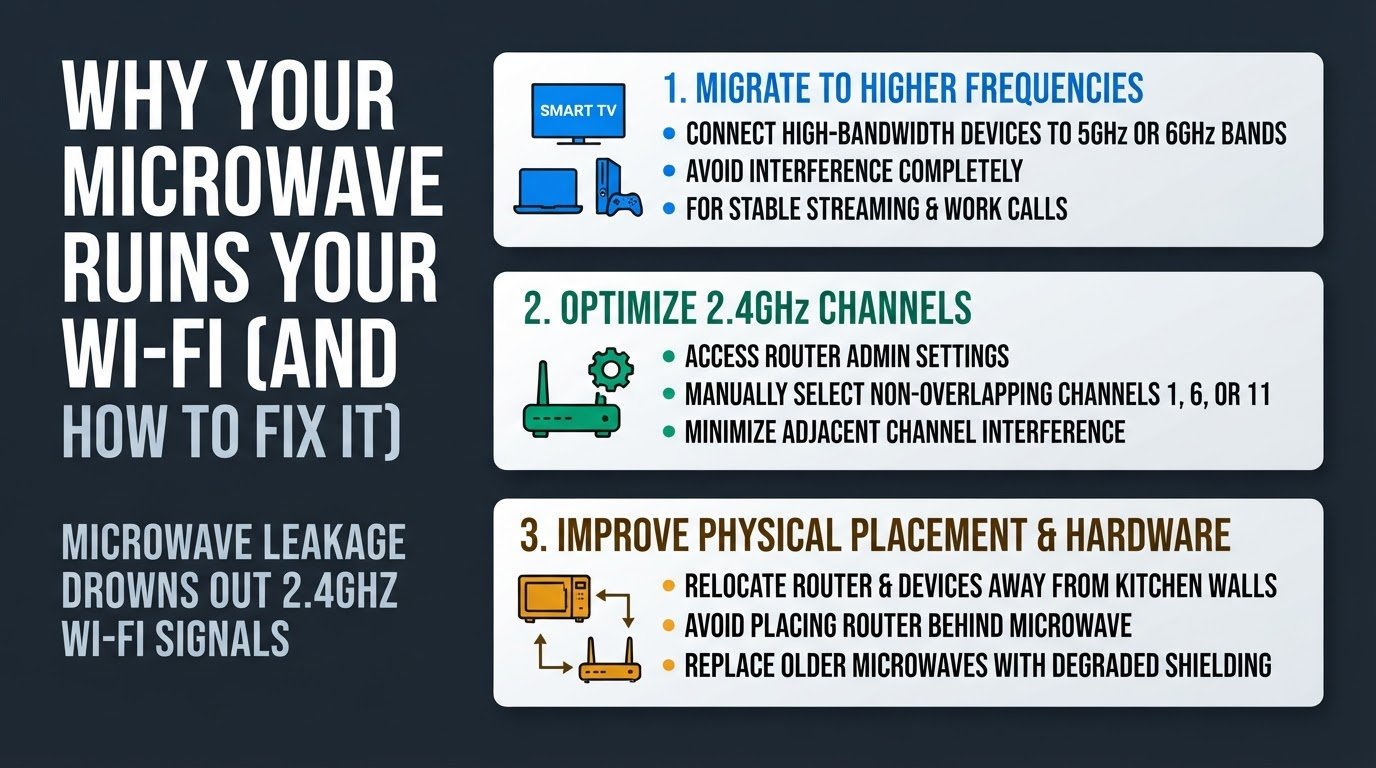
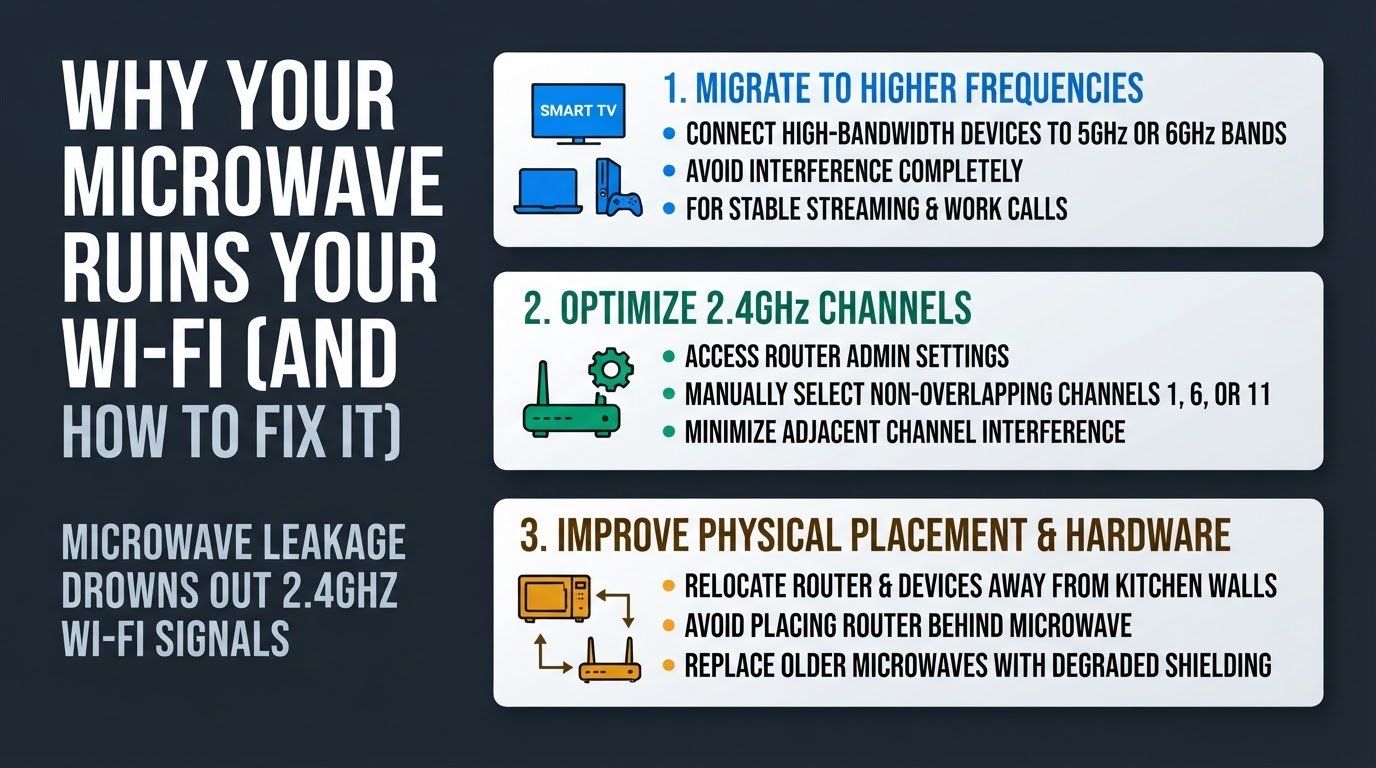
1. Migrate to 5GHz or 6GHz Bands
The most effective way to eliminate microwave Wi-Fi interference is to move your high-bandwidth devices to a different frequency band entirely. Modern routers are dual-band or tri-band, meaning they broadcast signals on the older 2.4GHz band as well as the newer 5GHz and 6GHz bands.
Connect devices like smart TVs, laptops, and gaming consoles to the 5GHz or 6GHz Wi-Fi bands. These bands operate on entirely different frequencies and are completely immune to microwave interference. According to Apple Support, using the 5GHz band is one of the most reliable ways to avoid wireless interference from common household appliances.
If you work from home, migrating your computer to the 5GHz band also helps keep your work traffic stable and secure. If you share a home network, you can learn how to isolate your work laptop on home Wi-Fi to keep your office tasks running smoothly without interruptions from household appliances.
2. Change the 2.4GHz Channel
If you have older smart home devices that only support the 2.4GHz band, you cannot migrate them to 5GHz. Instead, you must change how your router broadcasts on the 2.4GHz frequency.
Log into your router's admin settings through a web browser using the IP address printed on the back of the router. Locate the wireless settings and manually change the 2.4GHz channel to 1, 6, or 11.
These are the only three non-overlapping channels available on the 2.4GHz spectrum. According to Apple's deployment guidelines, configuring these specific non-overlapping channels optimizes wireless performance and minimizes adjacent channel interference. Changing the channel can bypass the specific slice of the frequency where your microwave leaks the most energy.
3. Physically Relocate Your Devices
Physical distance is your best ally against radio frequency interference. The strength of the leaked signal from a microwave drops off significantly with every foot of distance.
Move your Wi-Fi router, mesh network nodes, and active wireless devices as far away from the kitchen as possible. Avoid placing the router directly in the kitchen, in an adjacent hallway, or on a shared wall directly behind the microwave. If your home office desk sits on the opposite side of the wall where the microwave is mounted, relocating your desk even three to five feet away can dramatically improve signal stability when the appliance is running.
4. Replace Older or Damaged Microwaves
If your Wi-Fi drops completely every single time the microwave is turned on, the appliance itself may have degraded shielding. Over time, door seals can wear out, latches can become loose, and the protective mesh screen on the glass door can warp.
Inspect your microwave's door seals, latches, and mesh screen for visible damage or grime. Clean any food buildup around the door seal, as this can prevent the door from closing completely and allow radio frequencies to escape. If the microwave is more than ten years old or shows visible wear on the door frame, replacing the appliance with a modern, well-shielded model is the safest and most permanent solution to resolve the issue.