You are looking for a new job and want to polish your resume. You copy and paste your entire work history, phone number, and home address into ChatGPT to ask for a rewrite. Then a sudden worry hits you: who actually owns this data now? Can OpenAI use your personal contact details, and could your private work history leak to someone else?
The short answer is that OpenAI does not legally claim ownership of your resume or the files you upload. However, by default, OpenAI retains a license to store your chat history and use your uploaded documents to train its future AI models. This means your name, phone number, email address, and employment history are ingested into their training systems. If you leave your settings on default, your personal information could theoretically be processed or exposed in future model outputs.
Understanding the technical reality of how your data is handled is essential before you click upload. Many job seekers make the mistake of deleting a chat after the fact, assuming it retroactively wipes their data from OpenAI's training pipeline. If the "Improve the model for everyone" setting was turned on during the chat, the data has already been processed for training. Another common mistake is using ChatGPT while signed out and assuming your data is private: signed-out sessions still use your data for training unless you manually turn off the training toggle in the signed-out settings menu.
To protect your identity and prevent a chatgpt resume data leak, you must take proactive steps before and during your editing session.
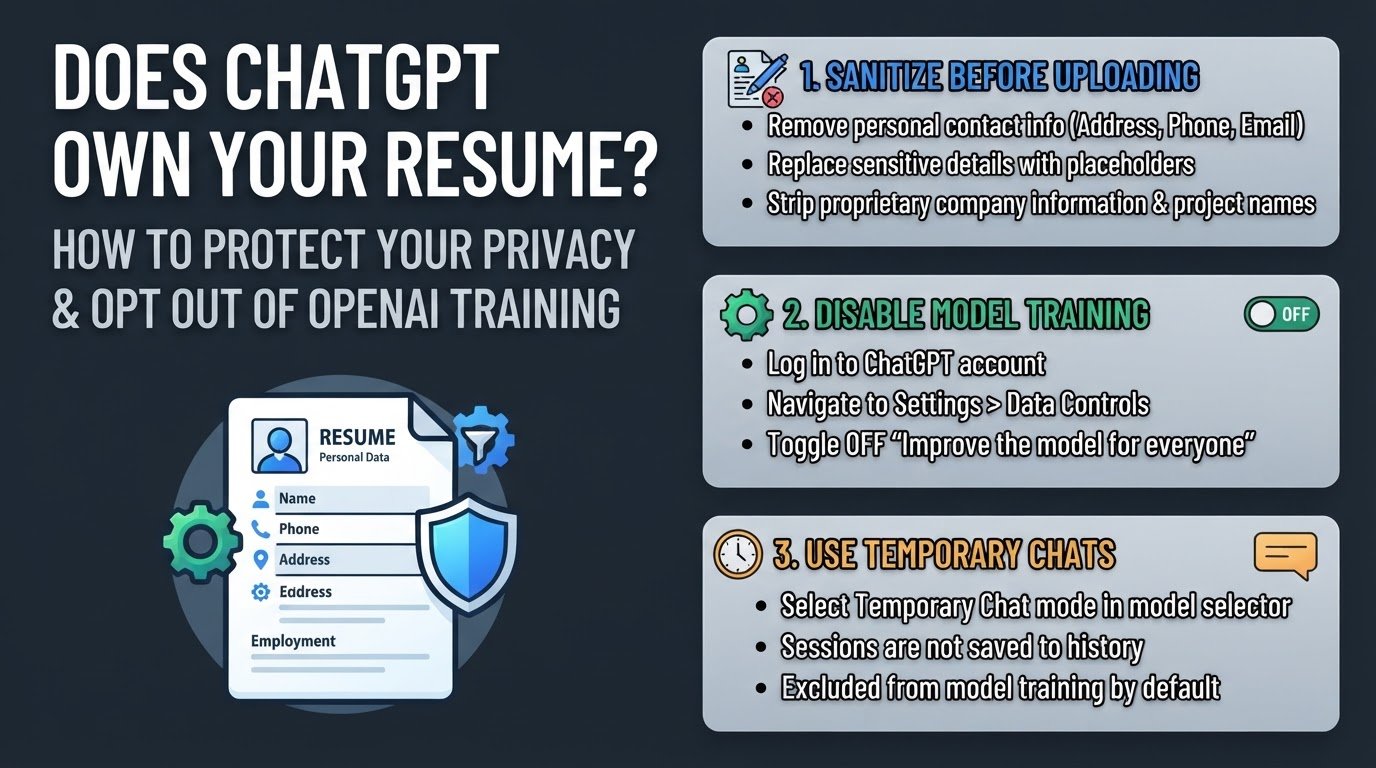
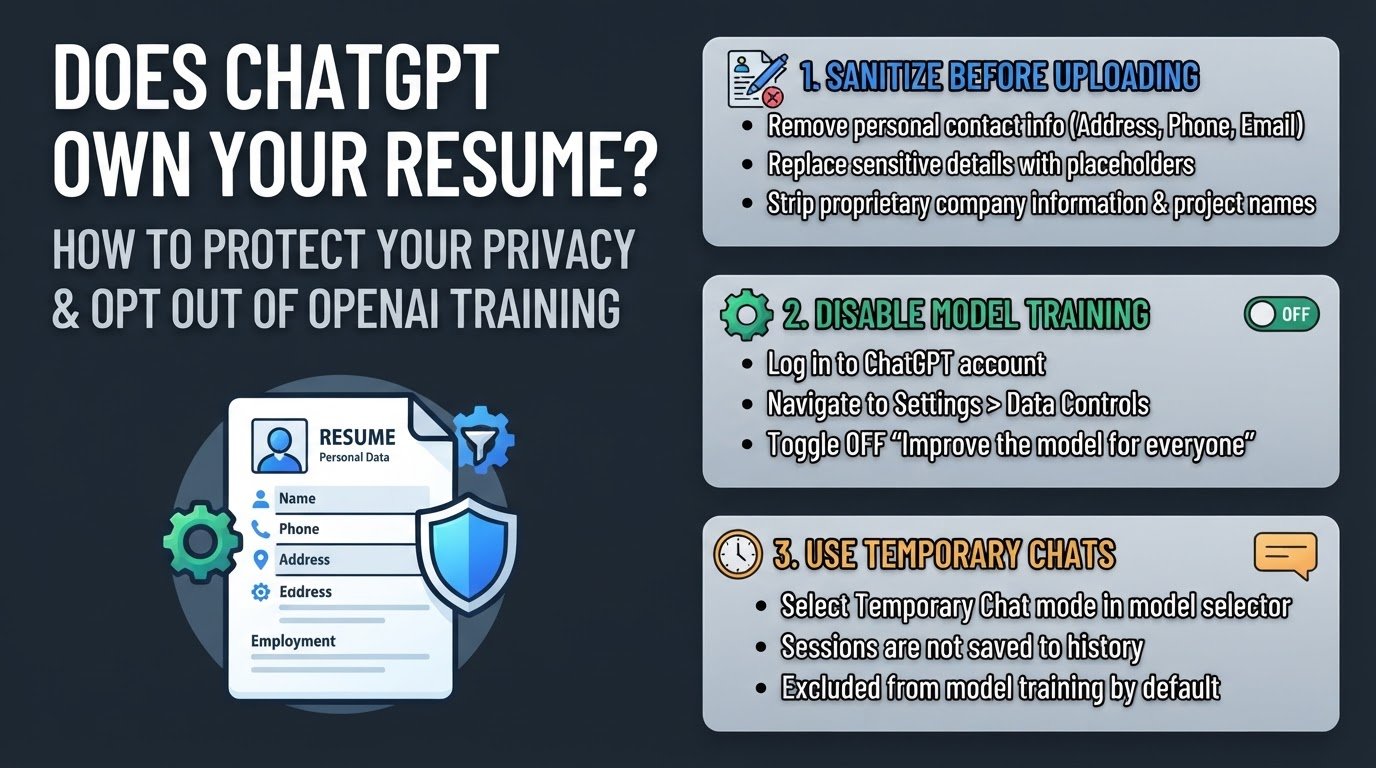
1. Sanitize Your Resume Before Uploading
The absolute safest way to protect your personal information is to ensure it never reaches OpenAI's servers in the first place. Before uploading your document or pasting text into the chat box, strip out highly sensitive personal details.
Remove your home address, phone number, email address, and the contact information of your references. Replace these details with generic placeholders like [Your Phone Number] or [Your Email]. You should also remove specific project names or proprietary company information that could violate a non-disclosure agreement with a past employer. This allows ChatGPT to focus entirely on the structure, grammar, and phrasing of your resume without ever seeing your actual identity. For a deeper look at how raw resume uploads impact your digital footprint, read about Is It Safe to Upload Your Resume to ChatGPT?.
2. Disable Model Training in Your Settings
If you want to use your real resume details without contributing to the AI training pool, you must opt out of openai training manually. By default, OpenAI uses your conversations to refine its models, but you can turn this off in your account settings.
To disable training:
- Log into your ChatGPT account.
- Click on your profile icon in the bottom-left or top-right corner.
- Select Settings from the menu.
- Navigate to the Data Controls tab.
- Toggle off the setting labeled "Improve the model for everyone".
According to OpenAI Support, turning this setting off ensures that any new chats you start will not be used to train future models. Keep in mind that this setting is account-specific, so if you use multiple accounts or use ChatGPT while signed out, you will need to adjust the settings for each session.
3. Use Temporary Chats for Quick Edits
For quick resume adjustments, you can use the Temporary Chat feature. This is a specialized mode designed for one-off tasks where you do not want your conversation saved to your sidebar or used for future training.
To start a temporary chat, click on the ChatGPT model selector at the top of the screen and toggle on the "Temporary Chat" option. According to OpenAI Support, these sessions do not appear in your history, do not create long-term memories, and are excluded from model training by default. This is an excellent tool for pasting a single resume bullet point to ask for better action verbs.
4. Manually Delete Chats and Files
Once you have finished polishing your resume and have copied the improved text back into your local word processor, manually delete the conversation from your ChatGPT sidebar.
To delete a chat, hover over the conversation title in your sidebar, click the three dots, and select Delete. While this action removes the chat from your active history, you should be aware of how OpenAI handles deleted files. According to the OpenAI Privacy Policy, the company may retain a copy of your deleted chats for up to 30 days to monitor for abuse and policy violations before permanently purging them from their active servers. To understand more about how long your data remains in the cloud, you can read about Does ChatGPT Keep Your Deleted Chats?.
By combining these four steps: sanitizing your contact details, disabling model training, using temporary chats, and deleting your history: you can safely use AI to improve your job application materials. For more detailed strategies on managing your personal document security online, see the guide on Is ChatGPT Safe for Resumes?.