You are sitting at your desk, working on your company-issued laptop, while your partner or child is browsing the web on their personal phone in the next room. A sudden wave of anxiety hits you: can your employer's IT department see exactly what your family members are looking at online just because everyone is sharing the same home Wi-Fi network?
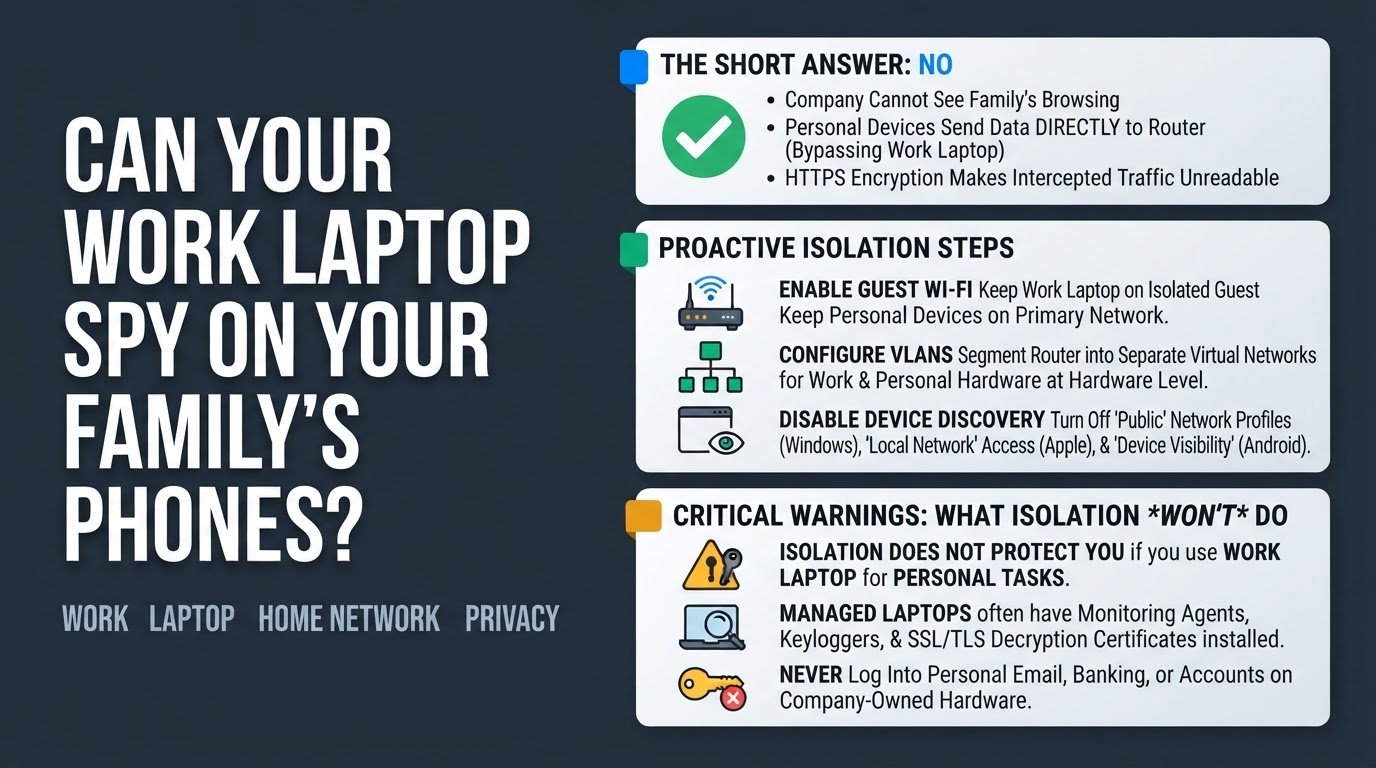
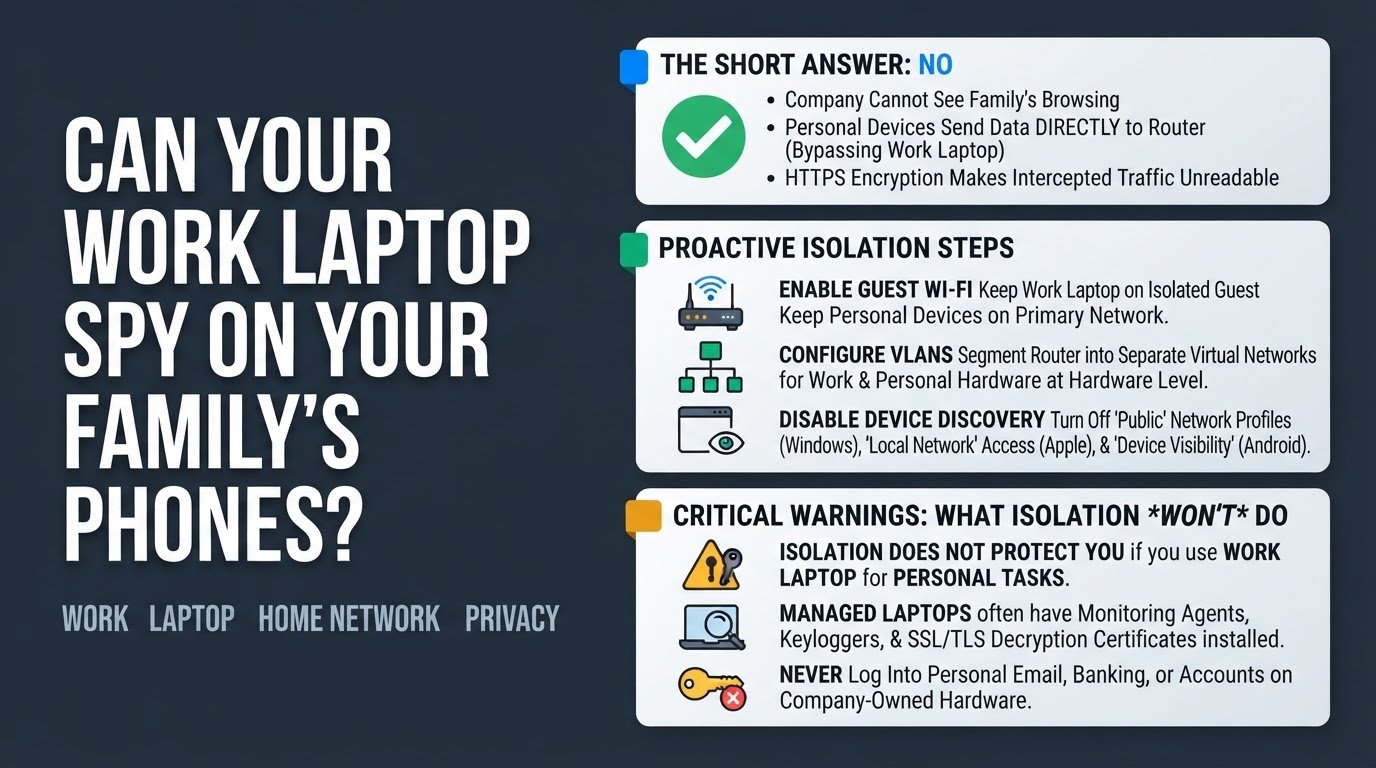
The direct answer is a reassuring no. Your company cannot see what your family is browsing on their personal phones. Your personal devices do not route their internet traffic through your work laptop. Instead, they send data directly to your home router and out to your Internet Service Provider. Because of this direct path, your work computer has no way to intercept or read the web traffic of other devices on your local network, Can Your Work Laptop See What Your Family Browses on Wi-Fi? explains this routing behavior in detail.
Furthermore, almost all modern web traffic is encrypted via HTTPS. This means that even if another device on your network tried to intercept the data packets, the content of those packets would look like scrambled, unreadable gibberish.
However, there is a minor technical caveat. A heavily managed work laptop equipped with advanced endpoint security software can scan the local network to discover active IP addresses, MAC addresses, hostnames, and open ports of adjacent devices according to security experts on StackExchange. If your personal devices are set to be discoverable, a highly monitored work laptop could theoretically probe them.
To ensure absolute privacy and stop your work laptop from interacting with your home network, you can implement a few simple isolation steps.
1. Enable Guest Wi-Fi Isolation
The easiest way to isolate your work laptop from your personal devices is to set up a Guest network on your home router. This creates a separate wireless network that allows devices to connect to the internet but prevents them from communicating with each other.
- Open a web browser on a personal device and enter your router's IP address (usually printed on a sticker on the bottom of the router) into the address bar.
- Log in using your admin credentials.
- Locate the wireless settings and find the option to enable a Guest Network.
- Create a unique name (SSID) and password for this guest network.
- Ensure the setting labeled AP Isolation, SSID Isolation, or Allow guests to see each other is checked or disabled appropriately to block local communication as detailed in GitLab's security handbook.
- Connect only your work laptop to this new Guest network, keeping all personal devices on your primary Wi-Fi network.
2. Configure VLANs for Advanced Isolation
If you have a modern or prosumer-grade router, you can use Virtual Local Area Networks (VLANs) to achieve a more robust level of security. VLANs segment your physical network into multiple, isolated virtual networks at the hardware level.
- Log into your router's advanced administration panel.
- Navigate to the VLAN configuration section.
- Create a new VLAN specifically designated for your work devices.
- Assign a specific Wi-Fi SSID or a physical Ethernet port to this new VLAN.
- Configure your router's firewall rules to block all traffic attempting to travel between your work VLAN and your primary home LAN according to guides on How-To Geek. This ensures that even if the work laptop runs automated network discovery scans, it will see absolutely nothing else on your home network.
3. Disable Local Device Discovery
If your router does not support guest networks or VLANs, you can still protect your personal devices by making them invisible to other machines on the same network.
- On Windows personal computers: Open your network settings, locate your current Wi-Fi connection, and change the network profile from "Private" to "Public." This automatically blocks incoming network probes and disables file and printer sharing.
- On Apple personal devices: Go to Settings, select Privacy & Security, and tap Local Network. Turn off the toggle switch for any apps that do not strictly require communication with other local smart devices.
- On Android personal devices: Go to Settings, search for "Device visibility" or "Nearby Share," and turn these features off when you are working.
4. Keep Personal Accounts Off Work Hardware
While network isolation protects your family's devices, it does not protect your personal data if you use your work laptop for personal tasks.
Managed corporate laptops often use SSL/TLS decryption certificates, endpoint monitoring agents, or keyloggers as detailed by cybersecurity resources like hide.me VPN. These tools capture everything you type, every password you enter, and every website you visit directly on the machine itself, completely bypassing any network-level privacy protections.
To keep your personal life private, never log into your personal email, iCloud, Google, or online banking accounts on your work laptop. For more details on what your employer can track on company-owned hardware, read Can Your Boss See Your Personal Accounts on a Work Laptop?.
Common Mistakes to Avoid
- Connecting personal devices to the Guest network: Many users set up a Guest network for their work laptop but then connect their personal phones to the same Guest network. If AP isolation is not properly configured on your router, this defeats the entire purpose of network segmentation.
- Relying on a personal VPN on your work laptop: Some remote workers install or log into a personal VPN on their work computer, believing it hides their activity from their employer. A VPN only encrypts traffic leaving the laptop: it does not stop the background monitoring software, endpoint agents, or corporate certificates installed on the operating system from logging your keystrokes and screen activity.