You log into your home Wi-Fi router's admin portal or mobile app to check your network speed, and a list of connected devices appears. Instead of seeing clear labels like "My Laptop" or "Living Room TV," you are greeted by a confusing list of cryptic names: "ESP_3a9f2c," "Android-unknown," or "Shenzhen-something." It is incredibly easy to panic in this situation, assuming a tech-savvy neighbor has cracked your password and is actively stealing your bandwidth to stream movies.
The reassuring truth is that your Wi-Fi network has almost certainly not been hacked. In the vast majority of cases, these mysterious network guests are actually your own household gadgets. Wi-Fi routers are notoriously terrible at reading and translating device names, and modern smartphones, tablets, and laptops use randomized security settings that make them look like complete strangers to your home network.
Before you start changing passwords or blocking devices, you can easily demystify your network list and identify every single connected gadget using a few straightforward steps.
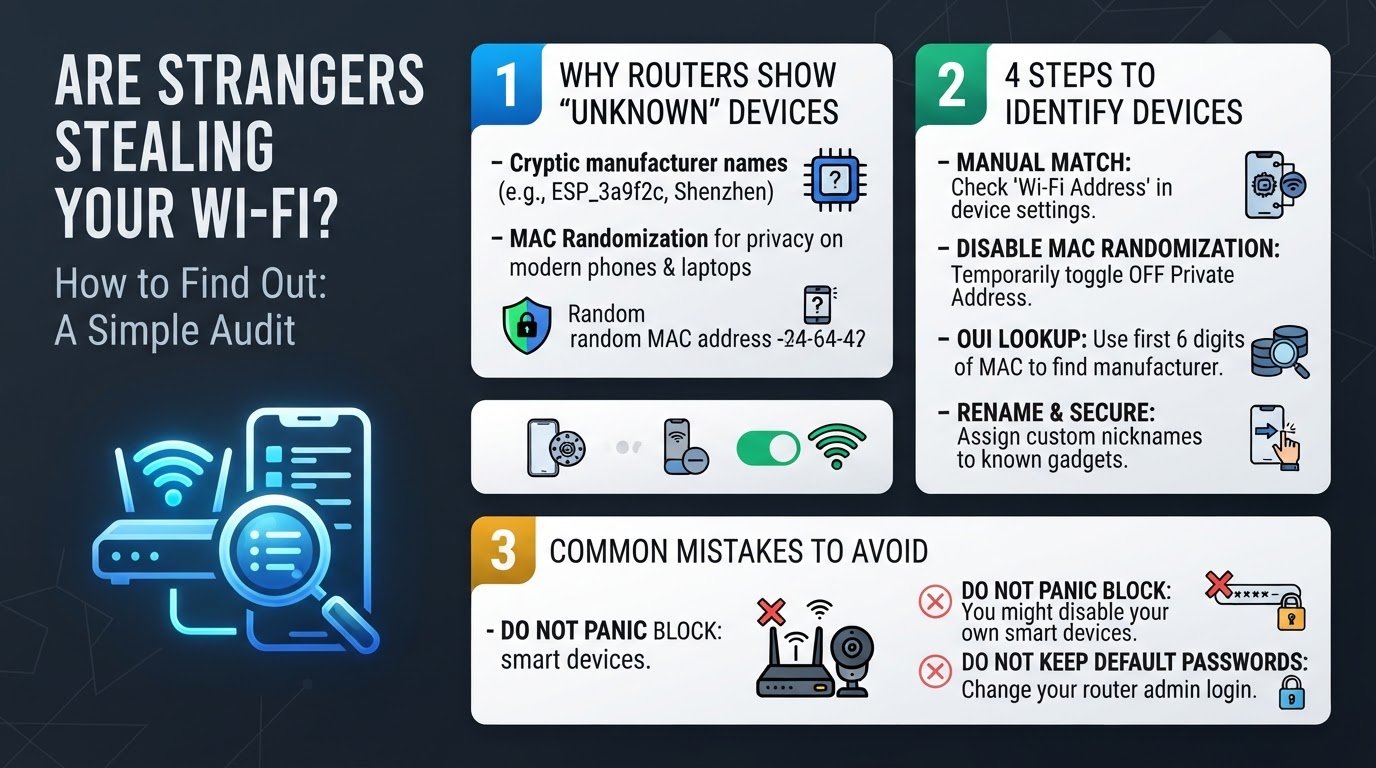
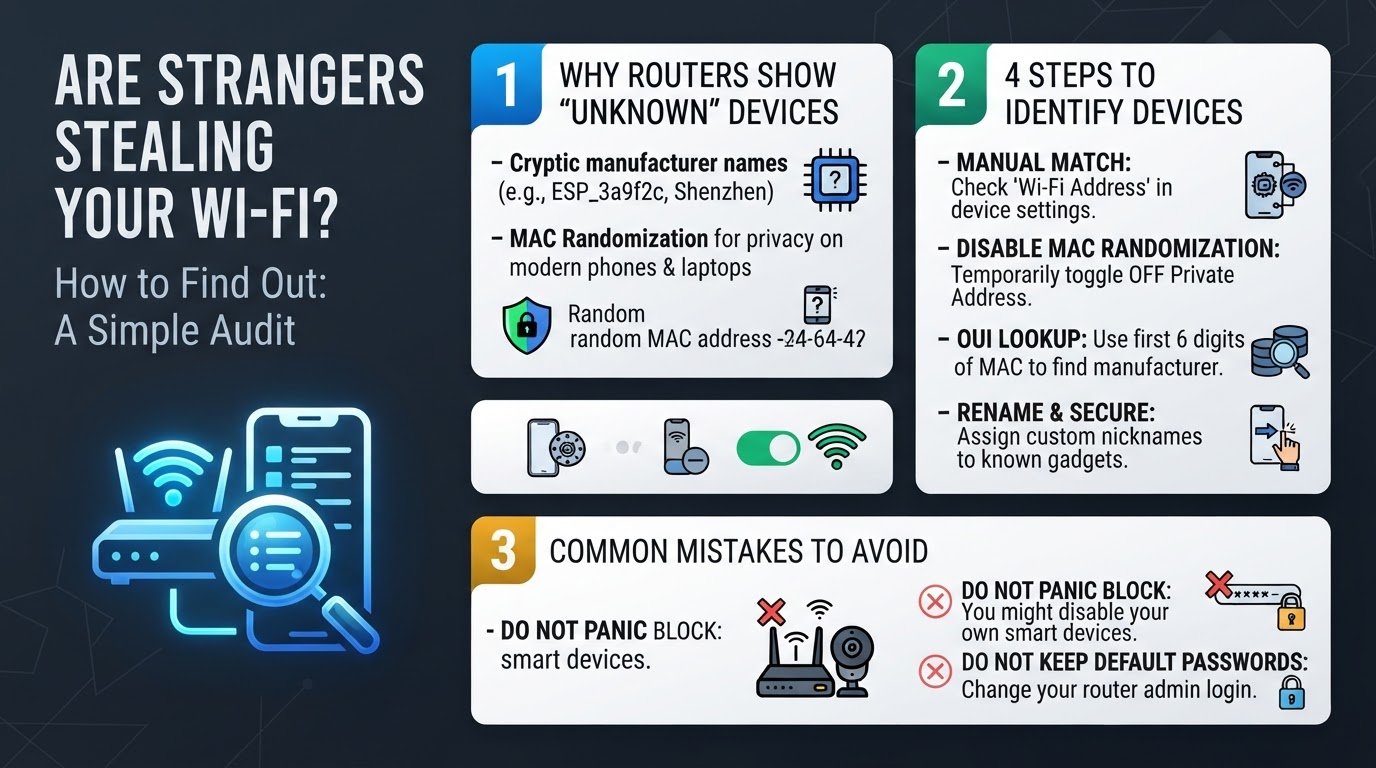
Why Your Router Sees "Unknown" Devices
Every device that connects to the internet has a physical fingerprint called a MAC address (Media Access Control address), which is a unique 12-character code assigned by the manufacturer. In an ideal world, your router would read this code and display the name of your device. However, two main technical realities get in the way.
First, many smart home devices, such as smart plugs, smart bulbs, and security cameras, do not have user-friendly names programmed into their network chips. Instead, they broadcast the name of their internal microchip manufacturer. A smart plug might show up on your router as "Espressif" or "ESP_xxxxxx" because it uses an Espressif systems chip, while your smart television might show up under a generic hardware name. If you are auditing your home network, you might also want to secure your television privacy by learning how to stop your smart TV from spying on you.
Second, modern operating systems on Apple, Google, and Windows devices now use a security feature called Private MAC addresses or MAC randomization. According to the University of Louisiana at Lafayette Service Desk, this feature generates a randomized, fake hardware ID for each Wi-Fi network you join to prevent retail stores and public networks from tracking your physical location. Because your phone presents a randomized identity to your home router, the router treats it as a brand-new, unrecognized device, often labeling it "Android-unknown" or simply "Unknown."
How to Identify and Verify Every Device on Your Wi-Fi
You do not need a computer science degree to clean up your network list. Follow these four practical steps to audit your router.
1. Match MAC Addresses Manually
The most accurate way to verify a device is to compare its physical MAC address with the active client list on your router's admin page.
- On an iPhone or iPad: Go to Settings, tap General, tap About, and look for the Wi-Fi Address.
- On an Android Phone: Go to Settings, tap About Phone, tap Status Information, and look for the Wi-Fi MAC Address.
- On a Windows Laptop: Open the Start menu, type "cmd" to open the Command Prompt, type
ipconfig /alland press Enter. Look for the "Physical Address" under your wireless network adapter. - On a Mac: Hold the Option key, click the Wi-Fi icon in the menu bar, and look for the "Interface Address."
Compare these 12-character codes to the MAC addresses listed next to the "unknown" devices in your router settings. If they match, you have found your device.
2. Temporarily Disable Private MAC Settings
If you have multiple smartphones and tablets in your house, matching MAC addresses one by one can be tedious. You can speed up the process by temporarily forcing your devices to show their real hardware identities.
- On iOS: Go to Settings, tap Wi-Fi, tap the "i" icon next to your home network, and toggle off "Private Wi-Fi Address."
- On Android: Go to Settings, tap Network & Internet, tap Wi-Fi, tap the gear icon next to your home network, tap Privacy, and switch it from "Use randomized MAC" to "Use device MAC."
As detailed by Bark Support, turning off this setting forces your phone or tablet to share its true, static hardware ID. Once you do this, your router will instantly recognize the device by its real name, such as "John's iPhone." Once you have identified and labeled the device in your router app, you can safely turn the Private MAC setting back on for daily privacy.
3. Use an OUI Lookup Tool
If you still see a strange name like "Shenzhen" or "Tuya" on your network, you can use the first six characters of the mysterious MAC address to find out who made the device.
Copy the first six characters (for example, 3C:D9:2B) and paste them into a free online OUI (Organizationally Unique Identifier) lookup tool. According to network diagnostic experts at Paessler, these tools search a global database of hardware manufacturers. The tool will tell you if the chip belongs to Samsung, Amazon, Apple, or a smart-home manufacturer. If the lookup tool returns "Amazon Technologies," the mystery device is likely your Echo Dot or Fire TV Stick.
4. Rename Recognized Devices and Secure the Network
Once you successfully match a weird name to a physical device in your home, do not leave it to puzzle you again next month. Use your router's mobile app or web admin portal to edit the device's nickname. Change "ESP_3a9f2c" to "Kitchen Smart Plug" and "Android-unknown" to "Rohan's Work Phone."
If you are concerned about security risks from work-issued devices on your home network, you can read more about network boundaries in our guide on whether a work laptop can see other devices on home Wi-Fi.
Common Mistakes to Avoid
When auditing your home network, avoid these two common pitfalls:
- Do not panic and immediately block "unknown" devices: Using your router's MAC filtering tool to block unrecognized clients is a tempting quick fix. However, doing so will often accidentally disable your own home security cameras, smart thermostats, or a family member's tablet, resulting in hours of frustrating troubleshooting to get them back online.
- Do not leave default router credentials unchanged: Many users focus entirely on their Wi-Fi password but leave the actual router admin page protected by the factory default username and password (usually "admin" and "admin"). This is the actual security loophole that allows outsiders to access your network settings. According to network security guidelines from ManageEngine, changing your router's default administrator password is the single most effective way to prevent unauthorized access.
If you have completed your audit and a device remains completely unaccounted for, simply update your Wi-Fi password to a strong, unique WPA3 password. This will instantly disconnect every device on your network, forcing you to reconnect your trusted gadgets one by one, leaving any potential freeloaders locked out for good.