You sit down at your desk, boot up your company-issued laptop, and connect it to your home Wi-Fi. A sudden wave of anxiety hits you. Your smart TV is streaming in the living room, your roommate is browsing on their phone, and your personal tablet is sitting right next to you. You wonder if your company's IT department is silently watching everything happening on your private home network.
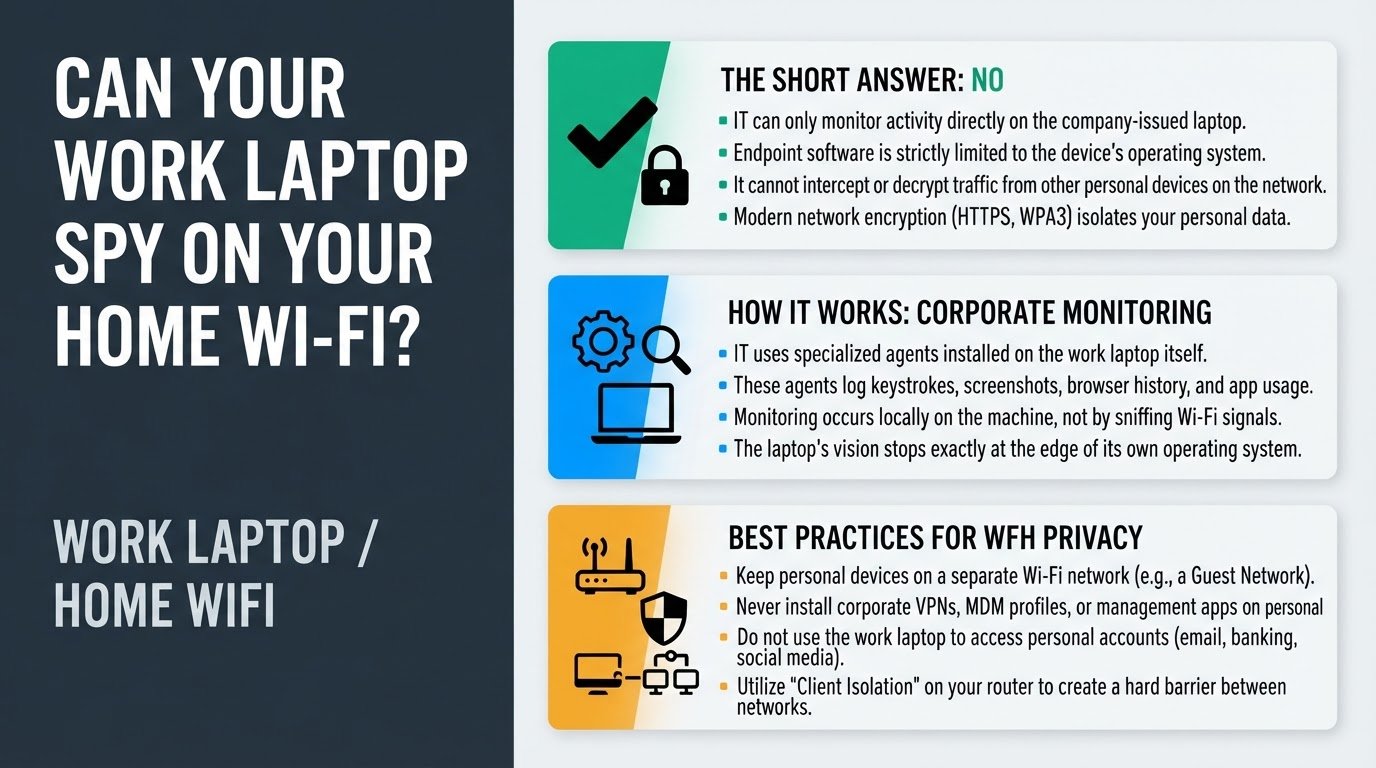
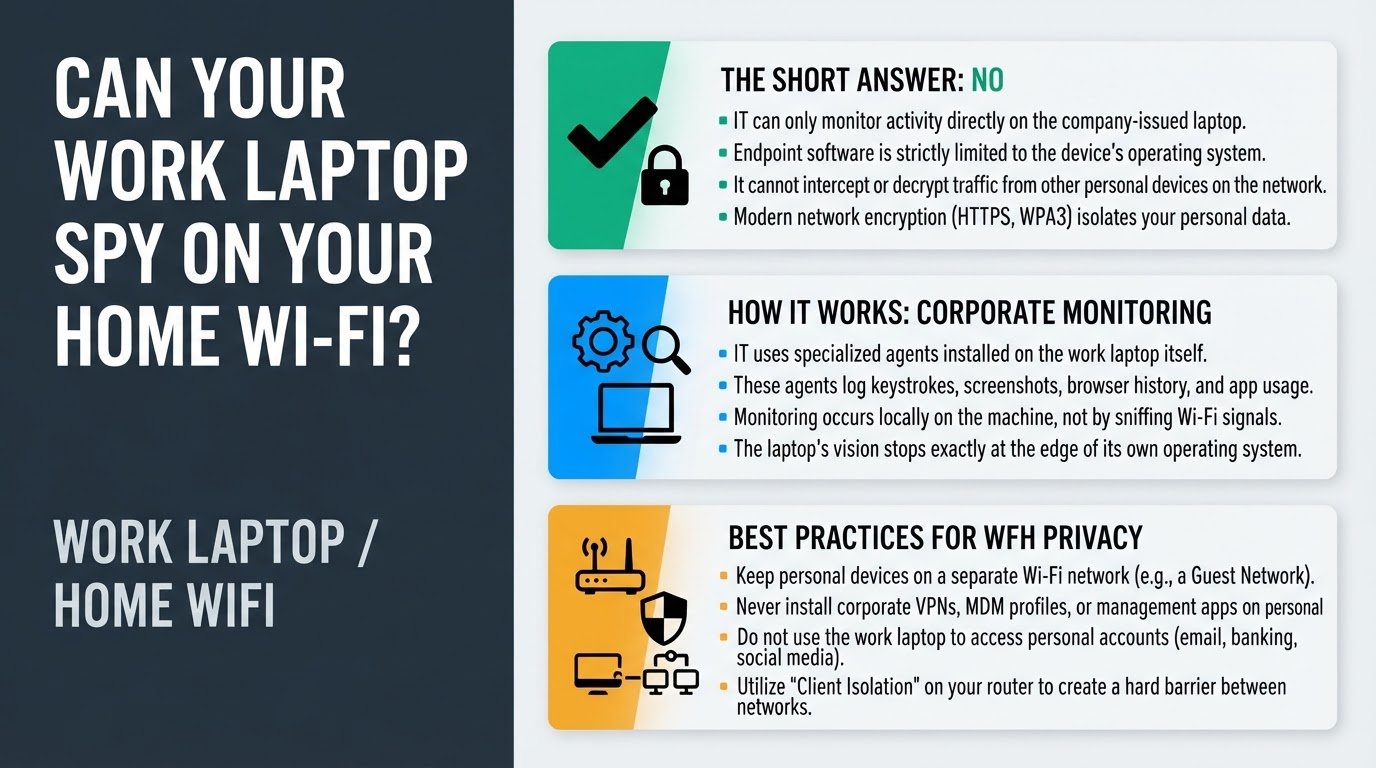
The short answer is no. Your employer's IT department cannot see what your personal devices are doing when you connect your work laptop to your home Wi-Fi. Standard corporate monitoring tools and Virtual Private Networks (VPNs, which are secure, encrypted connections to your office network) only track the activity on the company-issued laptop itself. They do not have the technical capability to sniff, intercept, or decrypt traffic from other devices on your home network.
Modern network encryption, such as HTTPS (the secure protocol used by almost all websites) and WPA3 (the latest wireless security standard), keeps your personal devices isolated. A corporate VPN creates a private, encrypted tunnel specifically for the work laptop's data. If your company uses a "full tunnel" VPN, it actually blocks your work laptop from communicating with other local network devices entirely. If they use a "split tunnel" configuration, your laptop can see local IP addresses (the unique numerical labels assigned to devices on your network) but still cannot read or intercept their web traffic, as confirmed by network security experts on StackExchange.
To ensure complete privacy and keep your personal data secure while working from home, follow these four practical steps.
1. Keep personal devices on a separate Wi-Fi network
If you want total peace of mind and complete digital isolation, you should place your work laptop on a separate Wi-Fi network. Most modern home routers allow you to set up a secondary network, usually called a Guest Network.
- Log into your home router's administration console by typing your router's IP address into a web browser.
- Locate the wireless settings and enable the Guest Network option.
- Turn on the setting labeled "Client Isolation" or "AP Isolation" (Access Point Isolation). This setting prevents any device connected to that network from communicating with other devices on your home network.
- Connect your work laptop to this guest network, keeping your personal phones, smart TVs, and computers on your primary home Wi-Fi.
This simple step creates a hard barrier between your corporate machine and your personal life. According to HP Support network guidance, segmenting your network this way is one of the most effective ways to secure a home office. For a deeper look at how home network routing prevents cross-device spying, you can read more about whether a work laptop can see other devices on home Wi-Fi.
2. Never connect personal devices to the company VPN
A corporate VPN is designed to secure and monitor company data, not your personal life. You must never install corporate VPN clients, configuration profiles, or Mobile Device Management (MDM) software on your personal phone, tablet, or computer.
If you install a work-related communication app like Slack or Microsoft Teams on your personal phone, pay close attention during the setup process. Sometimes, these apps will prompt you to accept a device management profile to comply with company security policies. Accepting this profile grants your IT department administrative privileges over your personal device, which can allow them to monitor your personal web activity, view installed apps, or even remotely wipe your phone. Keep your personal devices completely free of corporate management profiles.
3. Do not use your work laptop to access personal accounts
While IT cannot spy on your personal devices over the Wi-Fi airwaves, they can easily see what you do directly on the work laptop. Avoid logging into personal email, social media, or online banking accounts on your corporate computer.
A common mistake is logging into your personal Google account on the work laptop's Chrome browser. Doing this triggers Chrome Sync, which automatically downloads your personal browsing history, saved passwords, and search queries directly onto the company-monitored browser. If you need to check personal accounts, always use your own personal devices.
If you log into your personal bank account or social media on a company computer, you bypass all network security protections because the monitoring tools are recording your screen and keystrokes directly on that machine. You can read more about how your boss can see personal accounts on a work laptop to understand how local logging bypasses web encryption. Additionally, you can learn about the specific risks of syncing your browser profiles in this guide on personal Google accounts on work laptops.
4. Understand that IT can only see what happens on the company-issued device itself
It helps to understand exactly how corporate monitoring works. IT departments do not monitor you by intercepting local Wi-Fi signals. Instead, they use endpoint monitoring software, which refers to specialized programs installed directly on the work laptop operating system.
These endpoint agents log keystrokes, take periodic screenshots, record browser history, and track application usage directly on the device. Because this software lives inside the work laptop, its vision is strictly limited to that specific machine.
As discussed in cybersecurity community forums, endpoint software has no way of jumping across your Wi-Fi router to inspect the data packets of your smart TV or your roommate's phone. Your personal browsing remains private because the monitoring software simply lacks the access rights and technical tools to look outside its own operating system.
Checking your router's connected devices list once a month is a great habit to ensure only authorized devices are on your primary network.