You downloaded a shiny new 3-billion parameter Small Language Model to run locally on your laptop, expecting ChatGPT-like speeds. Instead, you are staring at a blinking cursor that spits out one painful word every three seconds. Your cooling fans are screaming, your device is heating up, and you are wondering why your expensive, multi-core processor is failing so spectacularly.
The common consumer myth is that running local AI models on-device only requires a fast CPU or GPU. Many users expect cloud-like speed on standard consumer hardware simply because they have a high-end gaming laptop or a recent smartphone. In reality, local Small Language Model execution is heavily bottlenecked by memory bandwidth and capacity, not raw compute power.
Because AI model inference is autoregressive, generating a single word requires the processor to load the entire model's weights from your system memory. Standard system RAM, such as DDR4 or DDR5, lacks the massive bandwidth of dedicated Video RAM or unified memory architectures. This creates a severe data traffic jam, dragging your generation speeds down to a crawl. To make matters worse, many users try to fit massive models into small memory pools by using aggressive quantization, which compresses weights to 4-bit or 2-bit sizes. While this allows the model to fit, it severely degrades model accuracy and logical coherence, turning your smart assistant into an incoherent chatterbox.
As the tech industry transitions toward edge computing, understanding how to optimize these local models is crucial. You can read more about this industry shift in our analysis of On-Device SLMs vs Cloud Giants. To get your local setup running at peak performance, follow this practical optimization guide.
Step 1: Calculate Your Minimum Memory Requirements
Before downloading a model, you must calculate whether your hardware can actually support it. Running a model that exceeds your physical memory capacity forces your operating system to swap data to your slow system RAM or SSD, which instantly ruins performance.
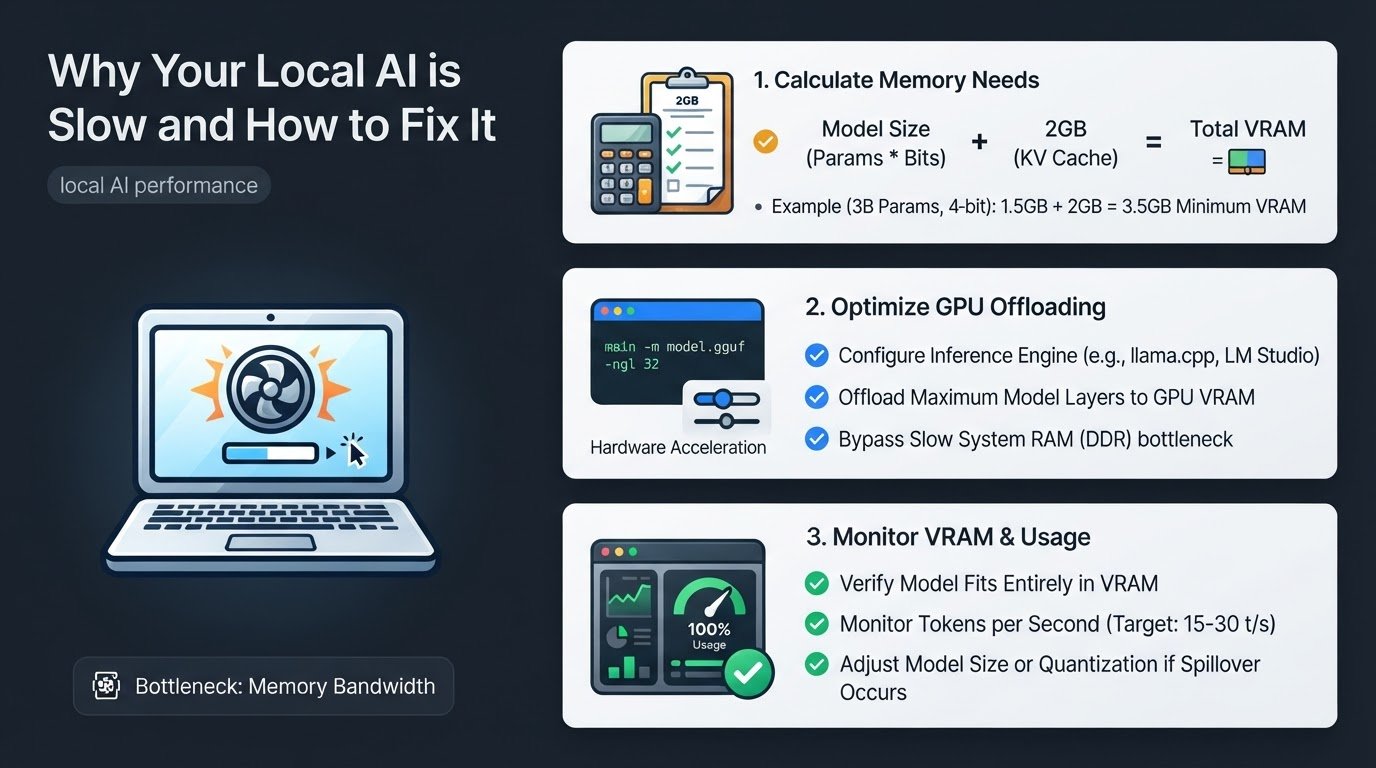
To find your true memory requirement, multiply the model parameter count by the quantization bit-width, then add a 2GB buffer for the Key-Value cache, which stores the active conversation history.
For example, if you want to run a 3-billion parameter model at 4-bit quantization:
- Multiply 3 billion parameters by 4 bits, which equals 12 billion bits.
- Divide by 8 to convert bits to bytes, giving you 1.5GB of base model weight.
- Add a 2GB buffer for the Key-Value cache and system overhead.
- Your minimum dedicated memory requirement is 3.5GB.
If your graphics card only has 4GB of VRAM, this model will fit comfortably. However, trying to run an 8-billion parameter model at 4-bit quantization on that same 4GB card will force the system to spill over into slow system RAM, causing massive lag. For a deeper look at managing these performance bottlenecks, check out our guide on How to Make Your Slow Local AI Run Faster.
Step 2: Configure Your Inference Engine for GPU Offloading
Most local AI enthusiasts use open-source inference engines like llama.cpp to run their models. By default, these engines might rely too heavily on your CPU and standard system RAM, leaving your powerful graphics card underutilized.
To maximize your memory bandwidth, you must configure your engine to offload as many model layers as possible directly to your GPU VRAM.
- Open your terminal or command prompt.
- Locate your llama.cpp executable or configuration file.
- Use the GPU offload flag, which is
-nglor--n-gpu-layers, followed by the number of layers you want to send to the GPU. For example, runningmain -m model.gguf -ngl 32instructs the engine to push 32 model layers directly into your graphics card memory. - If you use a graphical interface like LM Studio or Ollama, navigate to the application settings, locate the hardware acceleration section, and slide the GPU override controls to maximum.
By forcing these layers into VRAM, you bypass the slow DDR4 or DDR5 system memory bottleneck, allowing the processor to access model weights at speeds up to ten times faster.
Step 3: Run Engine Benchmarks and Monitor VRAM Spillover
Once your model is running, you need to verify that it fits entirely within your physical VRAM. If even a single layer spills over into your system RAM or storage drive, your token generation speed will drop to unusable levels.
- Open your local inference engine and launch a test prompt.
- Monitor the console output for the token generation speed, which is measured in tokens per second. A healthy local SLM on consumer hardware should generate between 15 and 30 tokens per second, which is roughly equivalent to a comfortable reading speed.
- Open your operating system task manager or GPU monitoring tool, such as Nvidia-SMI on Windows or Activity Monitor on macOS.
- Observe the dedicated VRAM usage. If the VRAM usage is pegged at 100 percent and your system shared memory usage starts climbing, your model is too large.
- If spillover occurs, close the engine and reload a slightly smaller model or a higher quantization level, such as switching from a 4-bit model to a highly optimized 3-bit model, to ensure it fits entirely within your graphics card memory.
Step 4: Implement a Hybrid Routing System
Running everything locally is great for privacy, but local SLMs often struggle with complex, multi-step logical reasoning. To get the best of both worlds, you can set up a hybrid routing system using tools like Open WebUI.
This setup keeps your low-latency, privacy-sensitive tasks on your local machine while routing heavy reasoning tasks to external cloud APIs.
- Install a local UI controller like Open WebUI and connect it to your local Ollama or llama.cpp instance.
- Input your API keys for external services like OpenAI, Anthropic, or local privacy-focused cloud providers.
- Set up routing rules within the interface. For simple tasks like text summarization, email drafting, or basic coding help, configure the system to use your local SLM.
- For complex data analysis, long-form translation, or multi-step logic, set the interface to route the query to a cloud-based LLM.
This hybrid approach ensures that you conserve your local hardware resources, reduce battery drain on your laptop, and maintain fast response times for your daily workflow. For more insights on running models locally, you can read about the practical benefits of local LLM deployment according to Open Data Science.
To keep your local system running smoothly, make it a habit to close memory-heavy web browser tabs and background applications before launching your local AI engine. This simple step frees up vital system memory and prevents unexpected performance drops during your local chat sessions.